![Projul Logo 345PX wide.png]](https://knowledge.projul.com/hs-fs/hubfs/Projul%20Logo%20345PX%20wide.png?height=40&name=Projul%20Logo%20345PX%20wide.png)
You can change the client associated with estimates, invoices, or projects.
Contents
- Changing the client on an estimate
- Changing the client on an invoice
- Changing the client on a project
Changing the client on an estimate
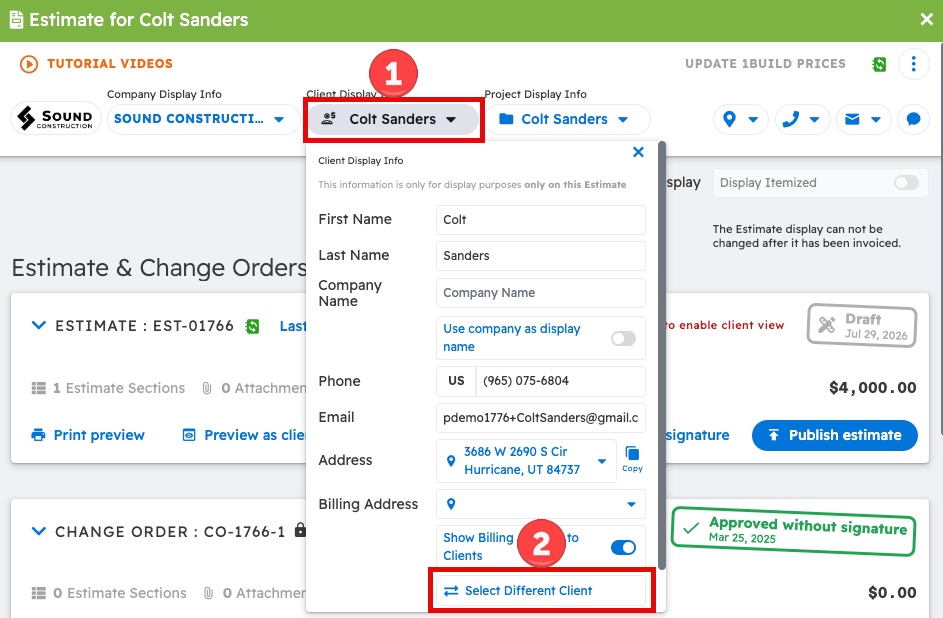
Changing the client on an estimate automatically changes the client on any invoices associated with that estimate. To change the client on an estimate, first open the estimate:
- Click "Client Display Info" at the top of the estimate
- Click "Select different client"
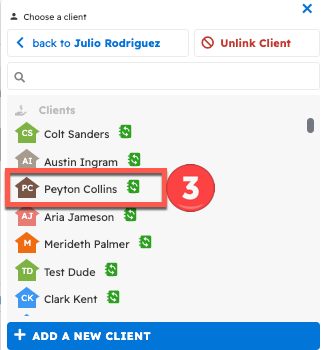
- Select the desired client
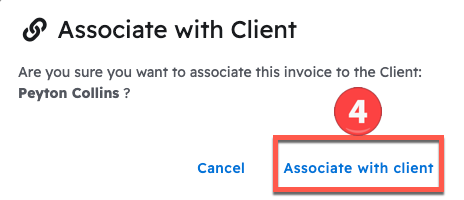
- Click "Associate with client"
Note: The client cannot be changed for estimates that are already approved. To change the client on an approved estimate, first mark the estimate unapproved.

Changing the client on an invoice
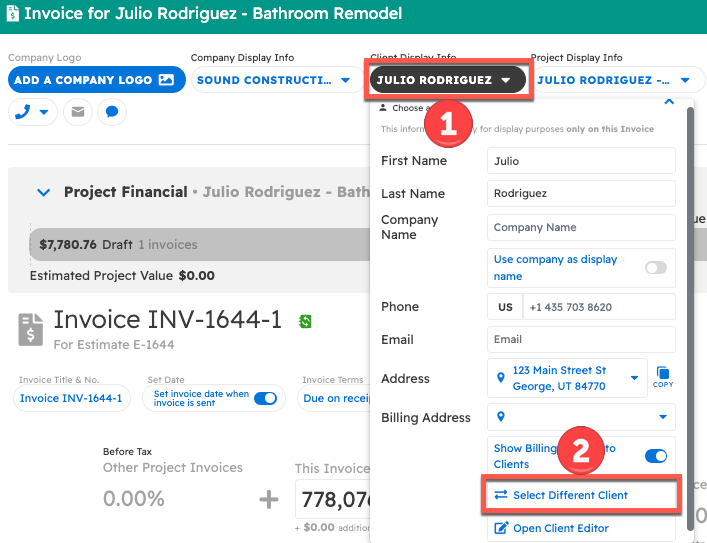
To change the client on an invoice, open the invoice:
- Click on the "Client display info" at the top of the invoice
- Click "Select different client"
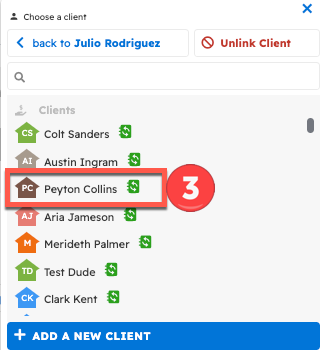
- Select the desired client
- Click "Associate with client"
Note: The client cannot be changed for invoices that have been sent to a client.
Changing the client on a project
The client can be changed directly from a project. Changing the client on a project automatically changes the client for the estimate and invoices associated with that project. To change the client on a project:
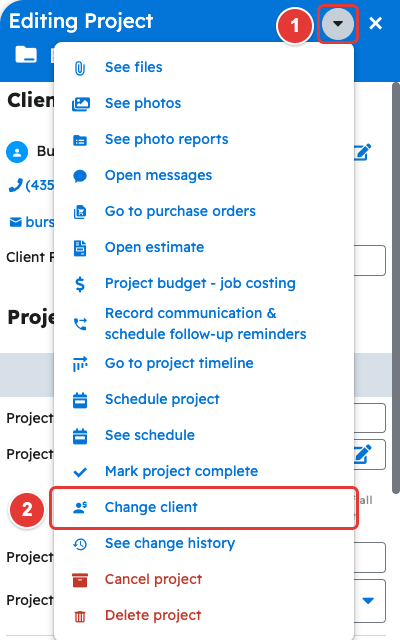
- Open the project or lead and click its edit button.
- Click the arrow at the top right of the "Editing Project" panel and select "Change client."
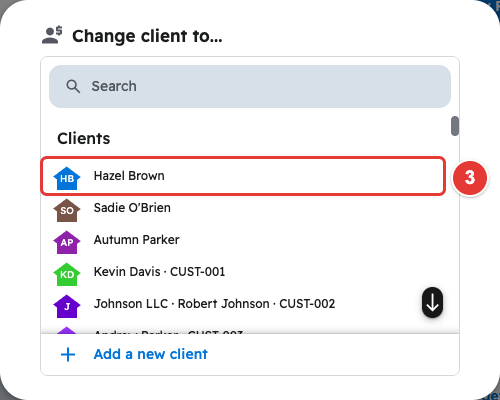
- Pick the new client under "Change client to..."
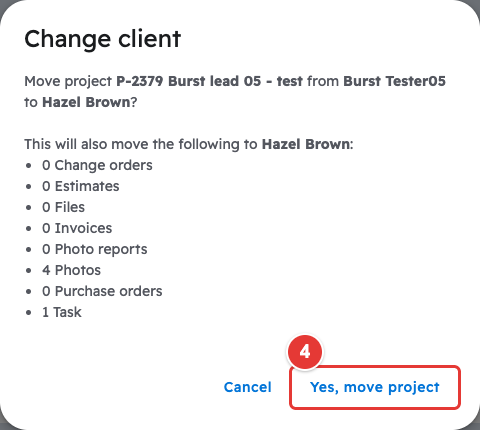
- Click "Yes, move project," then click "Save."
The project's estimates, invoices, change orders, files, photos, photo reports, purchase orders and tasks move to the new client.
Questions? Let's Chat.
support@projul.com
(844) 776-5853