![Projul Logo 345PX wide.png]](https://knowledge.projul.com/hs-fs/hubfs/Projul%20Logo%20345PX%20wide.png?height=40&name=Projul%20Logo%20345PX%20wide.png)
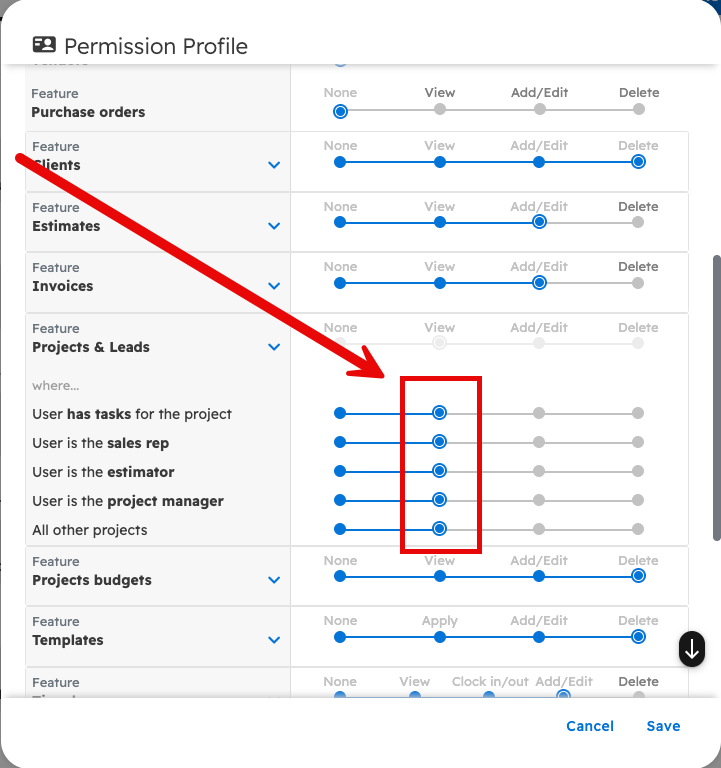
Give the employee a permission profile that lets them see all projects. In "Projects & Leads", set "All other projects" to "View" or higher. Also set "User's own time logs" to "Clock in/out" or higher. They will then be able to search, select, and clock into any task.
Employees can be given the ability to view any project, which includes clocking into tasks.
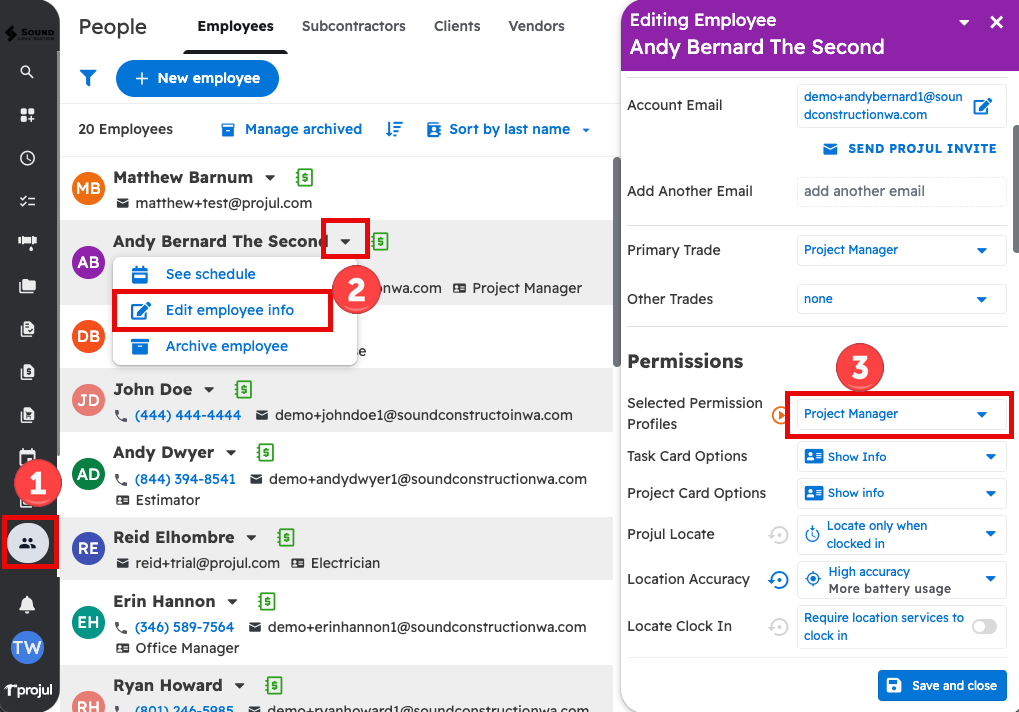
This can be done on the People page by editing the employee permissions. To do so:
- Go to the People page.
- Click the desired employee and select “Edit employee info.”
- Open the dropdown next to the employee's name and select "Edit employee info." Scroll down to "Permissions" and open "Selected Permission Profiles" to pick a profile, or choose "Add a new permission profile" to create one.
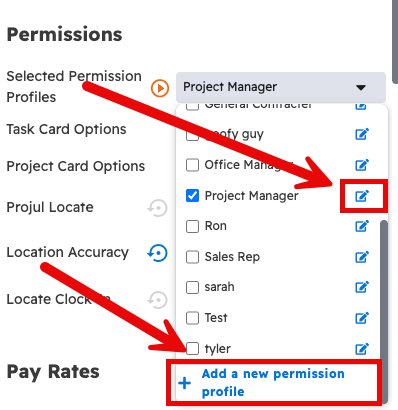
Once the "Permission Profile" pop-up appears, scroll down to "Projects & Leads" and set "All other projects" to "View" or higher. Click "save".
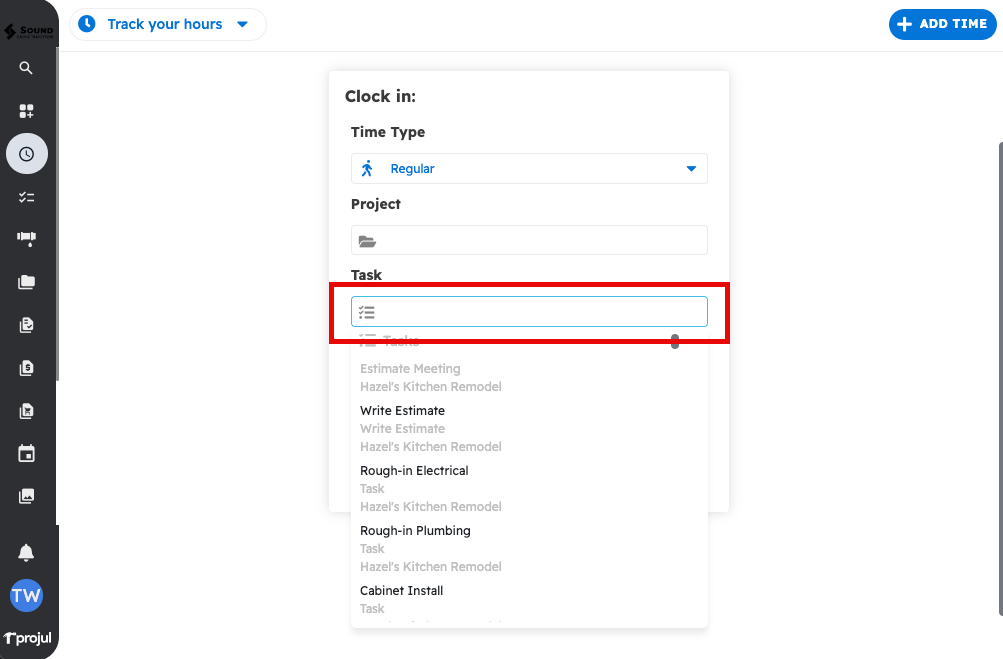
When it's time to clock in, go to the Time Tracking page, choose the "Project" and then the "Task" in the "Clock in" form, and click "Clock In". If you only track time at the project level, choose just the project. If time only needs to be tracked at the project level, enter the project name instead and clock in from there.
Questions? Let's Chat.
support@projul.com
(844) 776-5853