![Projul Logo 345PX wide.png]](https://knowledge.projul.com/hs-fs/hubfs/Projul%20Logo%20345PX%20wide.png?height=40&name=Projul%20Logo%20345PX%20wide.png)
What a template controls
A daily log template sets which sections are already laid out when someone starts a new daily log, such as Manpower, Work performed, Notes, Delivery, Equipment, Visitors, Delay, Safety and Photos. It can also mark any of those sections as required, so the log cannot be signed until that section has an entry.
A template does not store any written content, and it does not change the order of the sections. Sections that the template turns on are laid out when the log opens, and your crew can still add any other section during the day.
How to create a daily log template
Templates are created from a daily log, so start with a log that has the sections your crew fills in on a normal day. Every section used on that log is saved into the template.
- Open the daily log you would like to use as the starting point.
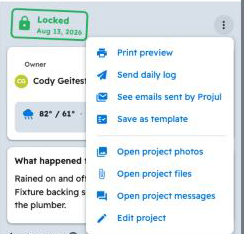
- Click the three dot menu at the top of the log and select "Save as template."
- Enter a name for the template in the "Template name" box.
- Under "Sections from this log," turn on the switch next to each section that must have an entry before a log can be signed.
- Click "Save."
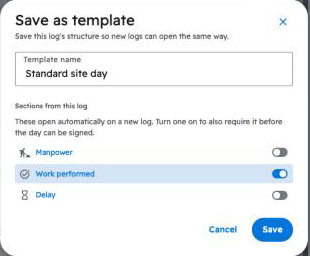
Note: If you enter the name of a template that already exists, saving will replace that template with this log's sections.
How to edit or delete a daily log template
- Click on your initials in the bottom left corner.
- Select "Templates" from the pop-up menu.
- Open the "Daily log templates" section.
- Click on the template you would like to change.
- Turn sections on or off, turn "Required to sign" on or off for each section, and click "Save."
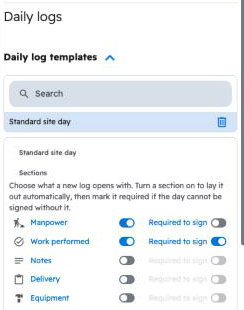
To delete a template, click the trash can icon next to its name, then click "Delete" to confirm. Projects that used that template will open new logs with the company default template instead.
You can also find the same list of templates in "Settings" under "Daily logs."
How to choose the company default template
The company default template is used for every new daily log unless the project has its own template. Until a default is chosen, new daily logs open without a template.
- Click on your initials in the bottom left corner and select "Settings."
- Select "Daily logs" from the drop-down menu at the top of the Settings panel.
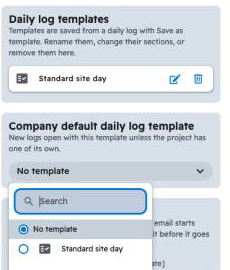
- Under "Company default daily log template," choose the template you would like to use.
- Click "Save."
How to use a different template on one project
If one project needs a different set of sections, edit the project (for example, from a daily log on that project, click the three dot menu and select "Edit project"), choose a template in the "Daily Log Template" field, and click "Save." New daily logs on that project will open with that template instead of the company default.
Signing a log with required sections
When someone signs a daily log and clicks "Finish & lock," Projul checks the template's required sections. If any of them are still empty, the log stays a draft and Projul shows a "Can't sign yet!" message that lists the sections that still need an entry.
Note: Only administrators can create, edit or delete daily log templates. Custom fields are set up separately in "Settings" under "Daily logs" and appear on every log, whichever template it uses.
Questions? Let's Chat.
support@projul.com
(844) 776-5853