![Projul Logo 345PX wide.png]](https://knowledge.projul.com/hs-fs/hubfs/Projul%20Logo%20345PX%20wide.png?height=40&name=Projul%20Logo%20345PX%20wide.png)
Estimate settings control estimate rules and defaults.
Contents:
Default Estimate Cost Line Values
Displayed Company Contact Information
Overview
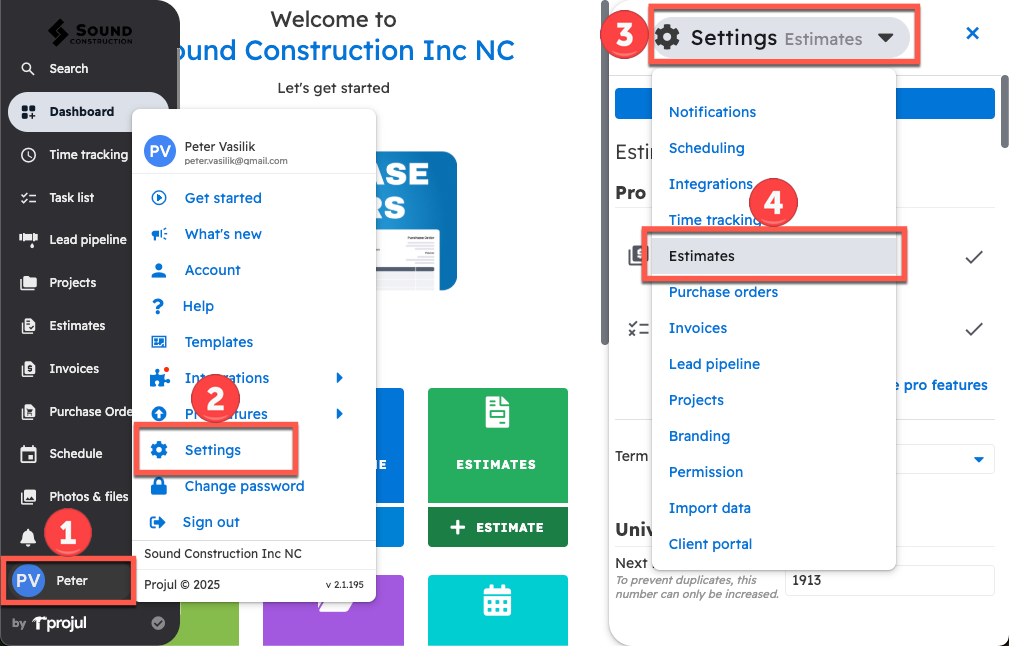
To find estimate settings:
- Click on your initials in the bottom left corner of the screen
- Open settings
- Click the settings dropdown menu
- Open estimates settings
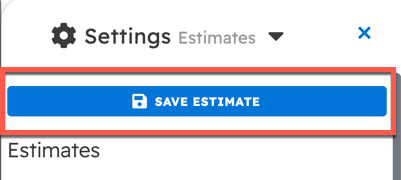
NOTE: After making settings changes in Projul, always remember to click the save button!
Estimate Settings Sections
Pro Plan Features
Estimates have two features available only through the pro plan:
- Assemblies
- Selections
Assemblies allow multiple line items to be linked together and adjusted as a group, making it fast and easy to estimate for commonly grouped items. (Click this link for an article on assemblies)
Selections allow customers to make specific choices while approving the estimate. Add optional items, required selections, and photos on individual line items. (Click this link for a video on the topic)
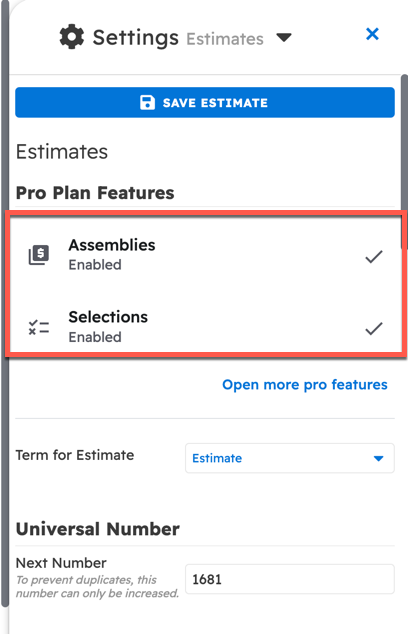
A checkmark will display if these features are already enabled. If not, there will be an option to start a free trial.
Term for Estimate
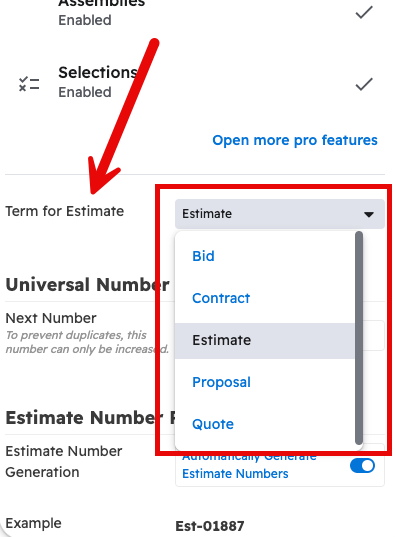
The "Term for Estimate" setting can be used to change every instance of the word "Estimate" in Projul to a different word. The estimate term options are:
- Bid
- Contract
- Estimate
- Proposal
- Quote
Universal Number
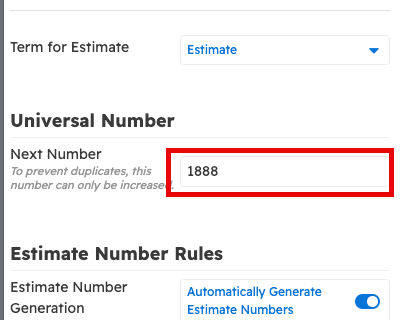
The universal number setting is used to adjust the default next numbers for new projects/estimates/invoices. If an estimate is created from a project, it will have the same number as the project number, but if an estimate is created on its own, it will take up the next universal number.
This number automatically changes as new estimates are created and new numbers are taken.
NOTE: To prevent duplicates, this number cannot be lowered.
Estimate Number Rules
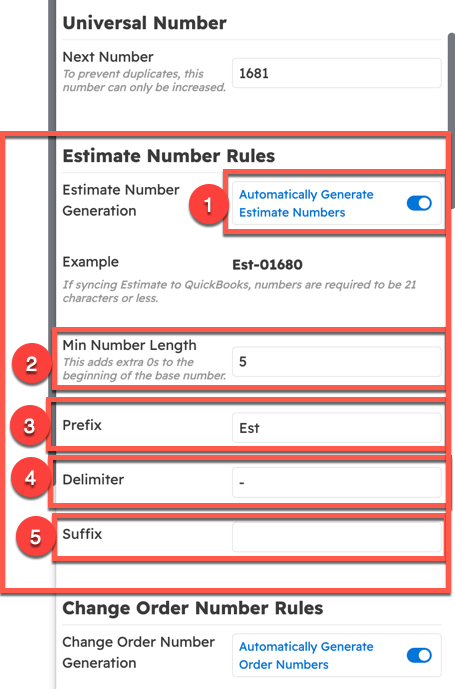
Projul has the following estimate number rules settings controls:
- Automatically generate estimate numbers for newly created estimates (i.e. use the universal next number if the estimate is not in a project), or enter a number manually
- Set a minimum number of digits for the estimate number (zeros will precede numbers that are too short)
- Add a prefix for the estimate number (not required)
- Add a delimiter that separates the number from the prefix and suffix
- Add a suffix for the estimate number (not required)
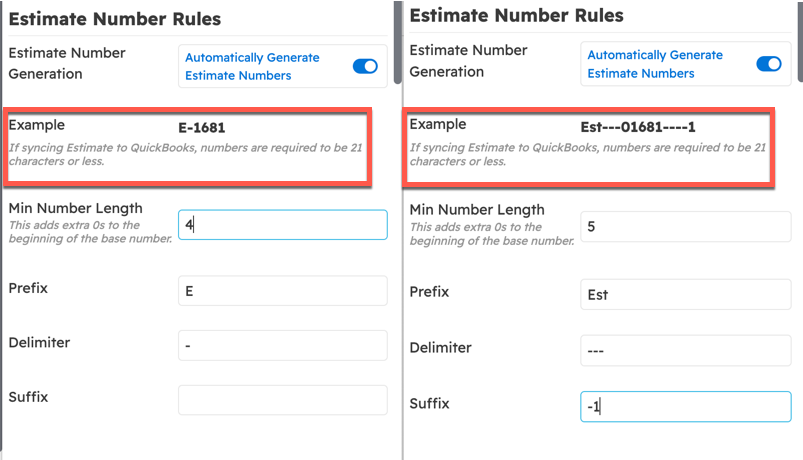
The example estimate number will change as the settings are adjusted.
Change Order Number Rules
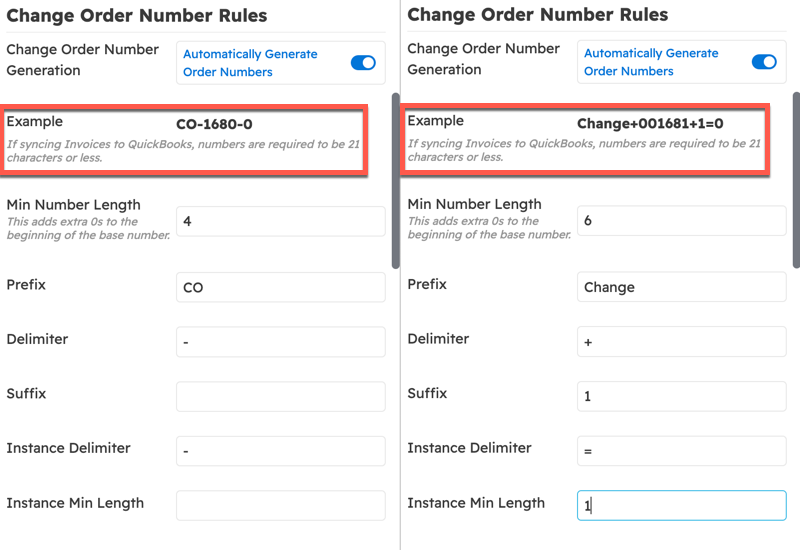
Change order number settings are similar to the estimate:
- Require that change orders automatically have a number
- Set a minimum number of digits which the number can have
- Add a prefix for the change order number (not required)
- Add a delimiter to separate the prefix and suffix in the number
- Designate a suffix for the change order number (not required)
- Add an instance delimiter to separate the change order number and the instance number
- Set the minimum number of digits which the instance number will be
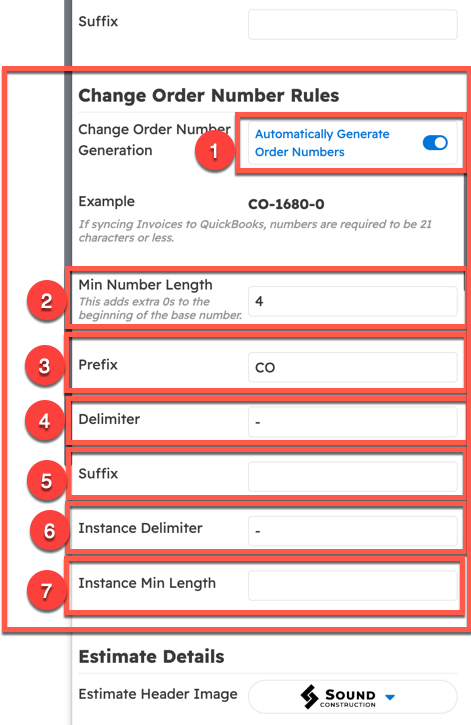
The example change order number will change as the settings are adjusted.
Estimate Details
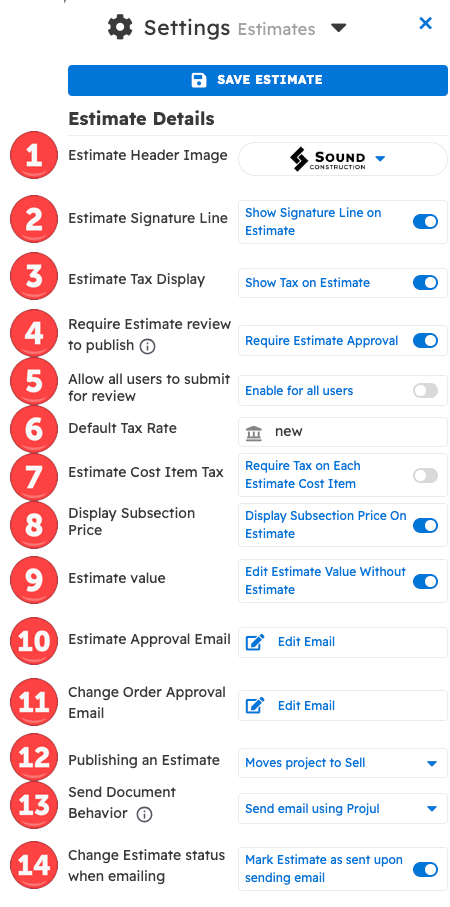
Various details of the estimate can be determined in the estimate settings (screenshot below):
- Select the estimate header image
- Set the print preview to show the signature line
- Display zero dollar taxes on the estimate
- Require manager approval for the estimate to be published
- Allow all users to submit estimate for review so that someone with approval permissions can approve it
- Set a default tax rate
- Require a tax on each cost item in an estimate
- Display the subsection price on the estimate
- Allow a value to be input into the project editor before the estimate is created (if an estimate is created after putting a value in the project editor, then the project value will change to the new estimated value)
- Edit the estimate approval email template used to send the estimate to a client
- Edit the change order approval email template used to send the change order to a client
- Determine how publishing an estimate changes the status of that project
- Determine how emails from Projul are sent to client (i.e. sending emails using Projul, opening up the email app with the template inserted, simply opening up the email app, viewing the email template)
- Select whether estimates are automatically marked sent
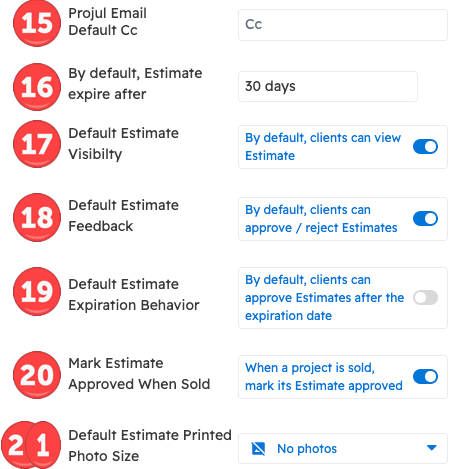
- Select a default email CC
- Set a default amount of time before estimate expiration
- Allow customer view of estimates by default
- Allow approval view of estimates by default
- Allow customer view of estimates after the expiration date by default
- Select whether an estimate is marked as approved when the project it is associated with is sold
- Select the default size for photos when an estimate is printed
Default Estimate Cost Line Values
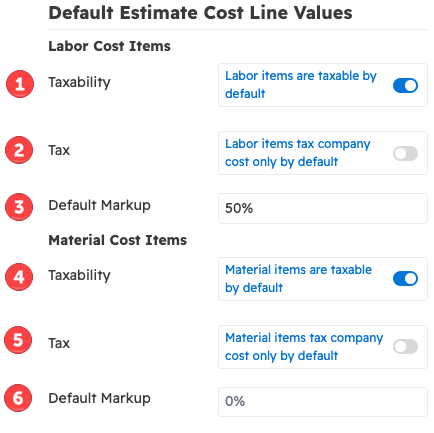
Cost line settings can be used for the following:
- Set labor items as taxable by default
- Set labor items tax as company cost only by default
- Add a default markup for labor items
- Set material cost items as taxable by default
- Set material items tax as company cost only by default
- Set default markup for material cost items
Custom Estimate Fields
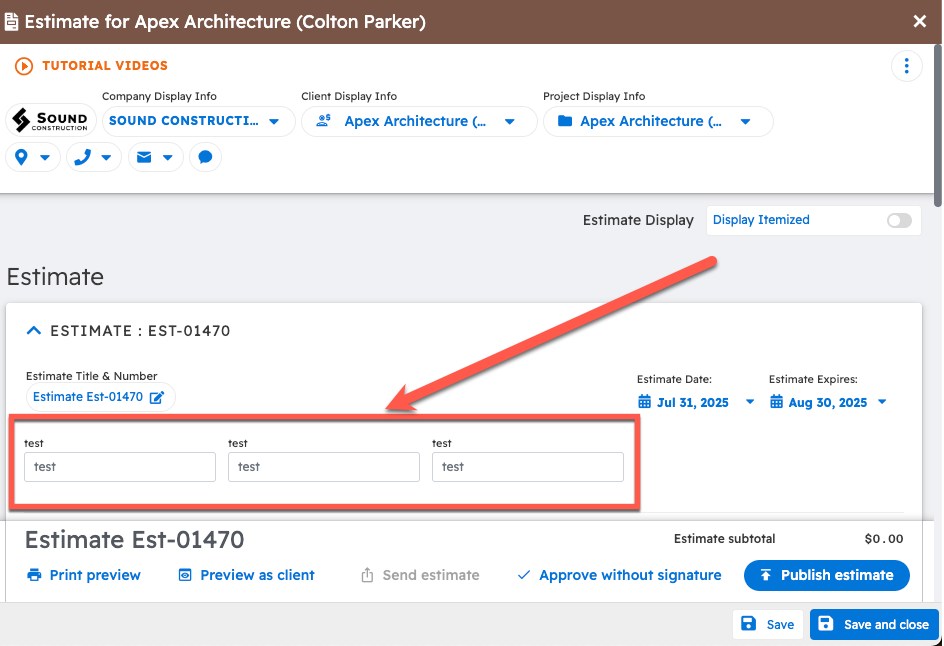
Custom estimate field settings allow three customized text blocks to be added to the estimate.
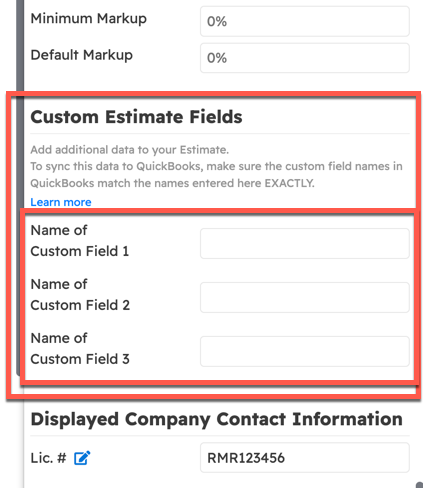
Custom fields are displayed as follows in the estimate:
NOTE: For custom field information to sync to QuickBooks, the custom field names in QuickBooks must match the custom field names in Projul EXACTLY.
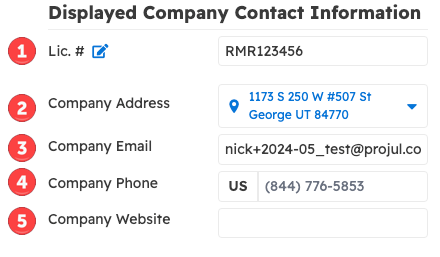
Displayed Company Contact Information
These settings specify the information that will display to customers on estimates, invoices, etc. including:
- Lic. #
- Company Address
- Company email
- Company phone #
- Company website
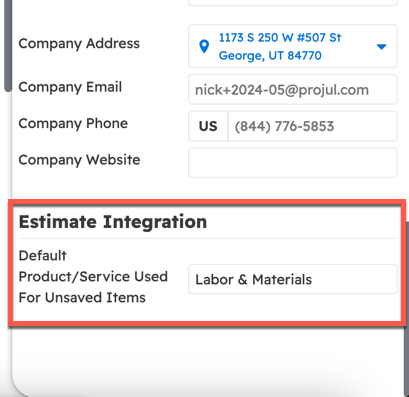
Estimate Integration
Cost lines in Projul that do not have specific line items synced from QuickBooks will sync with the default name specified.
Questions? Let's Chat.
support@projul.com
(844) 776-5853