![Projul Logo 345PX wide.png]](https://knowledge.projul.com/hs-fs/hubfs/Projul%20Logo%20345PX%20wide.png?height=40&name=Projul%20Logo%20345PX%20wide.png)
To add an Employee/User to Projul:
- Navigate to the "People" page from the left sidebar
- When on the people page, select the "New employee" button in the top right corner
- Fill out the info for your new employee
- Click the "Add Employee" button (it says "Send Invite" when "Send Projul invite" is on)
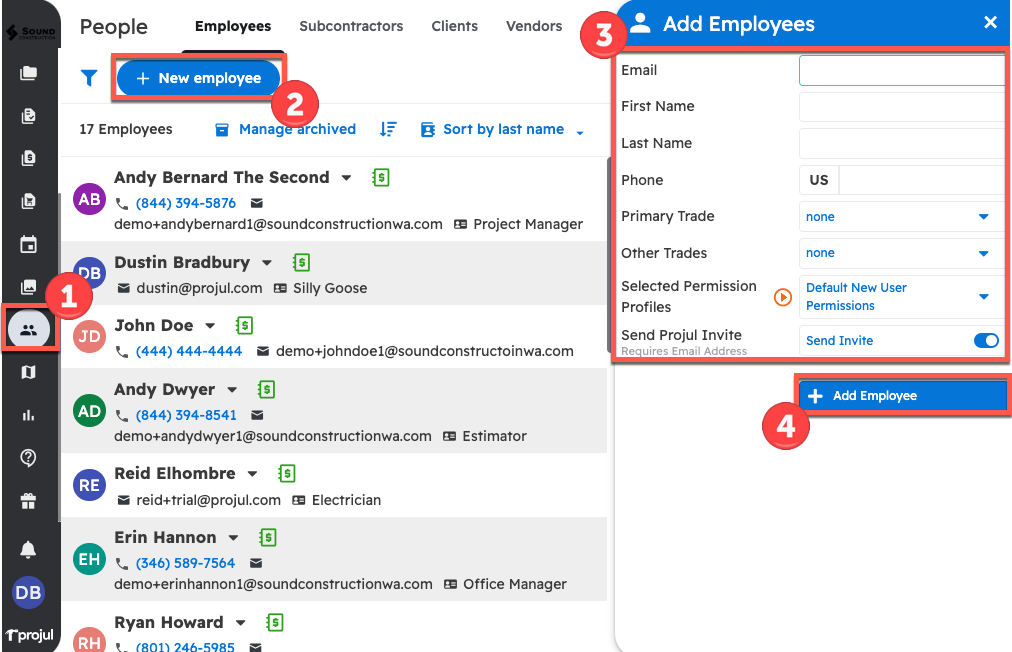
The different inputs in creating a new employee in Projul are:
- Email (required when "Send Projul invite" is on)
- First name (required)
- Last Name
- Phone number
- Primary Trade
- Other Trades
- Selected Permission Profiles (see more in Employee Permissions: A Complete Breakdown)
- Send Projul invite (turning this on will send the invite when the employee is added)
To add a subcontractor in Projul:
1. Navigate to the "People" page using the left sidebar
2. Select "Subcontractors" at the top of the page
3. Click on the button that says "New Subcontractor"
4. Fill out the company name (or a first name) and any other details, then click "Add Subcontractor"
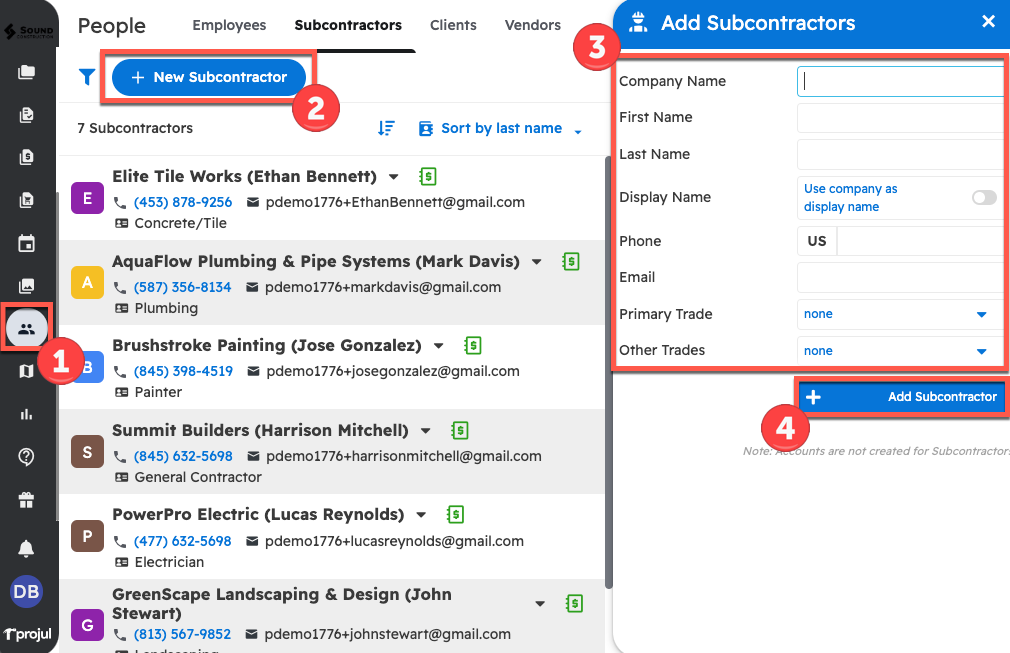
You can now add this contractor to the schedule. Contractors are distinguished by having a square icon rather than the round one that employees have. Although contractors cannot log in to Projul, you can use contractors as placeholders to keep track of your schedule.
Questions? Let's Chat.
support@projul.com
(844) 776-5853