![Projul Logo 345PX wide.png]](https://knowledge.projul.com/hs-fs/hubfs/Projul%20Logo%20345PX%20wide.png?height=40&name=Projul%20Logo%20345PX%20wide.png)
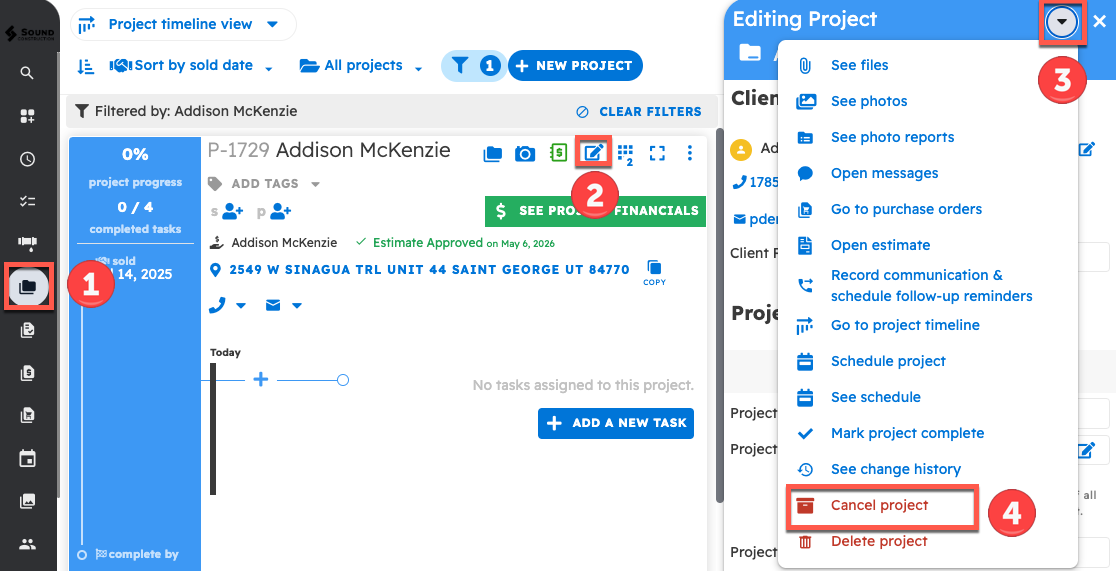
A project can be canceled at any time by editing it, clicking the drop-down arrow in the top right corner, and selecting "Cancel project" or "Delete project."
Canceling a project
To cancel a project:
- Go to the Projects tab and find the project to be canceled
- Click the edit button
- Open the dropdown menu in the top right corner
- Select "Cancel project"
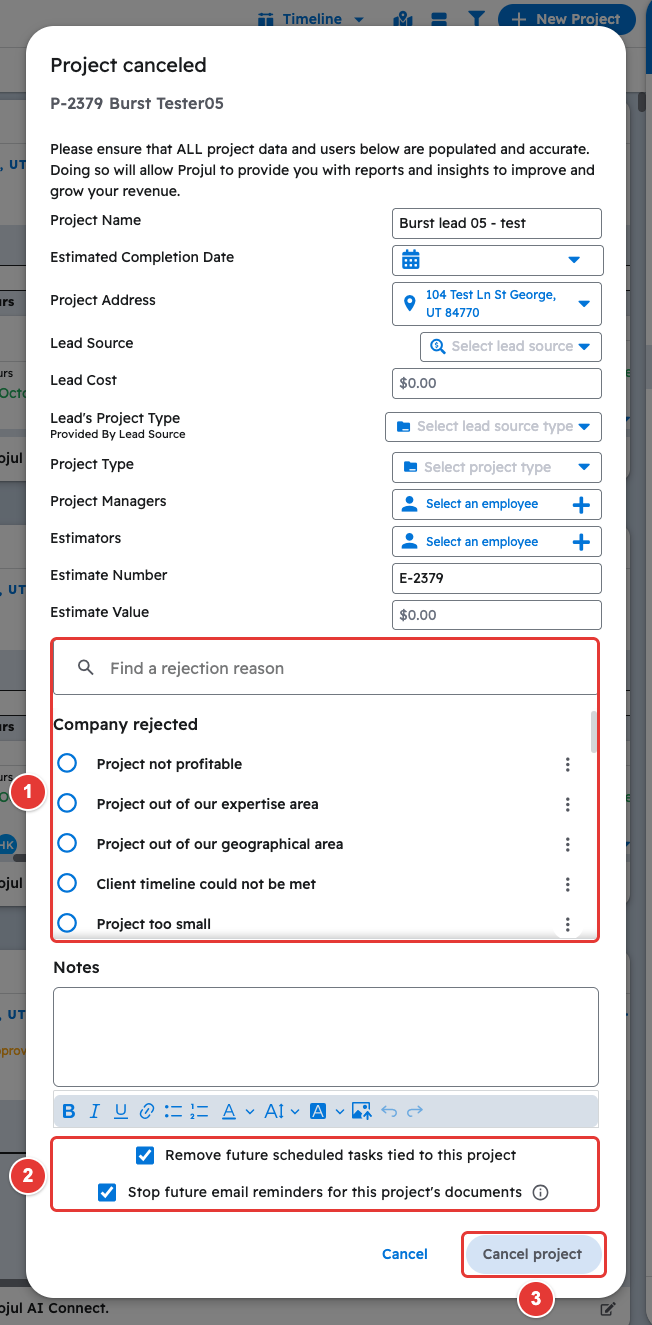
This opens the "Project canceled" popup. Check that the project information is correct and pick a reason. "Remove future scheduled tasks tied to this project" and "Stop future email reminders for this project's documents" are ticked by default; untick either one if you want to keep it. Then click "Cancel project."
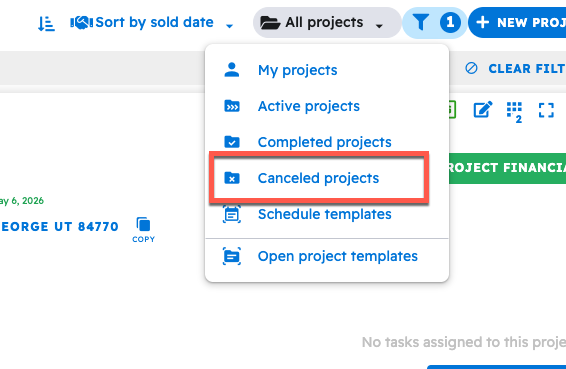
To view canceled projects, open the "All projects" dropdown menu, then select "Canceled projects."
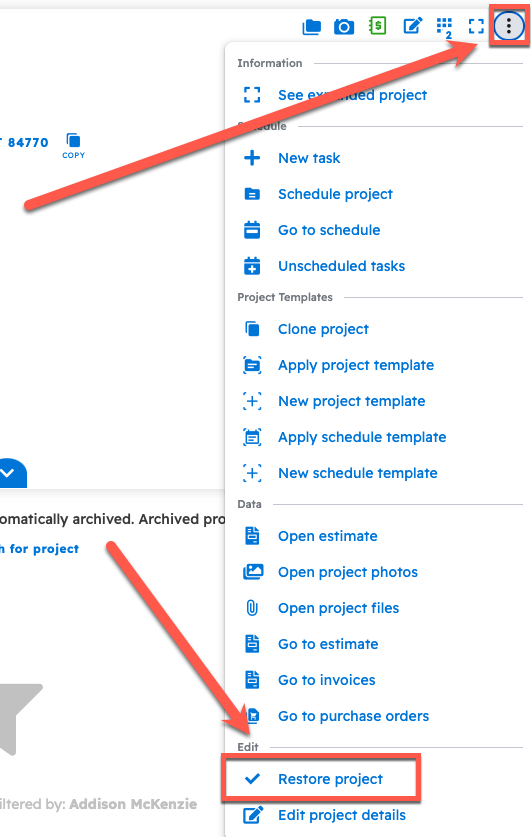
To restore the project, open the 3-dot menu on the right side of the project card and select "Restore project."
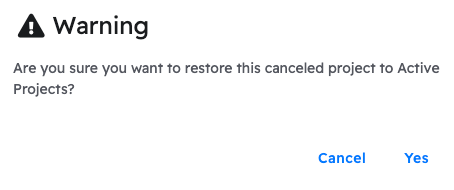
A popup will then appear to confirm the action to move the project back to Active.
Deleting a project
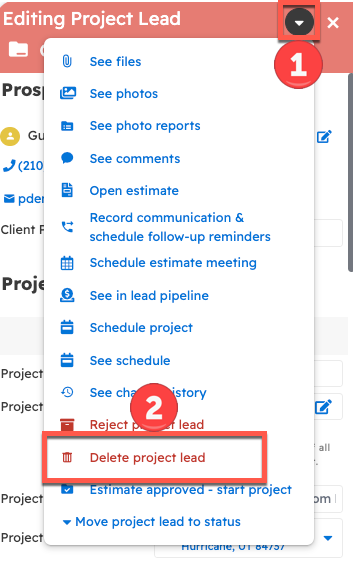
To delete a project, click the edit button, open the drop-down arrow in the top right corner, and select "Delete project" ("Delete project lead" if it is still a lead).
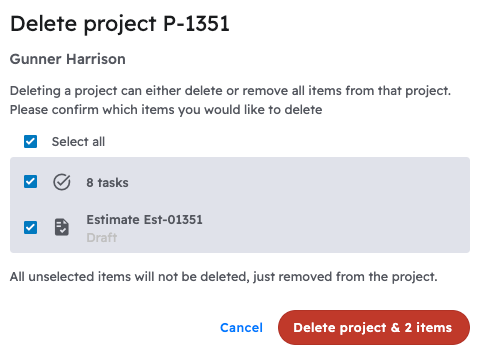
A window will list the items on the project (tasks, estimate, and so on), all ticked by default. Untick anything you want to keep. Items you leave unticked are not deleted, only removed from the project. Click the red "Delete project & N items" button to confirm, where N is the number of ticked items.
To keep the project information, reject or cancel the project instead to move it to a different status.
Questions? Let's Chat.
support@projul.com
(844) 776-5853