![Projul Logo 345PX wide.png]](https://knowledge.projul.com/hs-fs/hubfs/Projul%20Logo%20345PX%20wide.png?height=40&name=Projul%20Logo%20345PX%20wide.png)
Ask your AI a question, check its connectors page, or check the "Projul AI Connect" page in Projul.
Ask a quick question
What clients do I have in Projul? Just list their names.
If your AI approves a Projul action and lists your real clients, it's connected. If it says it can't reach Projul, or makes up names, it isn't.
Check the connector in your AI tool
In a chat tool, open its connectors or integrations page. A checkmark next to "Projul" means it's connected.
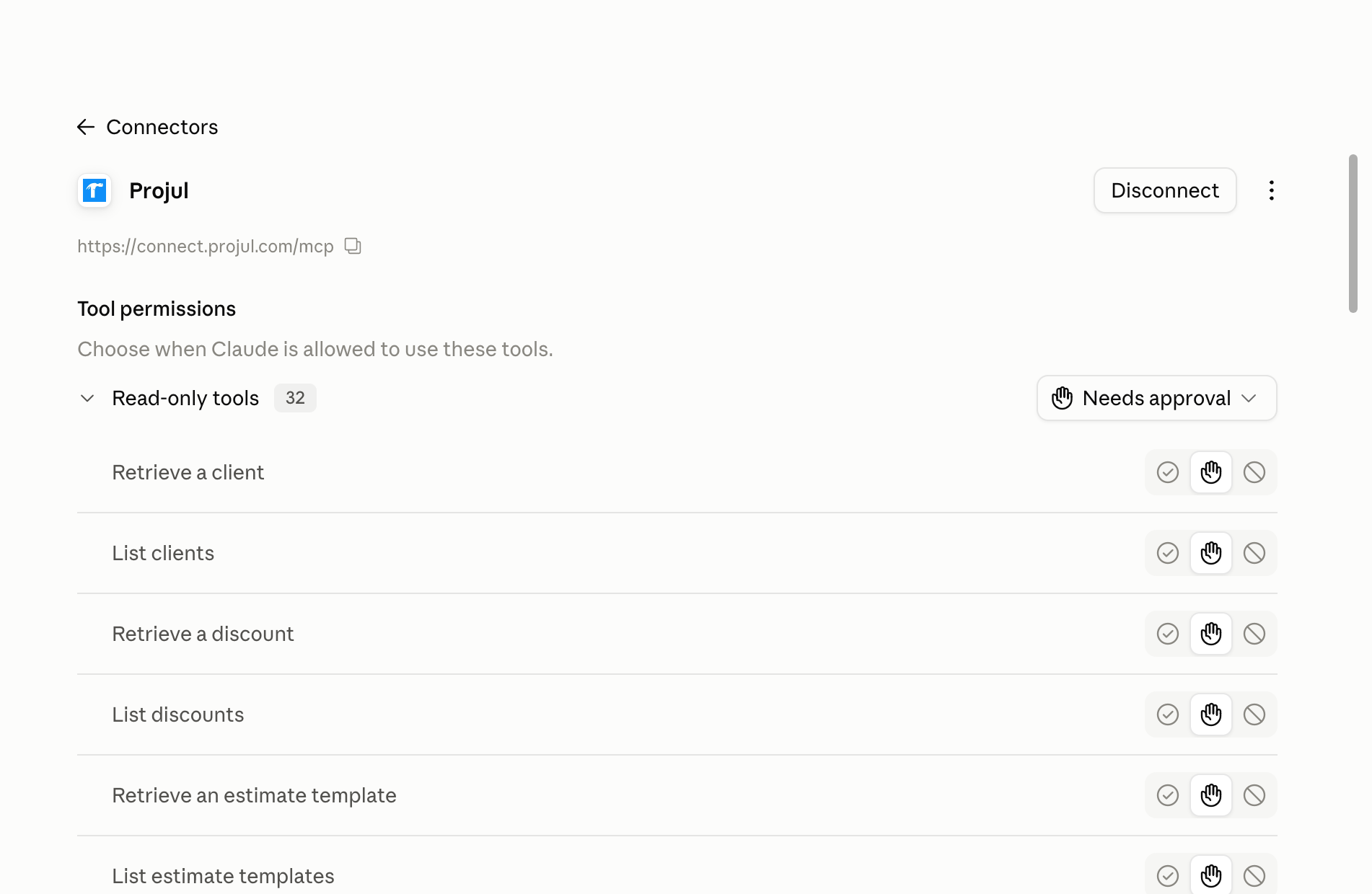
In a command-line tool such as Gemini CLI or Claude Code, run claude mcp list. Projul shows "Connected" when the key works.
Check the page in Projul
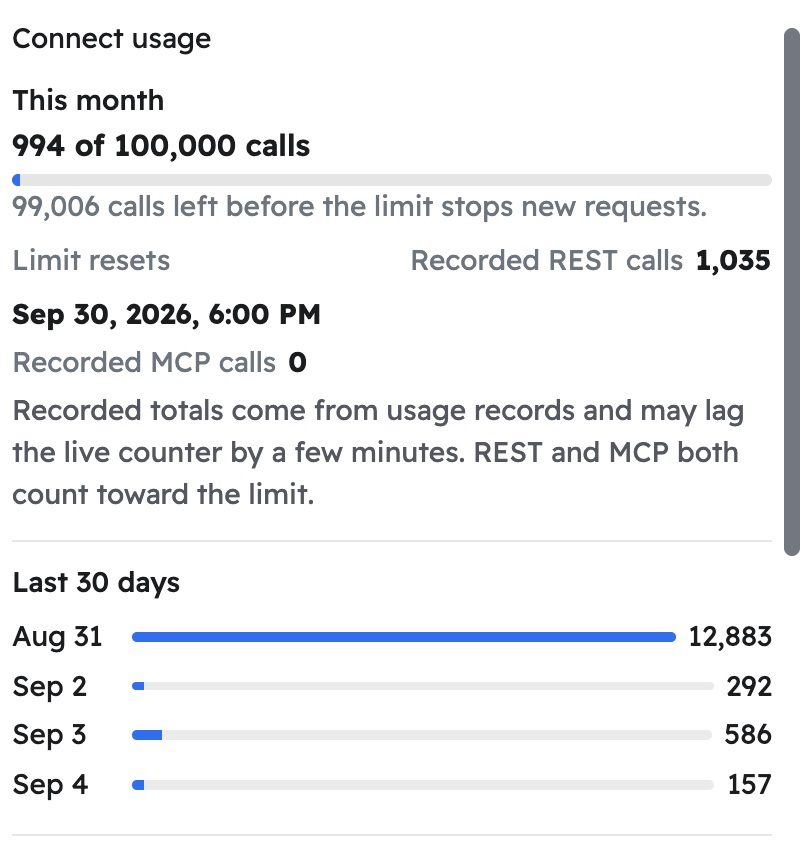
Click your initials, then "Settings", then "Projul AI Connect". Under "API keys", check "Last used" for your AI's key. "Never used" means a different key, or none.
If it's not connected
Check the key's status. A revoked key needs a new one; an active key needs removing and re-adding fresh, or, for a sign-in tool, reconnecting.
Note: A sign-in connection can lapse after three months unused; just reconnect.
Questions? Let's Chat.
support@projul.com
(844) 776-5853