![Projul Logo 345PX wide.png]](https://knowledge.projul.com/hs-fs/hubfs/Projul%20Logo%20345PX%20wide.png?height=40&name=Projul%20Logo%20345PX%20wide.png)
Cowork uses the same Projul connector as Claude chat, added once under "Customize", "Connectors"; switch the message box from "Chat" to "Cowork" and describe the job.
Set it up
- If Projul is not already listed, go to "Customize", "Connectors", "Add".
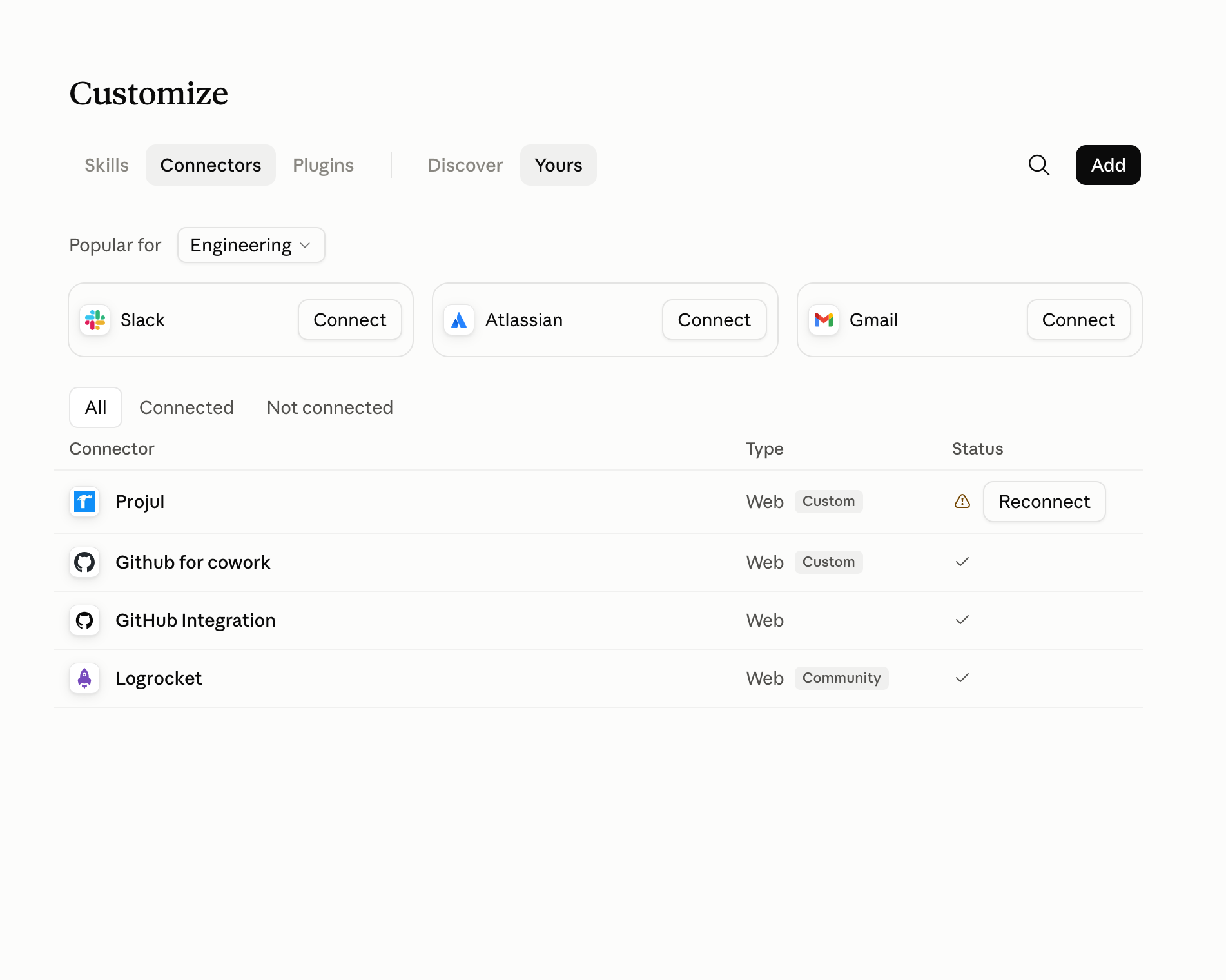
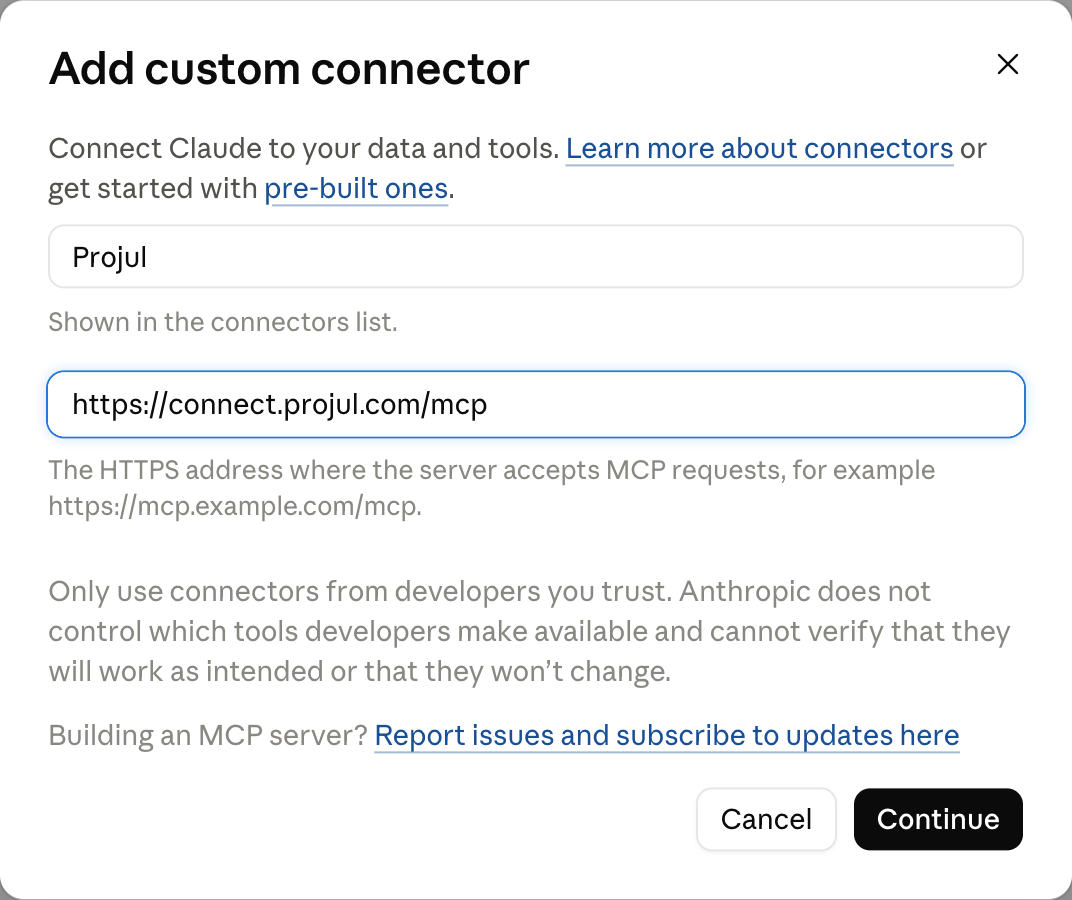
- Name it Projul, set the address to https://connect.projul.com/mcp, and click "Continue".
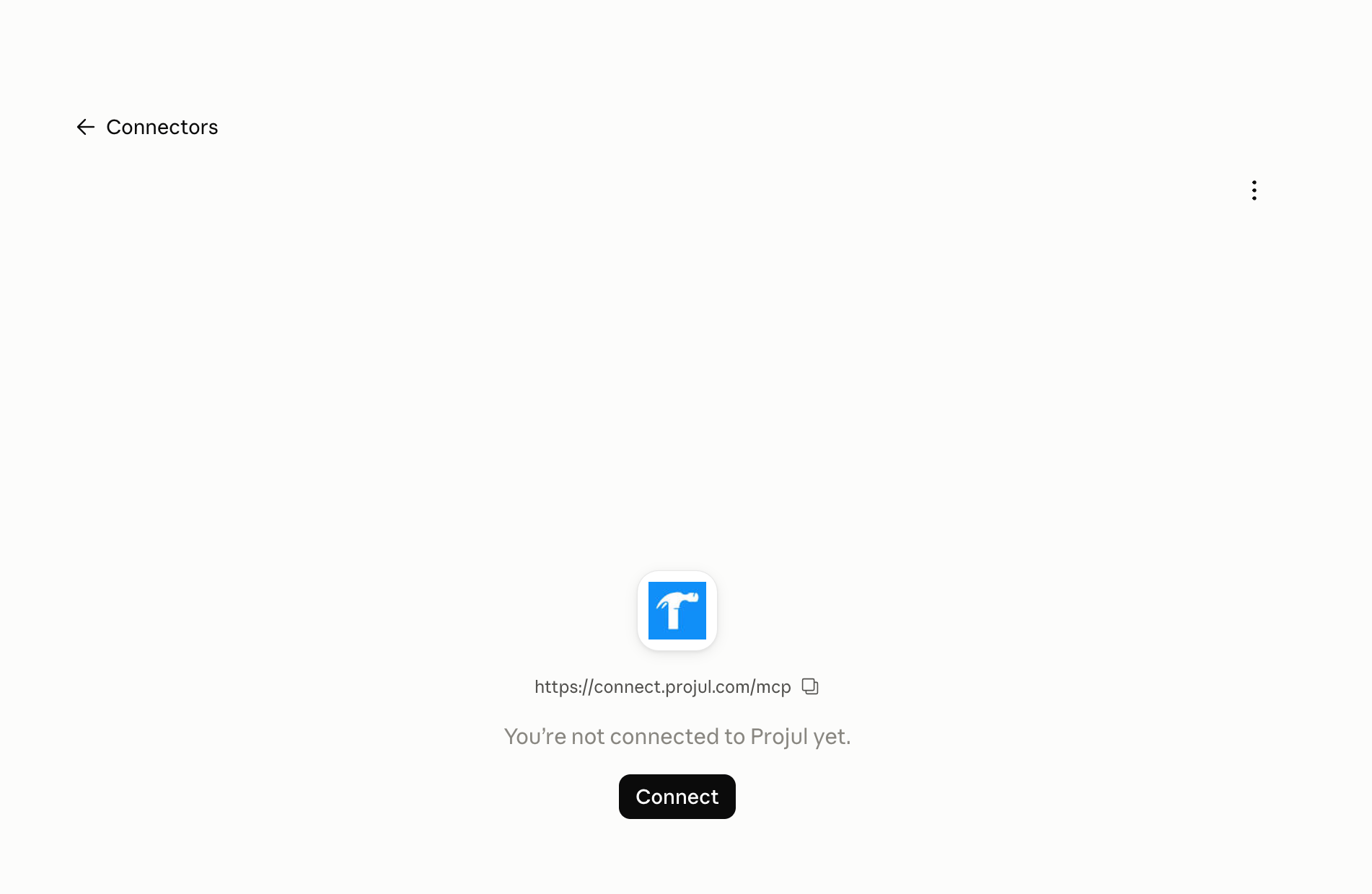
- Leave "Authentication" as detected and click "Add", then "Connect". Paste your key on the Projul page that opens and click "Allow".
What happens
Start a new chat and click "Cowork" next to "Chat".
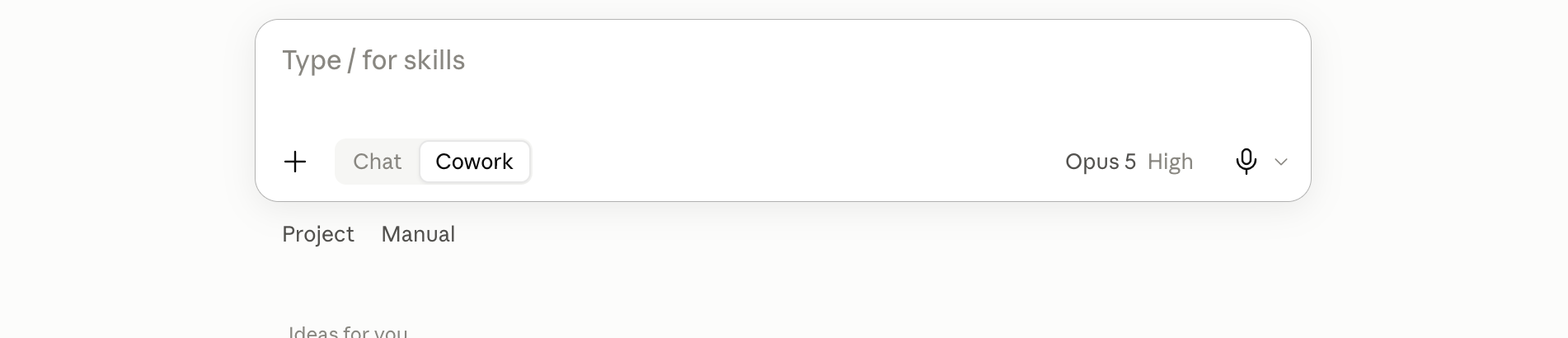
Projul turns on automatically; check via the plus button, then "Connectors".
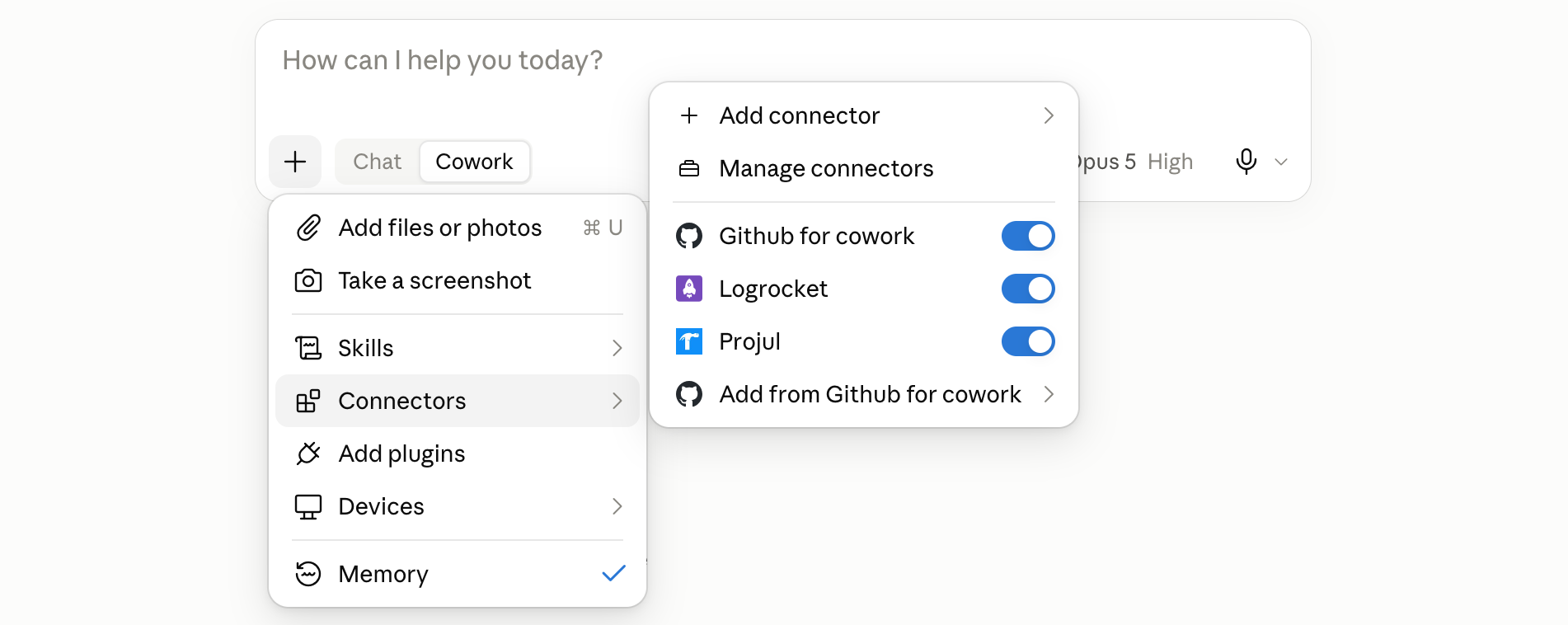
Describe the job like you would to an office assistant:
Go through every active project in Projul and tell me which ones have no tasks scheduled in the next two weeks.
While set to "Manual", Cowork shows a card naming the action before touching Projul. Click "Allow once" or "Deny".
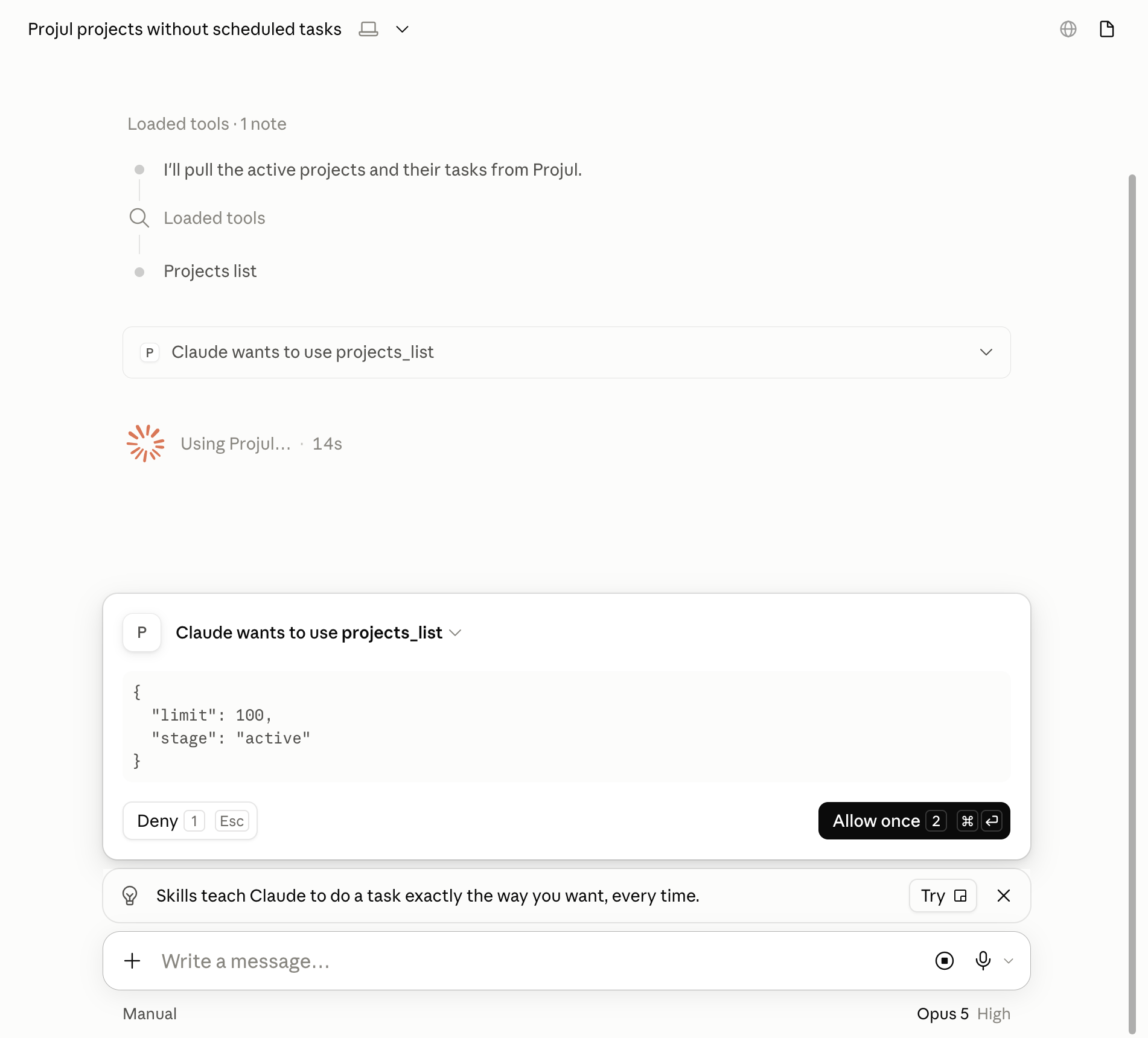
Note: Actions that only look things up need just a Read key; changing data, such as adding a client, needs a Read-Write key. "Auto" or "Skip" mode lets Cowork run without asking.
Questions? Let's Chat.
support@projul.com
(844) 776-5853