![Projul Logo 345PX wide.png]](https://knowledge.projul.com/hs-fs/hubfs/Projul%20Logo%20345PX%20wide.png?height=40&name=Projul%20Logo%20345PX%20wide.png)
Claude desktop uses the same connectors as Claude on the web, so if you already connected Claude on the web, Projul already works here too.
Set it up
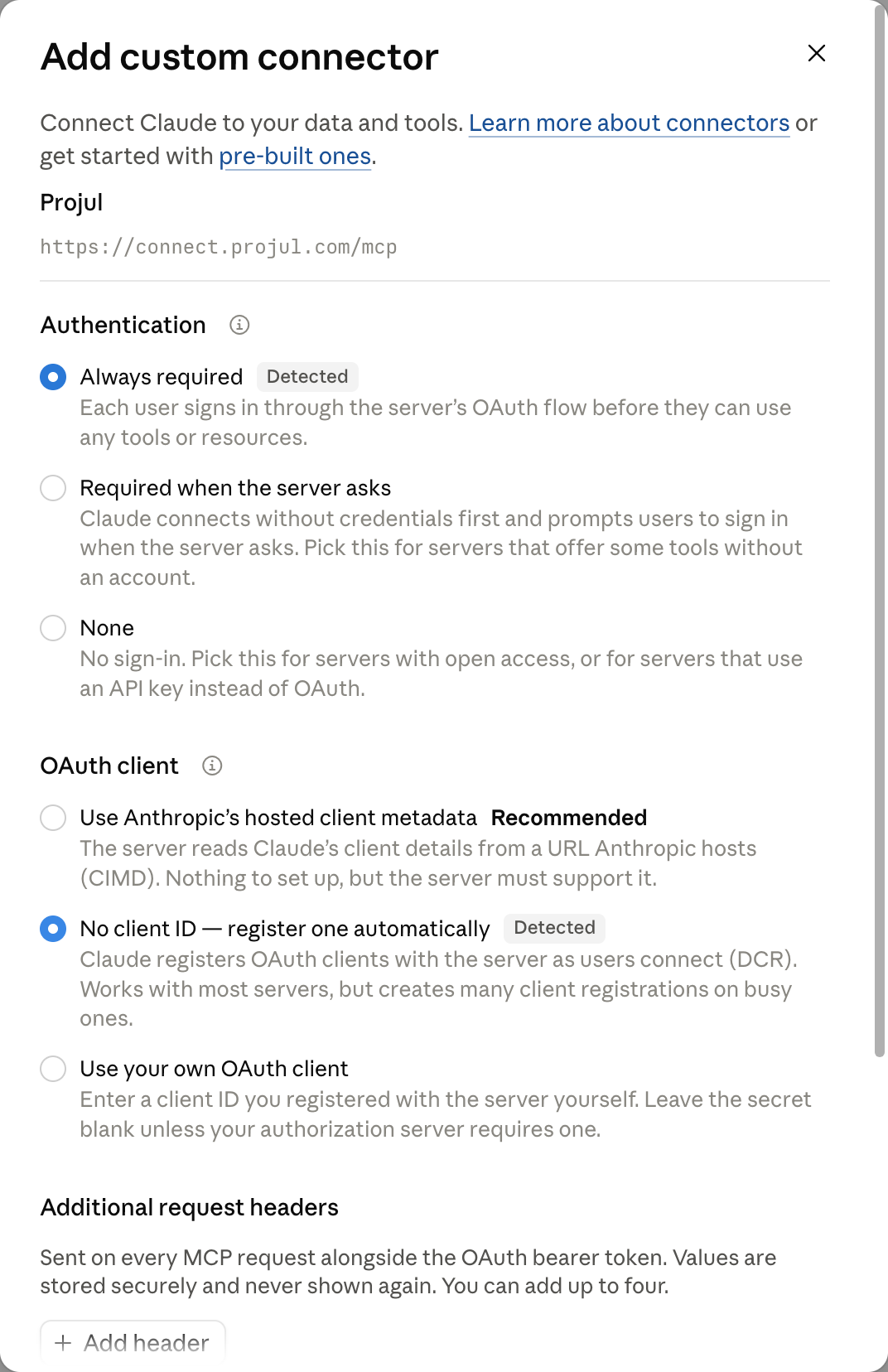
- If Projul is not already listed, open "Customize", "Connectors", "Add".
- Type Projul as the name and https://connect.projul.com/mcp as the address, then click "Continue".
- Leave "Authentication" as Claude detects it and click "Add".
- On the Projul AI Connector page, click "Connect". A Projul page opens: paste your key into the "Projul Connect API key" field and click "Allow".
What happens
Claude shows "Connected to Projul." with its tool permissions, and Projul is on for new chats. Click "New" and make sure "Chat" is selected, then ask a question:
What clients do I have in Projul? Just list their names.
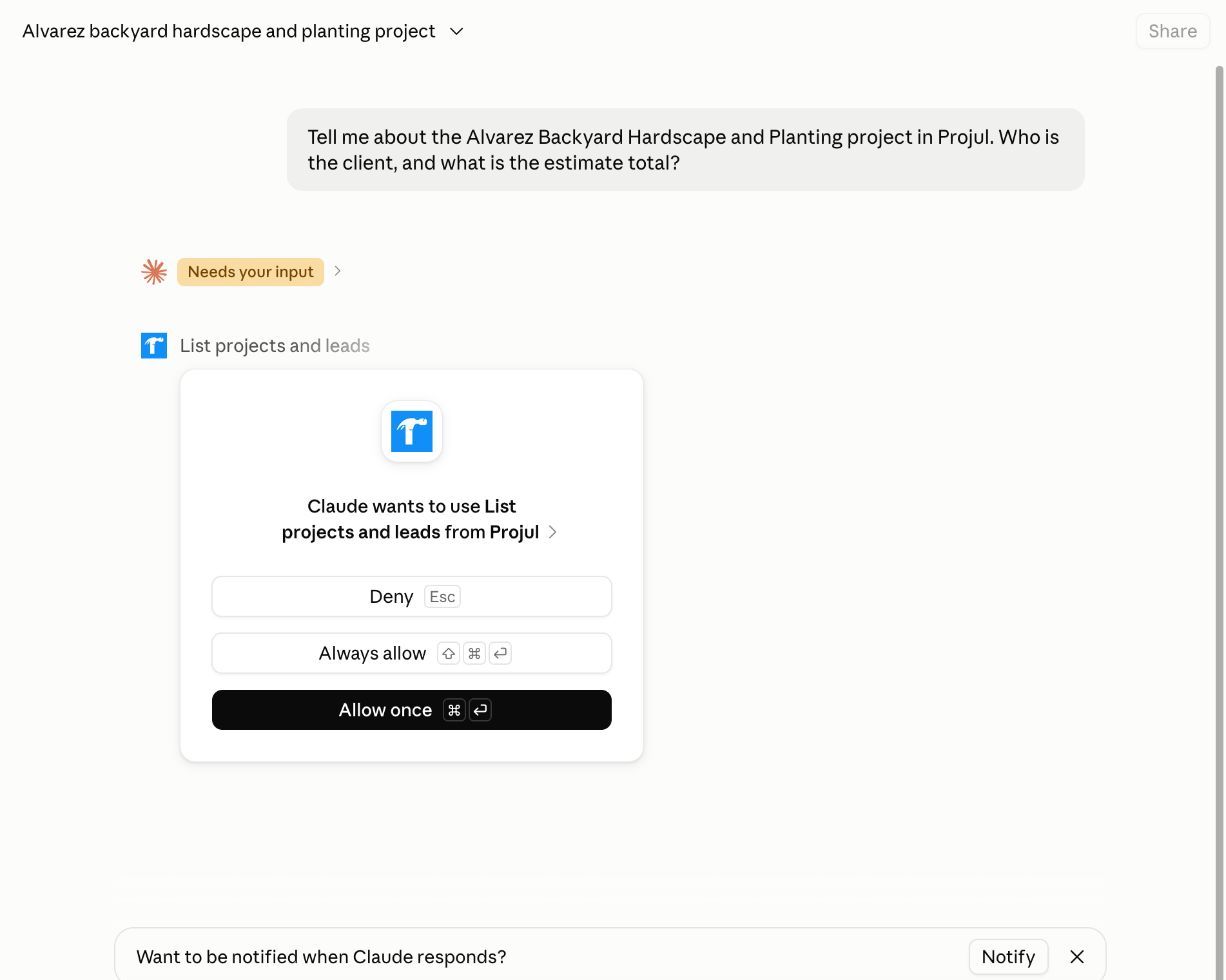
The first time Claude needs a Projul action, it shows a card. Click "Allow once" or "Always allow".
Note: On a Claude Team or Enterprise plan, only an account owner can add the connector; everyone else then connects with their own key. See How do I get my Projul AI Connect API key?
Questions? Let's Chat.
support@projul.com
(844) 776-5853