![Projul Logo 345PX wide.png]](https://knowledge.projul.com/hs-fs/hubfs/Projul%20Logo%20345PX%20wide.png?height=40&name=Projul%20Logo%20345PX%20wide.png)
Projul has its own app in Zapier. Connect it with a Projul AI Connect API key, then build Zaps that start from something that happens in Projul or send work into Projul.
Before you start
You need Projul AI Connect turned on for your Projul account, and a Zapier account. A Zap with more than two steps, such as one with a filter, needs a paid Zapier plan.
Step 1: Create a Read-Write key in Projul
- Click your initials in the bottom left corner, click "Settings", then choose "Projul AI Connect" from the dropdown.
- Scroll to "API keys" and click "Create API key".
- Name the key "Zapier", choose "Read-Write", then click "Create key".
- Enter your password and click "Confirm", then click "Copy key". The key is shown only once.
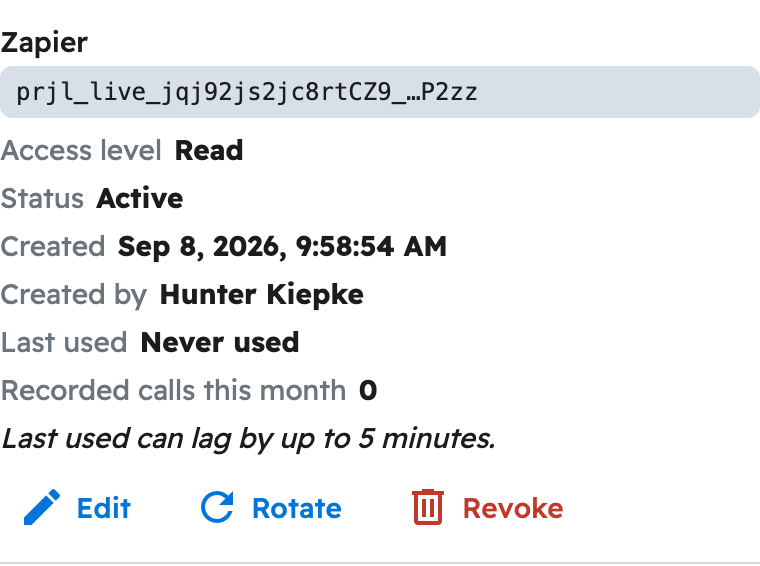
Every screen of this step is shown in How do I get my Projul AI Connect API key?
Step 2: Connect Projul in Zapier
- In Zapier, create a new Zap.
- In the trigger or in an action step, search for "Projul" and select it.
- Choose an event, such as "New Lead" or "Create Lead".
- Under "Account", sign in to Projul: paste your key when Zapier asks for it, then continue.
Zapier keeps the connection, so your next Zaps use it without asking for the key again.
Step 3: Test and publish
Test the trigger so Zapier pulls a recent example from Projul, fill in the action's fields from that example, test the action, then click "Publish". Fields such as "Existing client", "Project" and "Lead source" show a list of your Projul records to pick from.
What the Projul app can do
Start a Zap within seconds of a change in Projul: "New Lead", "Lead Converted to Job", "New Project", "New Client", "Client Updated", "New Estimate", "Estimate Accepted", "New Task", "Task Updated" and "New Message".
Do something in Projul: "Create Lead", "Create Client", "Update Client", "Archive Client", "Create Project", "Update Project", "Schedule Task", "Create or Update Task", "Complete Task", "Add Message" and "Create Estimate From Template".
Look something up: "Find Client", "Find Project", "Find Task" and "Find Estimate". Clients and projects can also be created when the search finds nothing.
Common Zaps
Website form to a new lead
Start with your form app, or with "Webhooks by Zapier" and "Catch Hook" for a form that can post to a web address. Add Projul "Create Lead", put the job name in "Lead name", map the client's first name, last name, email and phone, and pick a "Lead source" such as "Website". "Lead stage" starts at "new_lead".
A returning client is matched to their existing record when the first name, last name and an email or phone match, so map both names.
New lead to an email or a spreadsheet
Start with Projul "New Lead", then add Gmail "Send Email" or Google Sheets "Create Spreadsheet Row". Map the project name, project number, job site address and lead source. The same Zap built on "Estimate Accepted" announces a won job.
The lead carries the client's ID but not their name, email or phone. To send client details to another app, start the Zap from "New Client" instead.
Google Calendar events to Projul tasks
Start with Google Calendar "New or Updated Event", then add Projul "Create or Update Task". Set "External reference" to the event's ID, so moving the event later updates the same task instead of creating a second one. Map the attendees into "Assign to (email addresses)" to put your crew on the task.
Projul tasks to Google Calendar
Start with Projul "New Task", add "Filter by Zapier" so the Zap only continues when "Scheduled start" exists, then add Google Calendar "Create Detailed Event" with the task name, "Scheduled start" and "Scheduled end".
This direction only adds events. Moving or deleting the task in Projul afterward does not change the calendar event, and running this Zap together with the calendar-to-Projul Zap on the same calendar creates duplicate tasks.
If a Zap is not working
- A Zap that starts from Projul turns itself off shortly after you turn it on: the key is Read-only. Create a Read-Write key and reconnect Projul in Zapier.
- "Create Lead" fails for a client who is archived in Projul: unarchive the client in Projul first.
- A task Zap fails on a task with no date: add the "Scheduled start" filter shown above.
- To see what each run sent and received, open "Zap history" in Zapier.
Make and n8n
Make and n8n do not have a Projul app, so they use their HTTP step with the same key.
- Add the HTTP step: "HTTP" in Make or "HTTP Request" in n8n. Set the method to POST and the address to https://connect.projul.com/v1/projects to create a lead.
- Add headers: Authorization set to Bearer plus your key, Content-Type set to application/json, and Idempotency-Key set to something unique from the trigger, such as the form submission id.
- Paste the body below and map your form fields into it.
{
 "name": "Website lead: Kitchen remodel",
 "status": "new_lead",
 "lead_source_name": "Website",
 "create_lead_source_if_unmatched": true,
 "customer": {
 "first_name": "Maria",
 "last_name": "Ortiz",
 "emails": [{"email": "maria@example.com", "type": "PERSONAL EMAIL"}],
 "phones": [{"number": "(435) 555-0142", "type": "MOBILE", "extension": null}]
 },
 "address": {
 "street1": "1220 E Riverside Dr",
 "city": "St. George",
 "state": "UT",
 "postal_code": "84790",
 "country": "US"
 }
}
To start a Make or n8n scenario from something that happens in Projul, see How do I get notified when something changes in Projul?
Questions? Let's Chat.
support@projul.com
(844) 776-5853