![Projul Logo 345PX wide.png]](https://knowledge.projul.com/hs-fs/hubfs/Projul%20Logo%20345PX%20wide.png?height=40&name=Projul%20Logo%20345PX%20wide.png)
Daily logs follow project access. If someone can open a project in Projul, they can see that project's daily logs. If they can't open the project, its logs don't show up for them. To let team leads, sales reps or project managers see more daily logs, change the Projects & Leads access in their permission profile.
You need admin access to change permission profiles.
Before you start
- Daily logs is a Pro feature. If you don't see Daily Logs in the sidebar, check that it's turned on under your avatar → Pro features.
- A person's access is all of their permission profiles combined. Editing a profile changes it for everyone who has that profile.
Step 1: Open the permission profile
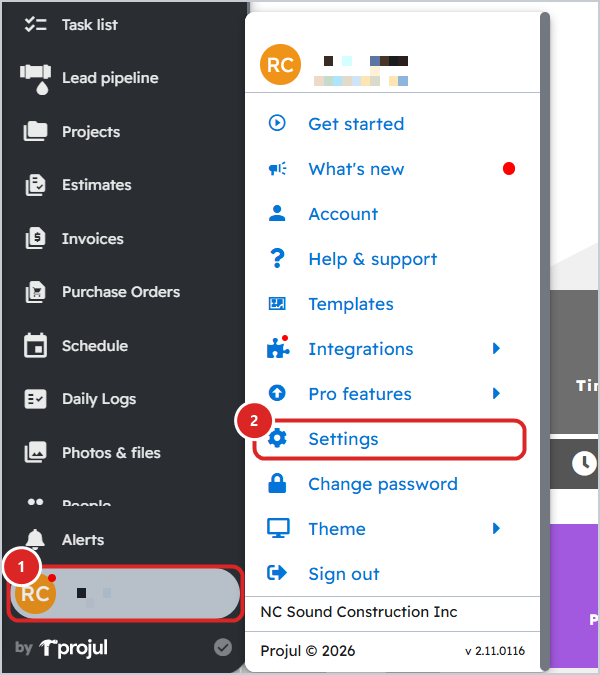
- Click your avatar at the bottom left, then click Settings.
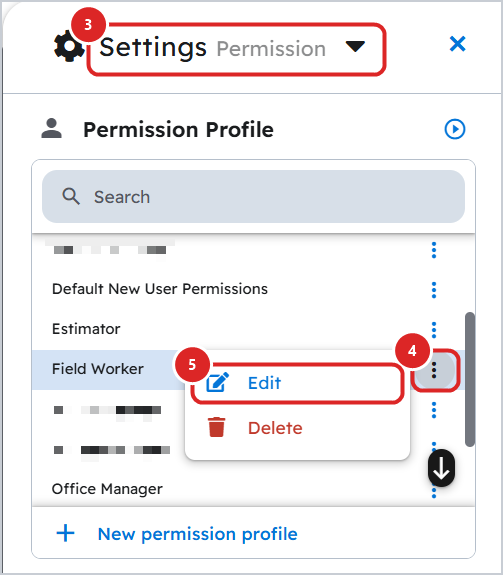
- Click the section name at the top of the Settings panel and choose Permission.
- Click the ⋮ next to the profile you want to change, then click Edit.
Step 2: Make sure "Can use daily logs" is on
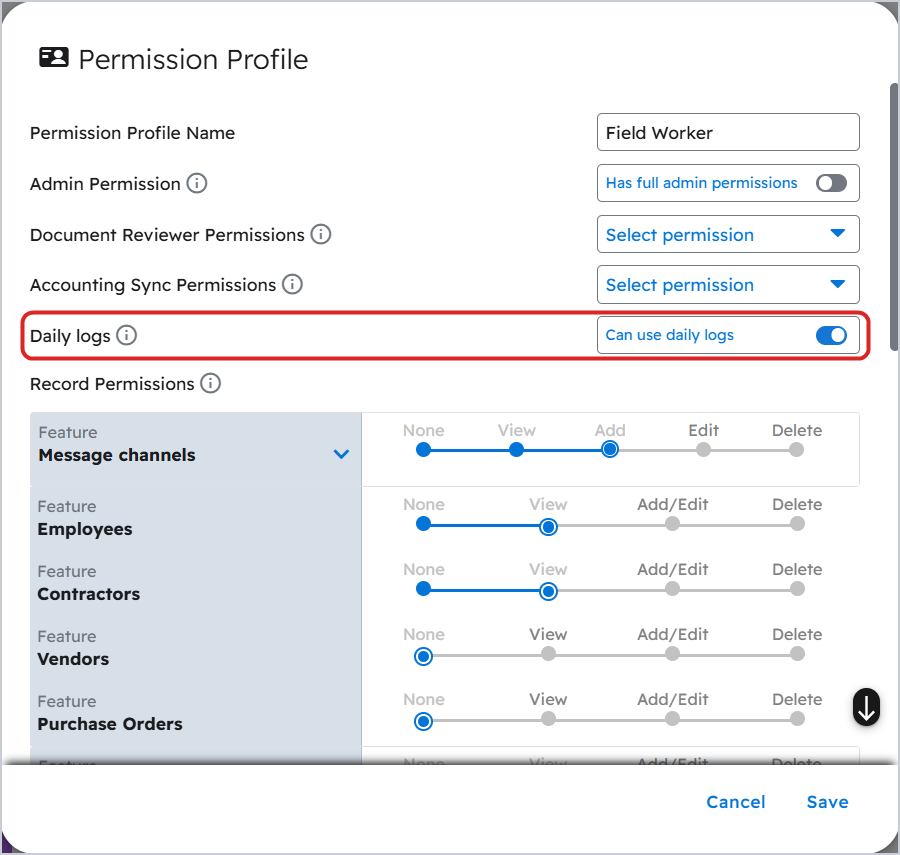
Near the top of the profile editor, the Daily logs switch should read Can use daily logs and be turned on (blue).
Step 3: Set which projects the profile can open
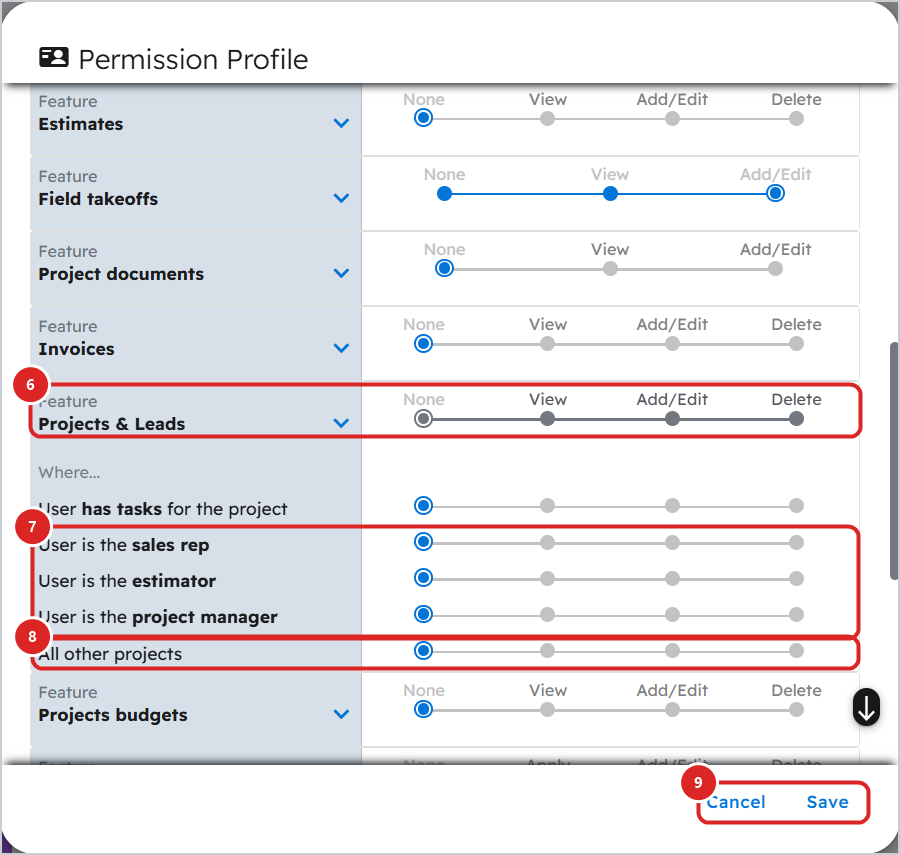
- Scroll down to Projects & Leads and click its arrow to show the rows under "Where…".
- Set the rows for the people who use this profile:
- User has tasks for the project: crew and team leads who are scheduled on the job.
- User is the sales rep / estimator / project manager: lets people see the jobs they sell or run, even with no task on them.
- All other projects: lets them see every job's daily logs, not just their own.
- Click Save.
What each level allows
| Level | Daily logs on those projects |
|---|---|
| None | The project and its logs are hidden. |
| View | Read the logs and add their own entries. |
| Add/Edit or Delete | Also start, sign, lock, print and send logs. |
Tip: If your sales reps or project managers share a general profile with field staff, create a separate profile for them instead. Click New permission profile, turn on the sales rep and project manager rows, then assign it under People → Employees. That way field staff don't get more access than they need.
Finding logs on the Daily logs page
For the day you pick, the Daily Logs page lists the projects you manage, are crew on or have a task on, plus any project that already has a log that day.
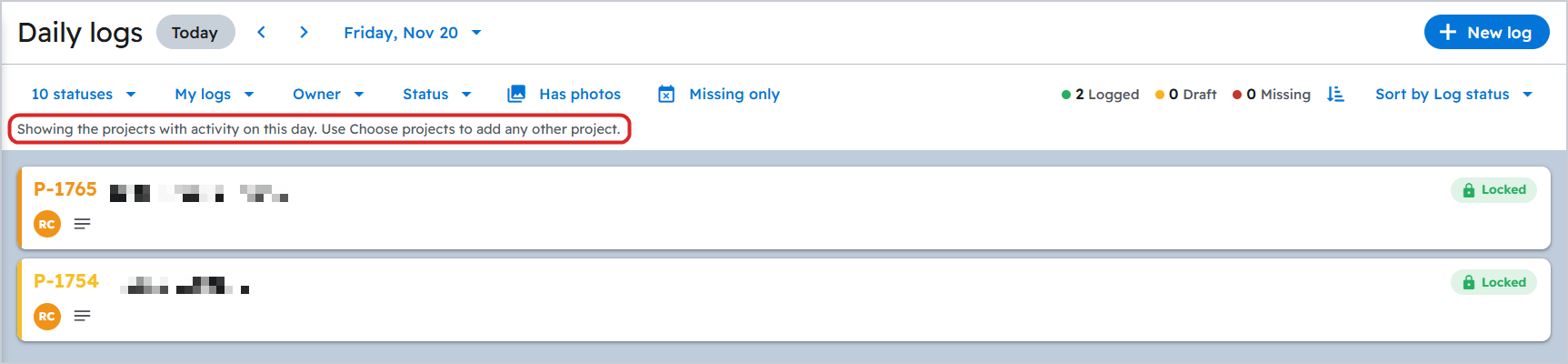
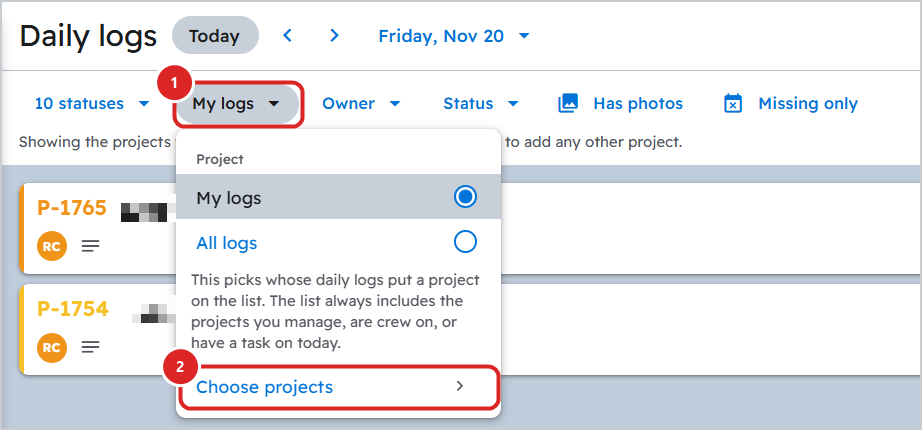
To open a log for any other project, click My logs → Choose projects and pick the job. You can only choose projects your permission profile lets you open.
Still can't see a log?
- Check that the person's profiles give them at least View on that project, through one of the "Where…" rows or All other projects.
- Check that they're assigned to the job as you expect (sales rep, estimator, project manager, or a task on the schedule).
- Ask them to refresh the page after you change their permissions.