![Projul Logo 345PX wide.png]](https://knowledge.projul.com/hs-fs/hubfs/Projul%20Logo%20345PX%20wide.png?height=40&name=Projul%20Logo%20345PX%20wide.png)
By making a photo or file public, anyone who has a task on the project will be able to view the photo or file.
Start by finding the project you wish to make a photo or file public on, and then selecting either photos or files from the 9-square menu in the top right corner of the project.
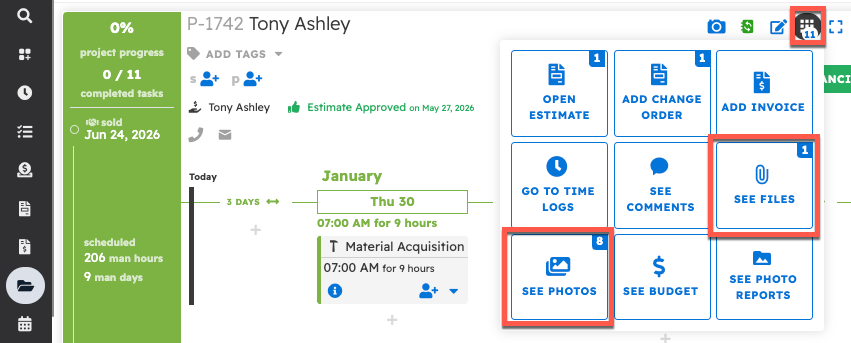
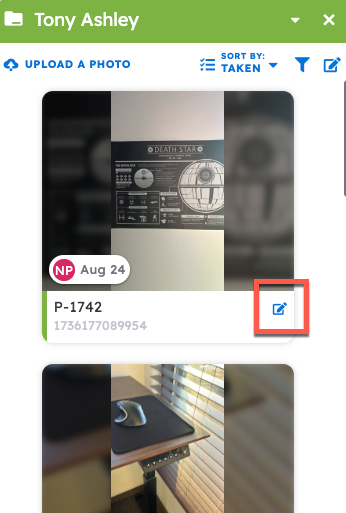
Then, select the edit button on the photo or file that you have uploaded to the project.
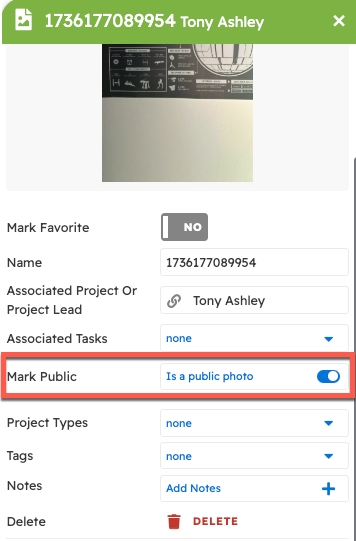
At the "Mark Public" line, turn on "Is a public file" (for a photo, the toggle reads "Is a public photo"). Public photos & files can be viewed by anyone assigned to a task for the associated project.
You can then close out of the file editor by pressing "Save and Close" at the bottom.
Now, to see how others can access these public files from a task, follow these steps. Start by opening the task menu and selecting the Photos button or the Files button.
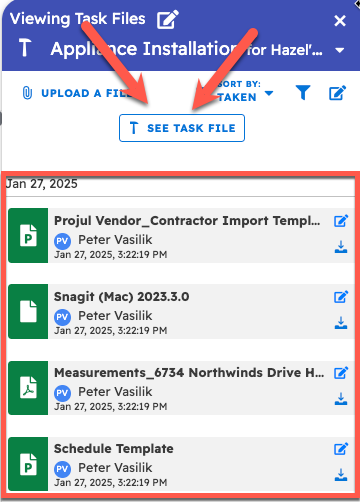
This will bring up any files that have been attached to the task. They can then switch to viewing the project files by select "See Project Files."
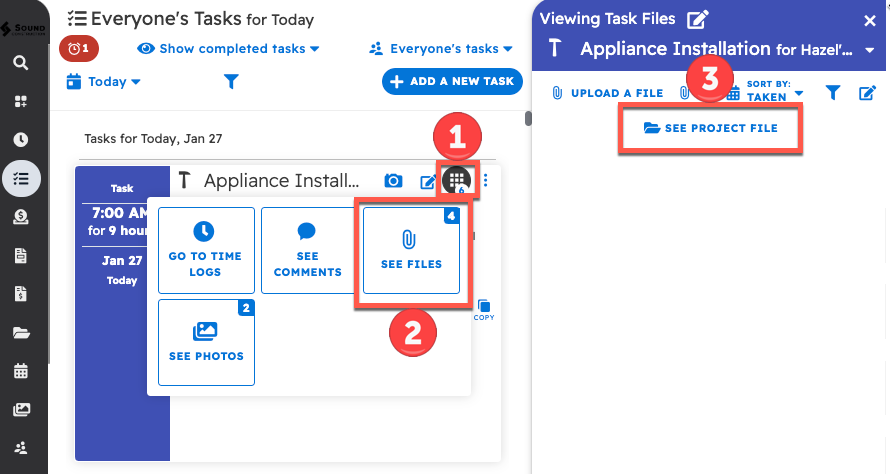
This will switch to viewing all project files that have been made public, as shown here.
Questions? Let's Chat.
support@projul.com
(844) 776-5853