![Projul Logo 345PX wide.png]](https://knowledge.projul.com/hs-fs/hubfs/Projul%20Logo%20345PX%20wide.png?height=40&name=Projul%20Logo%20345PX%20wide.png)
If a vendor takes items back, record a return on the purchase order. Projul reduces the received amounts, keeps a history of every return, and can sync the credit to QuickBooks, depending on the return type.
You can only return items that have already been received. If nothing has been received on a purchase order yet, there is nothing to return. See How do I receive items (record actuals) on a Purchase Order? first.
Follow the written instructions below:
Opening the record a return window
- Go to Purchase Orders in the Sidebar Navigation menu.
- Click the three-dot (⋮) menu on the purchase order card and choose "Record a return."
Choosing the return type
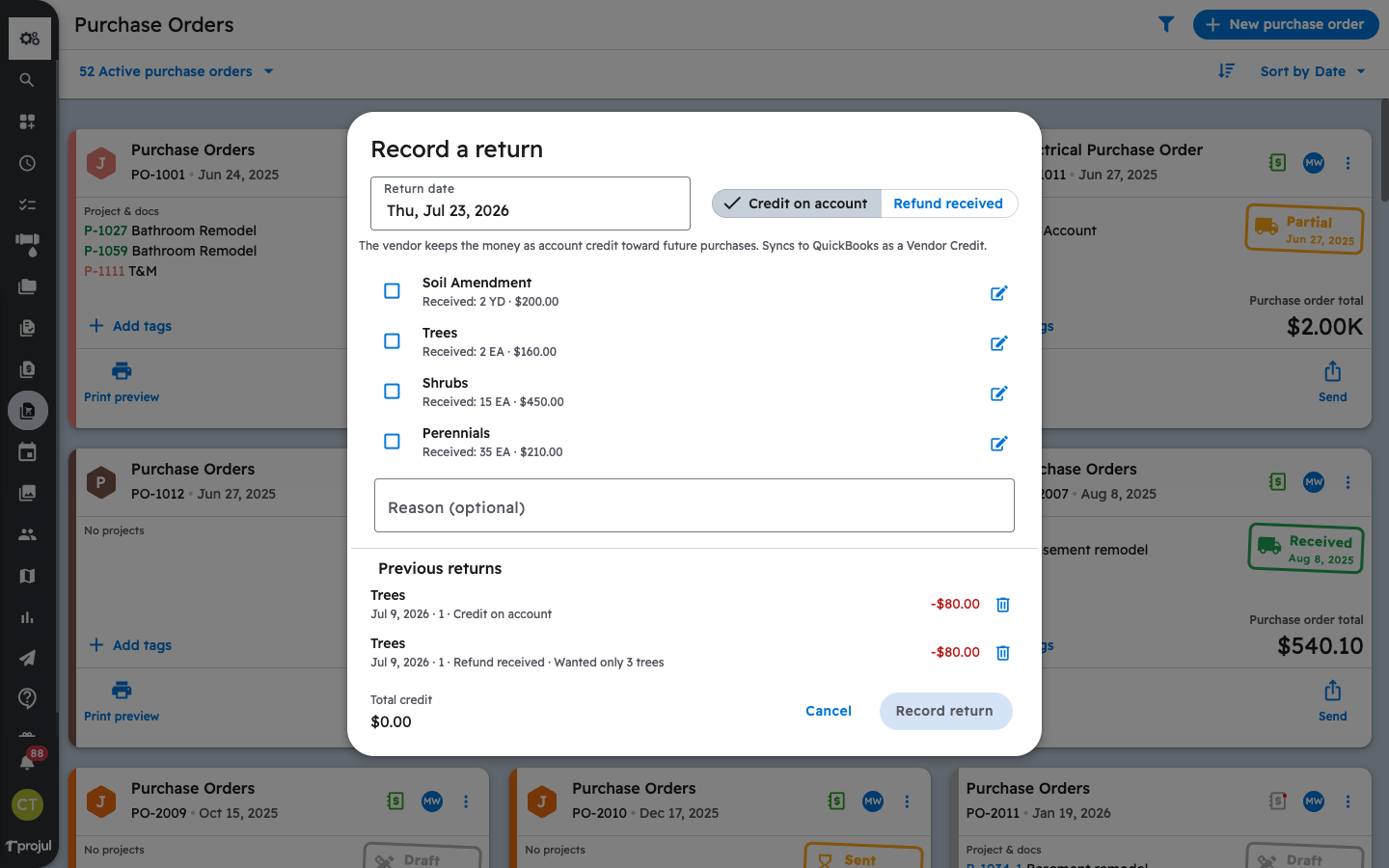
Set the Return date, then choose how the vendor is handling the money:
- Credit on account – the vendor keeps the money as account credit toward future purchases. This syncs to QuickBooks as a Vendor Credit.
- Refund received – the vendor gave the money back (cash, card, or check). This is not synced to QuickBooks.
Recording the returned items
- Check the box next to each item being returned. Only items that have been received appear, along with the received quantity and value.
- Click the pencil icon next to an item to set the return quantity if you are returning only part of it.
- Optionally add a Reason for the return.
- Review the Total credit (or Total refund) at the bottom, then press "Record return."
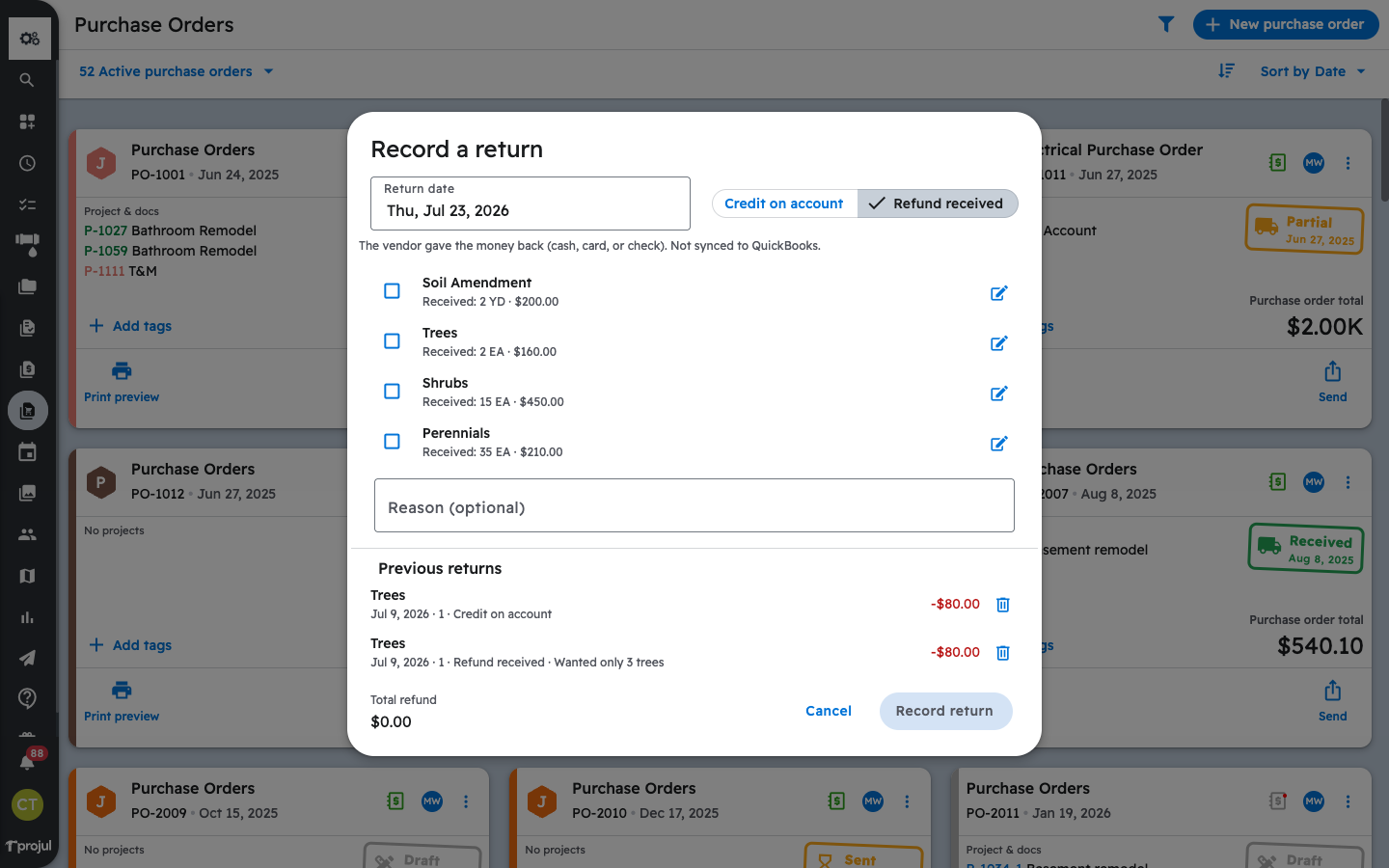
Every return you record is listed under Previous returns so you always have a history. To remove one, click the trash icon next to it. When items are returned, the purchase order card shows a Partially returned or Returned label.
Related articles:
- How do I create and send a Purchase Order?
- How do I receive items (record actuals) on a Purchase Order?
- How do Purchase Orders sync to QuickBooks Online?
Questions? Let's Chat.
support@projul.com
(844) 776-5853