![Projul Logo 345PX wide.png]](https://knowledge.projul.com/hs-fs/hubfs/Projul%20Logo%20345PX%20wide.png?height=40&name=Projul%20Logo%20345PX%20wide.png)
When you reject a project lead in the sales pipeline it will be put in the rejected phase of the pipeline. The lead will then show the reason it was rejected and any notes you added on the lead card.
To find where rejected leads go, first navigate to the lead pipeline, by either clicking on the icon on the left side bar or the home screen button.
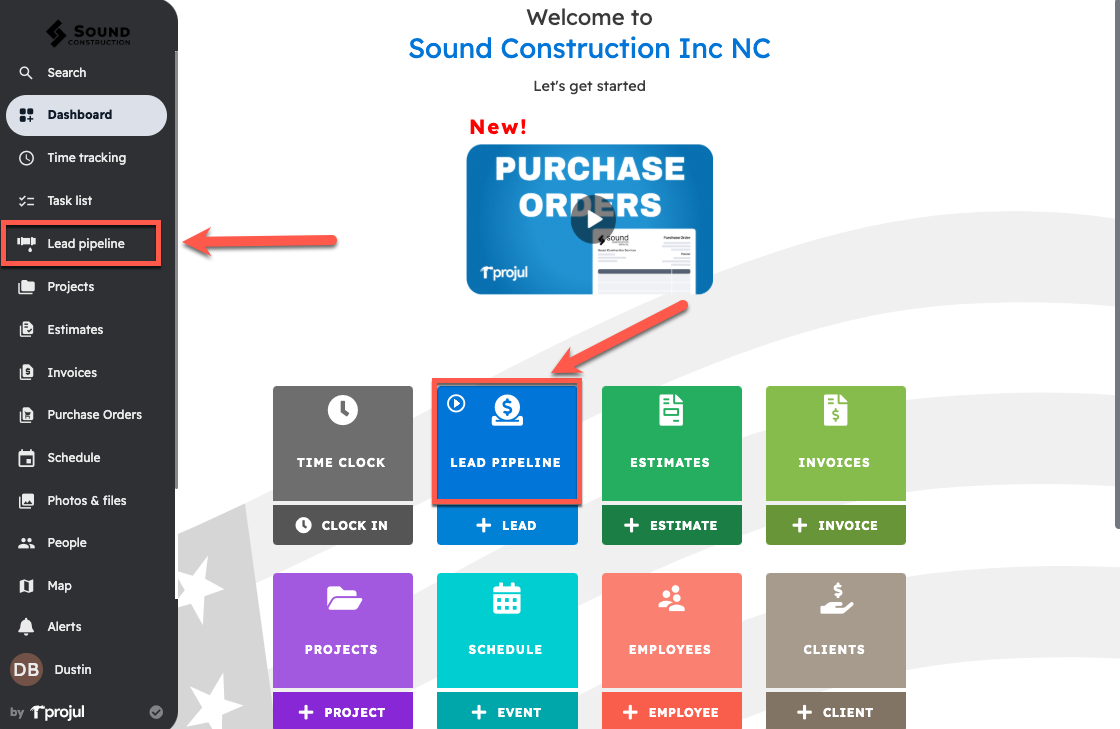
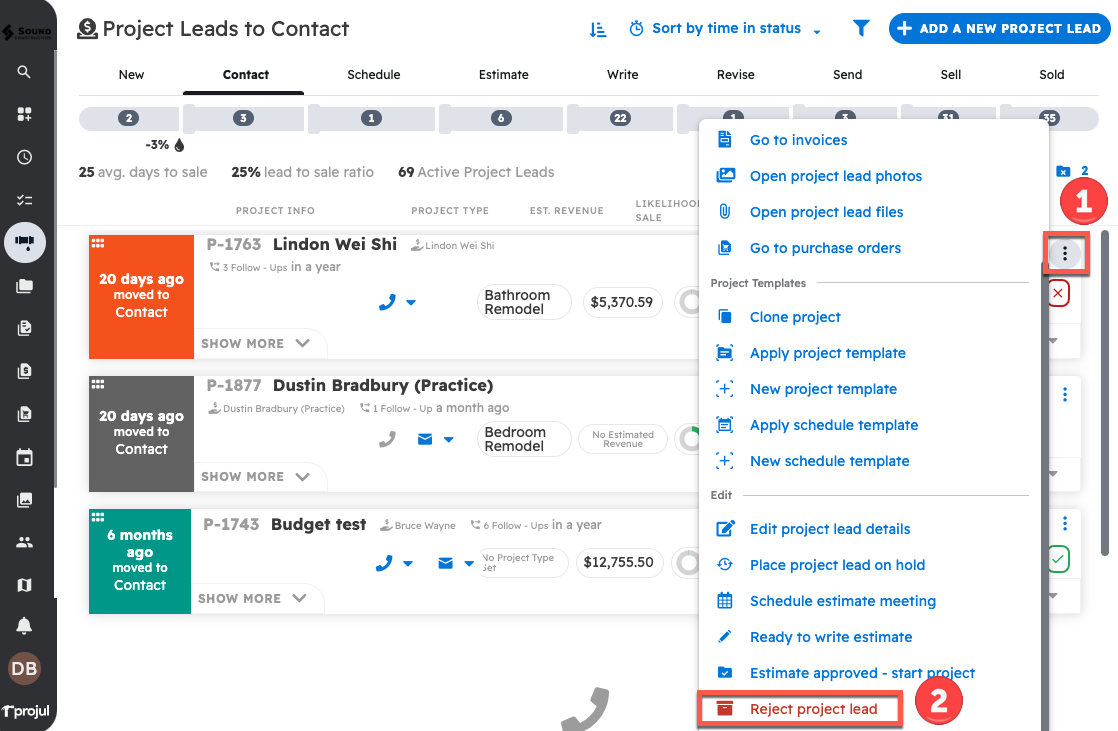
To reject a lead:
1. Click on the three dot menu on the lead card
2. Select "Reject project lead"
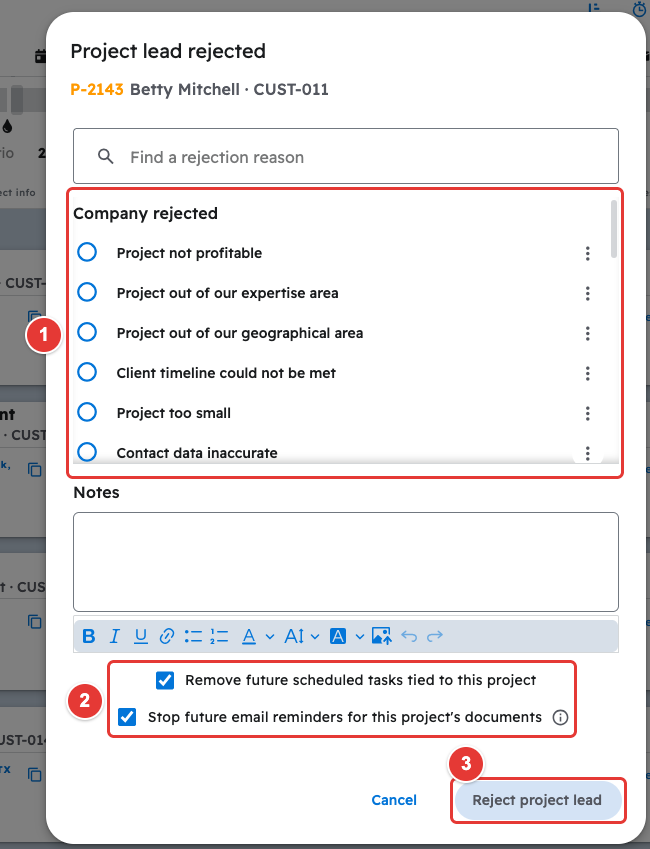
In the "Project lead rejected" window, pick a reason from the "Company rejected" or "Client rejected" list (or add a new one) and add notes. Two boxes are ticked by default: "Remove future scheduled tasks tied to this project" and "Stop future email reminders for this project's documents". Untick either one if you want to keep it. Then click "Reject project lead".
After you have rejected a lead, you can view it by clicking the "Rejected" button on the lead pipeline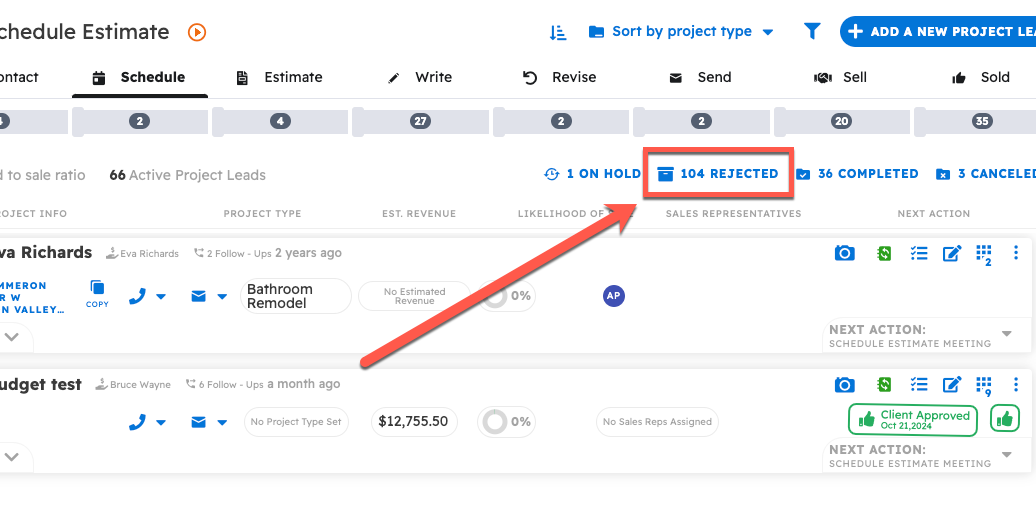
From the Rejected section of the lead pipeline you can see your rejected Projects including all of their details and Project notes, and the reason logged for rejecting them.
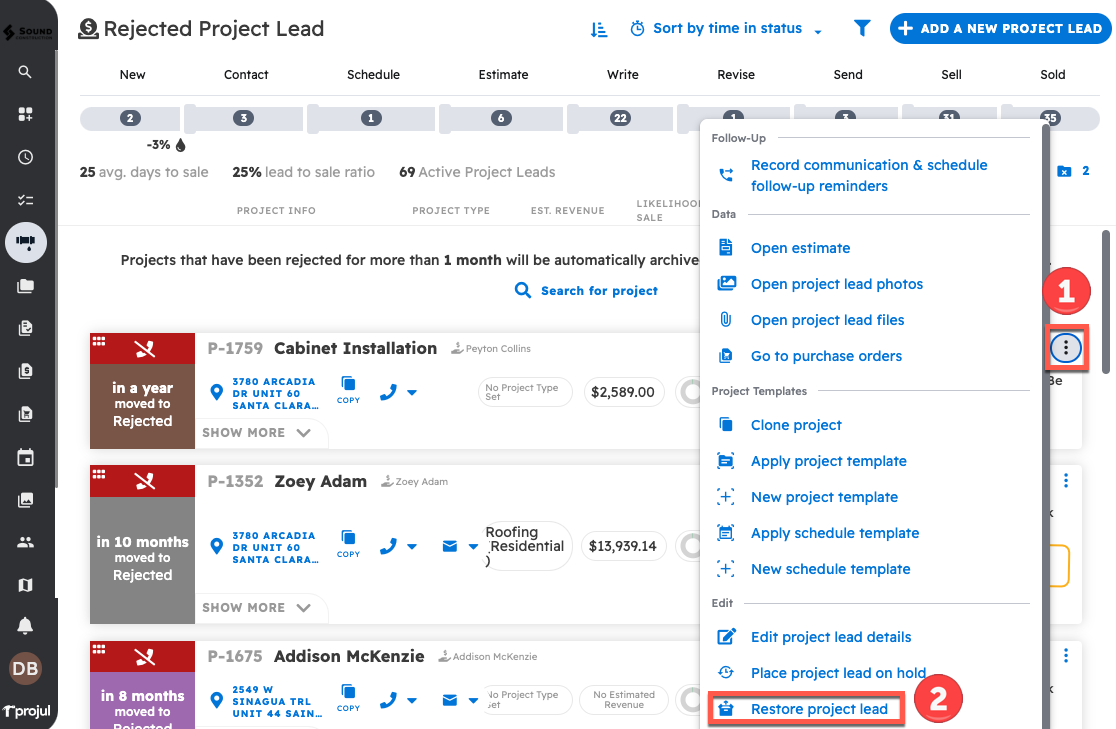
In order to restore a rejected lead:
- Click on the three dot menu on the lead card
- Select "Restore project lead"
This will return the lead to the section of the lead pipeline it was in before it was rejected.
Questions? Let's Chat.
support@projul.com
(844) 776-5853