![Projul Logo 345PX wide.png]](https://knowledge.projul.com/hs-fs/hubfs/Projul%20Logo%20345PX%20wide.png?height=40&name=Projul%20Logo%20345PX%20wide.png)
Schedule settings allow you to set various time and task settings.
Contents:
Schedule Settings Overview
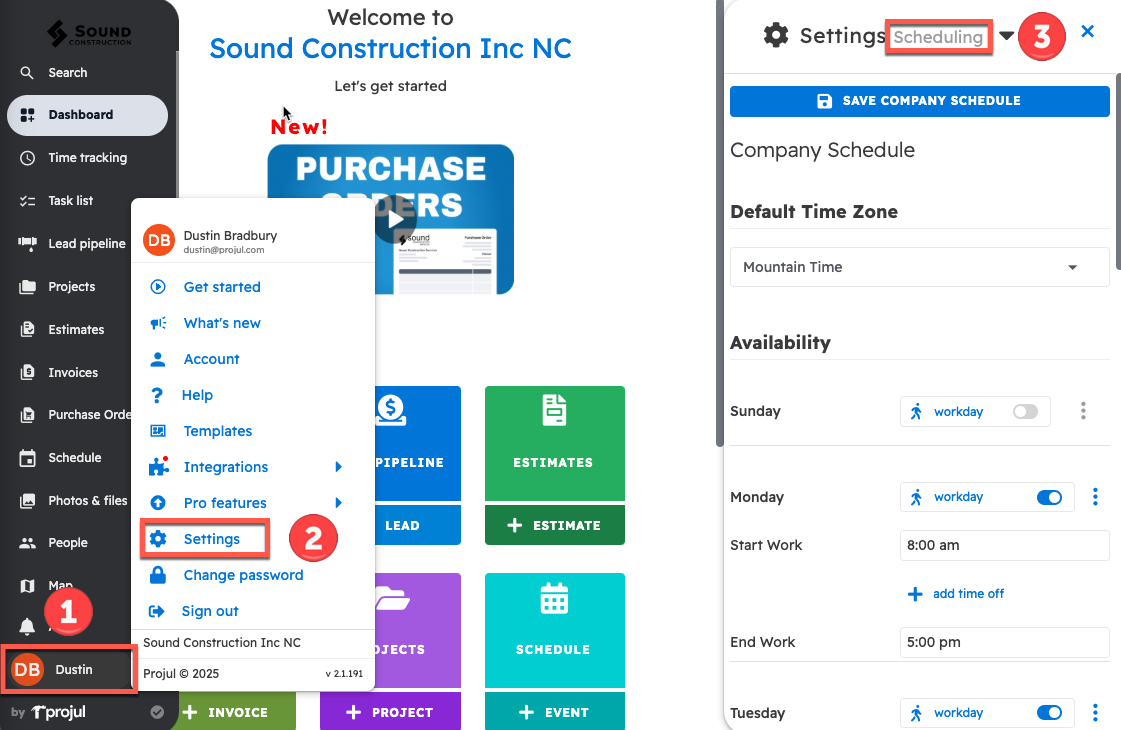
To find schedule settings:
- Click your initials in the bottom left corner of the screen
- Open settings
- Open the settings dropdown menu and switch to the "Scheduling" settings
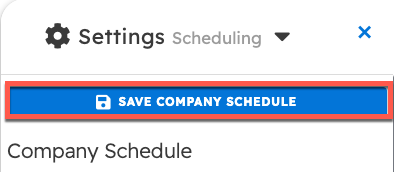
NOTE: After you have made settings changes in Projul, please remember to click save!
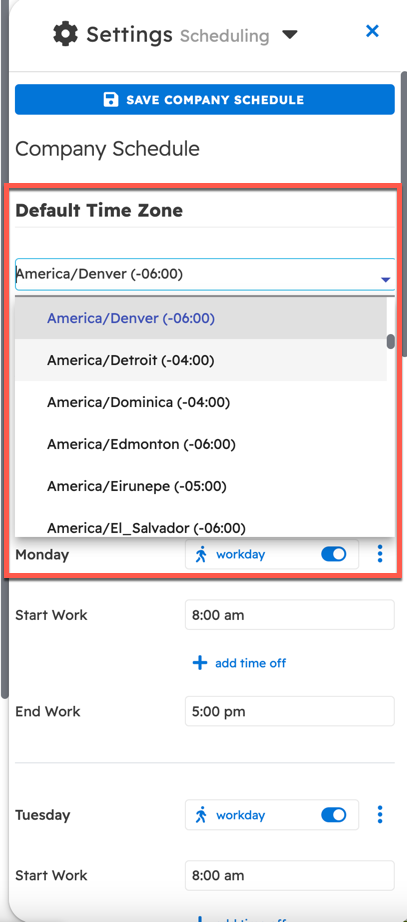
Default Time Zone
The default time zone is the time zone Projul uses for sending notifications to your clients. It does not affect your scheduling time otherwise. If you are in another time zone while scheduling a task or event, Projul will use the time zone you are currently in.
Availability
Availability settings are used to define the workweek and individual worker schedules. The options include:
- Designating whether a day is a workday
- Setting the start time for the workday
- Indicating any time off during the day
- Specifying the end time for the workday
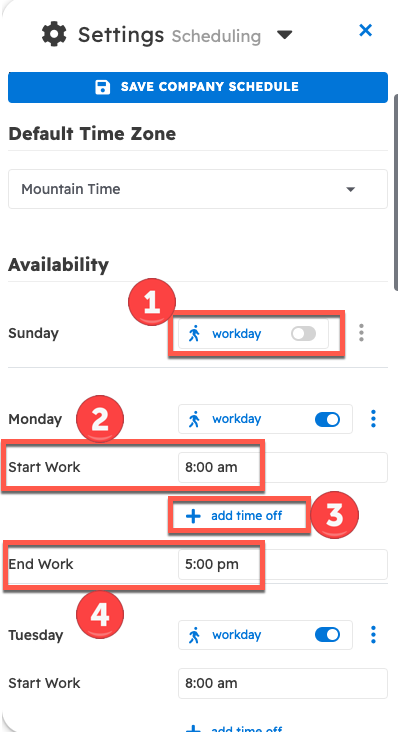
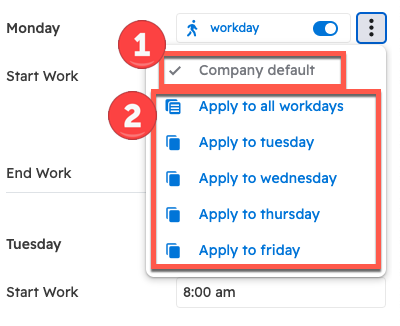
Once a day is set as a workday, the three dot menu can:
- Revert the day to the company default
- Apply the day's settings to other days of the week
Automatic Scheduling
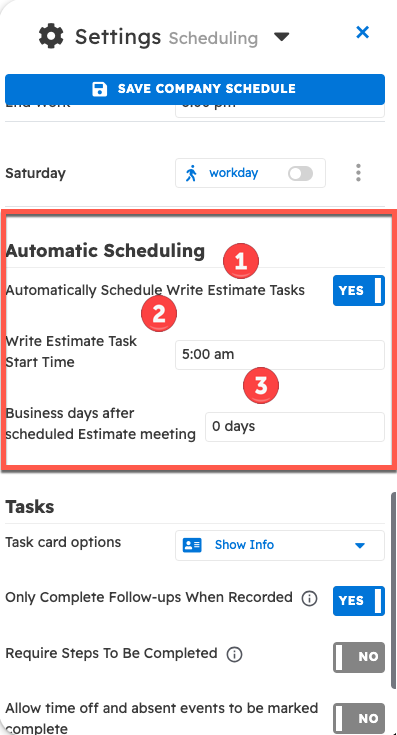
The automatic scheduling section determines the following:
- Whether the "Write Estimate Task" is automatically scheduled following the estimate meeting
- The start time for the "Write Estimate Task"
- The number of business days after the estimate meeting when the "Write Estimate Task" will be scheduled
Tasks
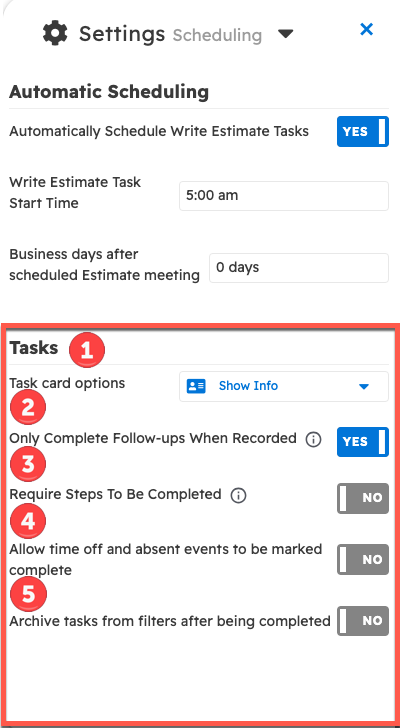
Task scheduling settings control the following:
- Whether users are required to log a follow-up in the communications channel to mark the follow-up reminder task as complete
- Whether all steps of a task must be completed in order to finalize the task
- Whether time off and absence events can be marked as complete (otherwise, these events will only appear on the schedule page as informational items)
- Whether completed tasks are automatically archived, and if so:
- The time period after task completion before archiving occurs
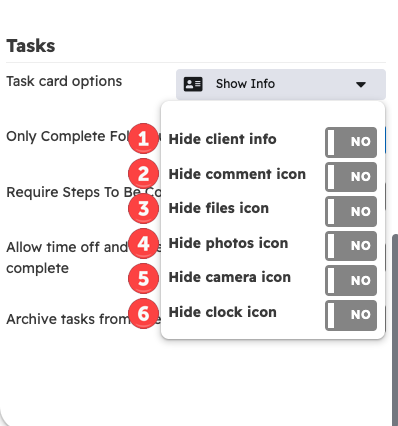
Open "Task card options" to customize what is displayed on task cards, including:
- Client information
- Comment icon
- Files icon
- Photos icon
- Camera icon
- Clock icon
Questions? Let's Chat.
support@projul.com
(844) 776-5853