![Projul Logo 345PX wide.png]](https://knowledge.projul.com/hs-fs/hubfs/Projul%20Logo%20345PX%20wide.png?height=40&name=Projul%20Logo%20345PX%20wide.png)
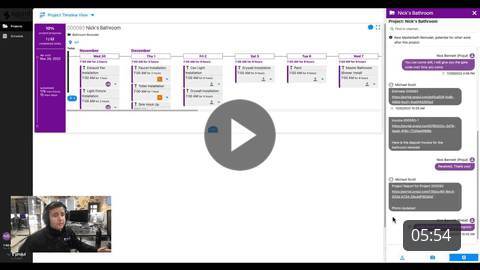
What does it do?
The client portal is a place where customers can log into Projul and keep up to date with their projects, as well as the task's related schedule. You can also communicate with the customer from the portal - you can even send pictures!
How to set it up
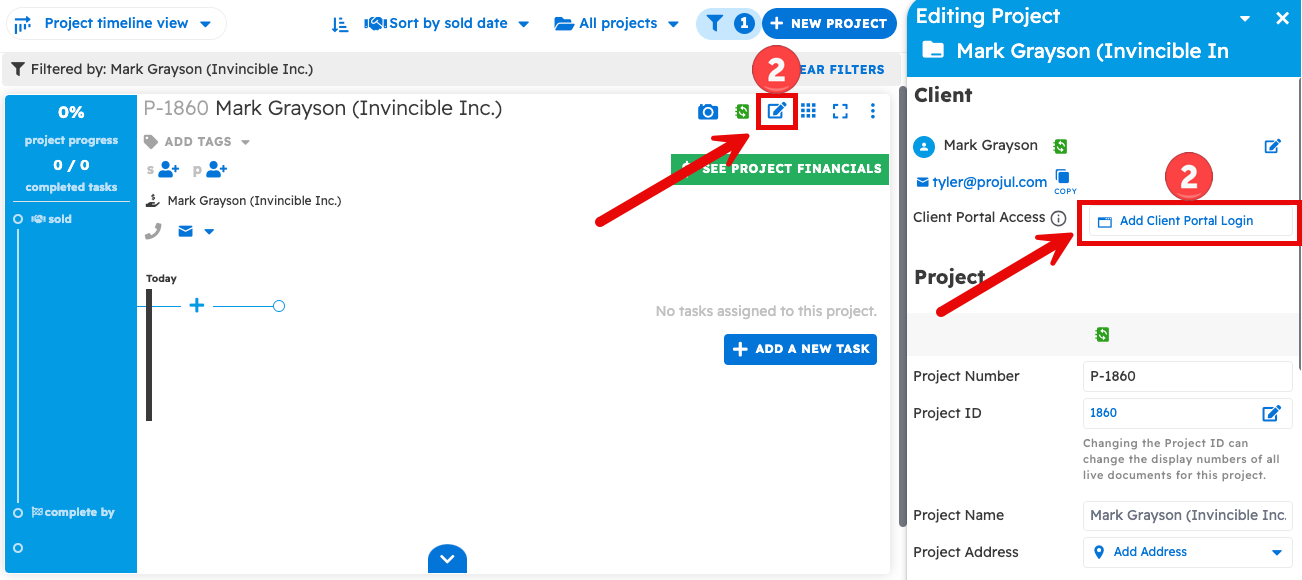
You can send your client a client portal link from either one of their projects or the client editor. To do so, either navigate to one of their projects or find them in the Clients page and click the "Edit" button. From there, select "Add Client Portal Login." The client needs an email address first.
Projul then emails your client their portal link and login instructions. To review or edit the email before it goes out, set "Send Email Behavior" to "View templated email" in the "Client Portal" settings.
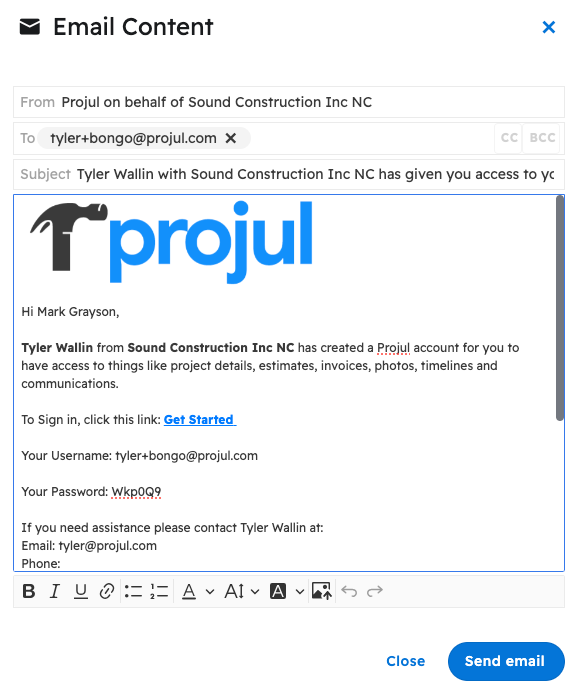
Now your customer officially has access to their portal!
What the customer sees
In the customer portal, the customer can view three things:
- Their projects, including the project timeline and up-to-date tasks.
- The "Messages to Client" comments channel.
- The schedule tab.
1. The customer can view the project timeline including all of their projects and their tasks. They can switch their view from timeline view to Gantt or Month view as well. 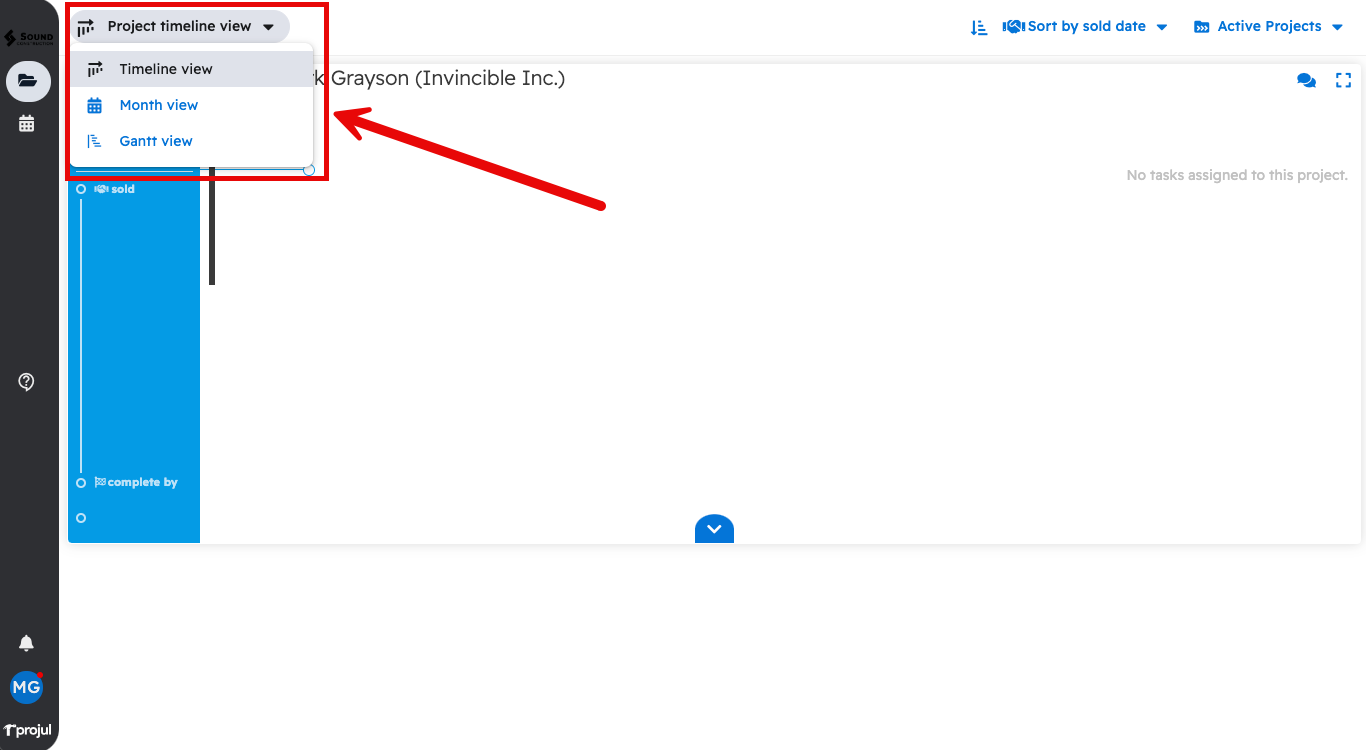
2. The customer can also view the "Messages to Client" channel. Note that this is separate from the "Client" channel (a channel that will show up on all Projects for a client), where you can input notes about a client.
The "Messages to Client" channel is a channel where you can send messages, updates, and photos to your client. If your client has the Projul mobile app installed, they will also receive notifications whenever a message is sent on any of the "Messages to Client" channels for their project(s). 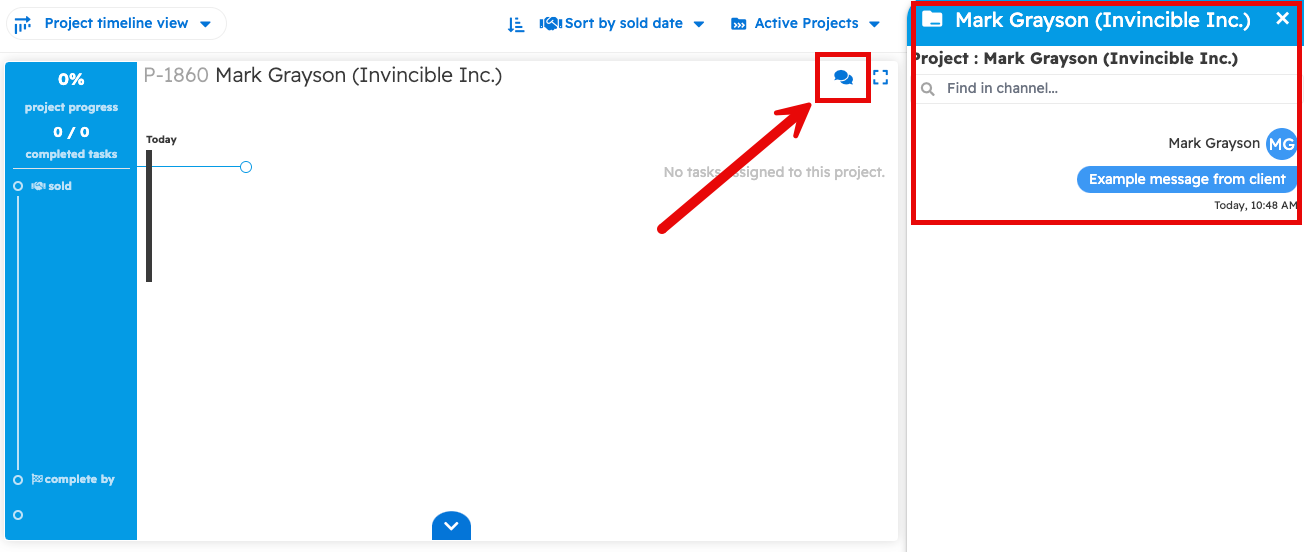
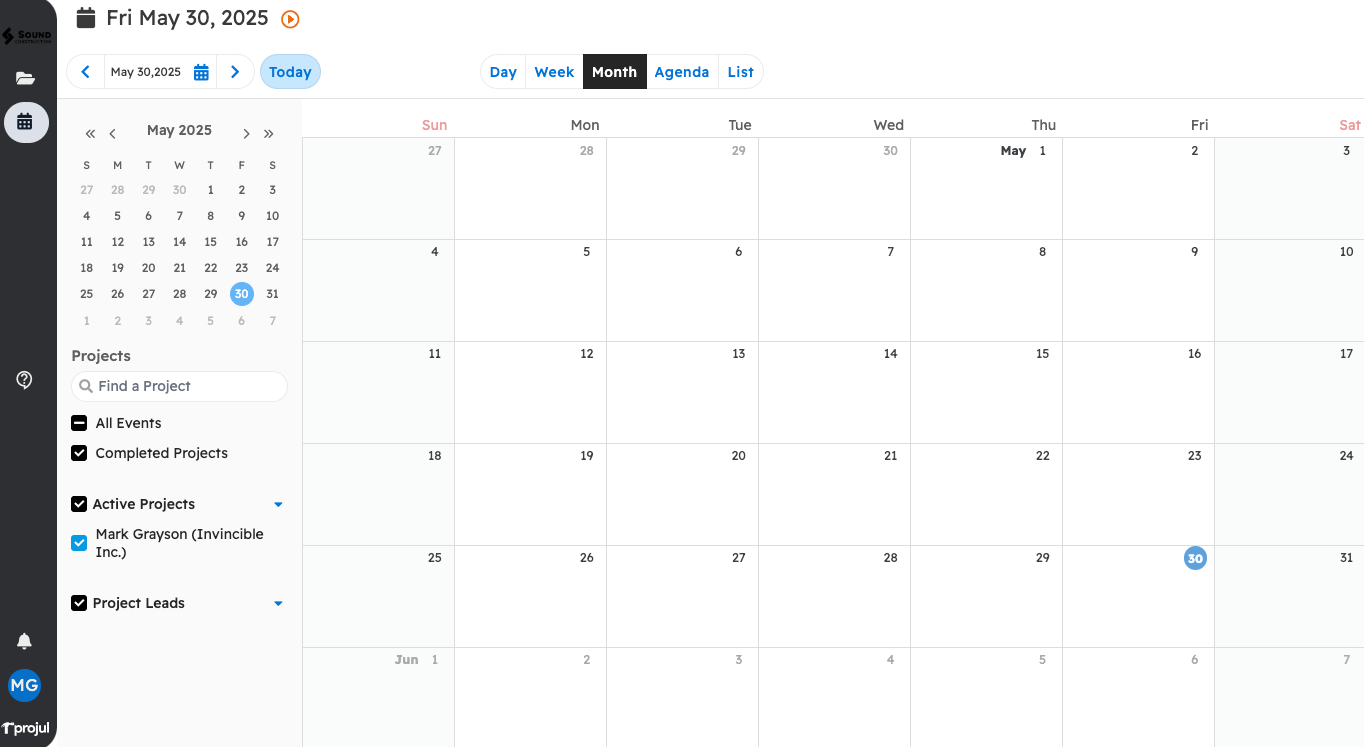
3. Additionally, the customer can see the schedule page. In the schedule, they are able to view tasks for their projects in a calendar view.
Questions? Let's Chat.
support@projul.com
(844) 776-5853