![Projul Logo 345PX wide.png]](https://knowledge.projul.com/hs-fs/hubfs/Projul%20Logo%20345PX%20wide.png?height=40&name=Projul%20Logo%20345PX%20wide.png)
Notifications can be customized in settings. Clients can receive reminder emails. Employees receive automatic notifications on their mobile device when using the Projul mobile app! Notifications can also be viewed in the web app.
Contents
Notification Phone Settings
Notification Phone Settings
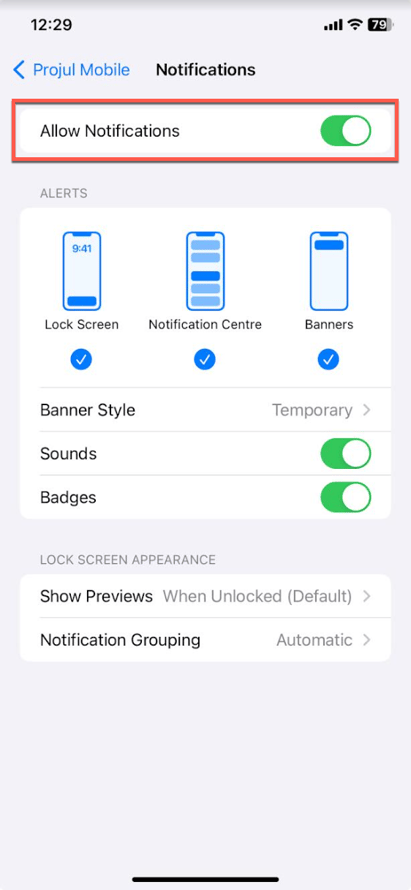
In order to receive Projul notifications on your mobile device, phone settings must be set to allow notifications from Projul. To adjust your phone settings:
- Go to the Settings app
- Click on Projul Mobile Settings
- Click on Notification Settings
- Make sure "Allow Notifications" is on
Notification Settings Overview
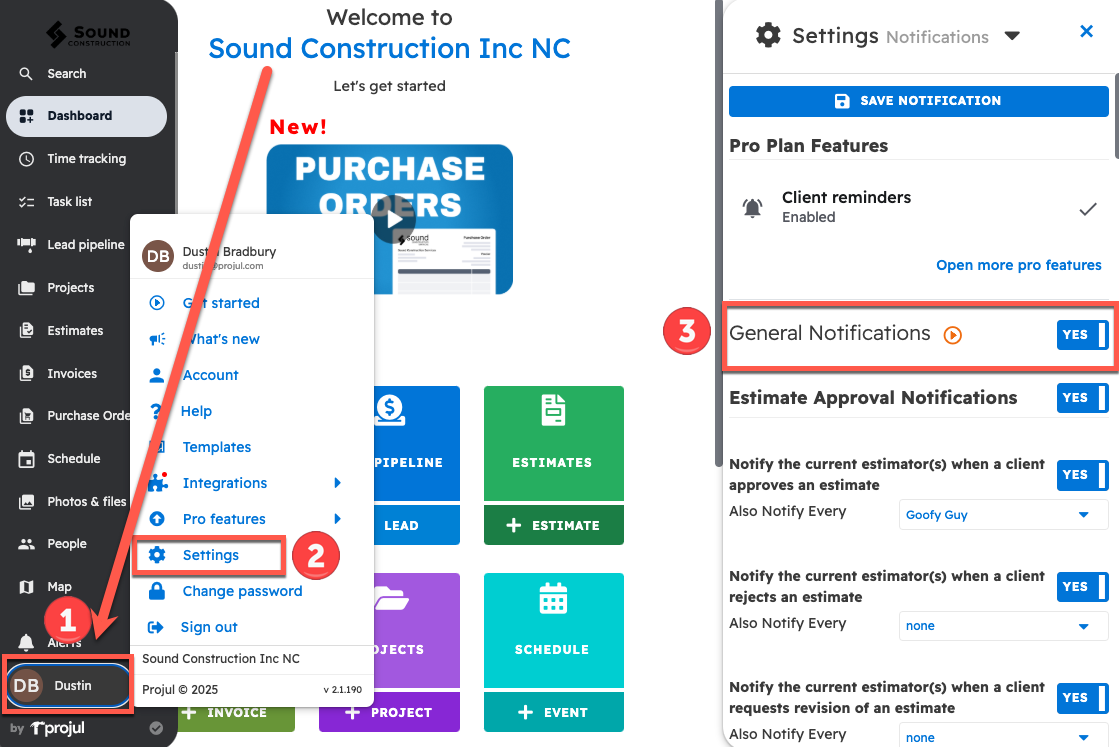
The specific notifications you receive in Projul can be edited in notification settings. To get to the notification settings:
- Click on your initials in the bottom left corner
- Click on "Settings"
- Turn on "General Notifications"
"General Notifications" will turn on or off all notifications from Projul. Once you have set your General Notifications, you can edit specific notifications below.
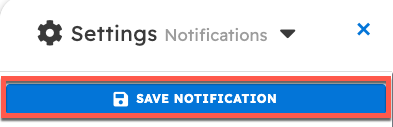
NOTE: This is a friendly reminder to click save after you have made settings changes in Projul!
Estimate Approval Notifications
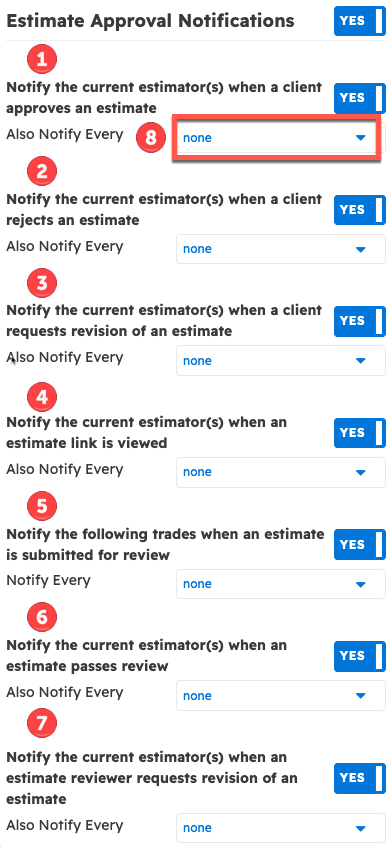
The estimate approval notifications settings let you decide whether to notify the estimator when:
- A client approves an estimate
- A client rejects an estimate
- A client requests a revision for an estimate
- An estimate link is viewed
- An estimate is submitted for review
- An estimate passes review
- A reviewer requests a revision for an estimate
- You can also decide who else (by trade) will be notified other than the estimator (click here for info on how to add a trade to an employee or contractor)
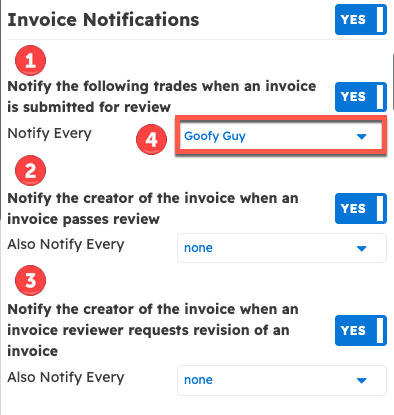
Invoice Notifications
The invoice notifications settings let you decide whether to notify the creator when:
- An invoice is submitted for review
- An invoice passes review
- A reviewer requests a revision for an invoice
- You can also decide who else (by trade) will be notified other than the creator (click here for info on how to add a trade to an employee or contractor)
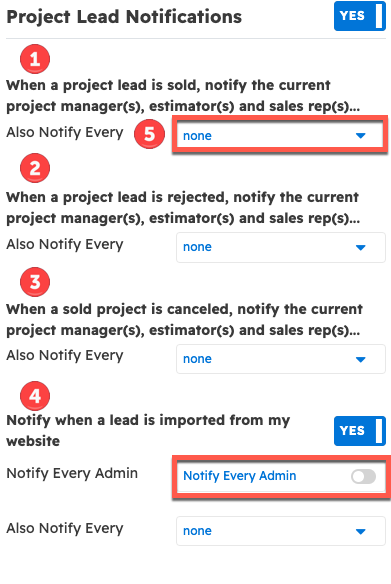
Project Lead Notification
Project lead notifications let you decide if the current project manager, estimator, and sales representative for a project are notified when:
- A project is sold
- A project is rejected
- A project is canceled
- A project is imported from your website (you can also set this to notify every admin)
- You can also decide what other job roles will be notified by adding trades to the notifications (click here for info on how to add a trade to an employee or contractor)
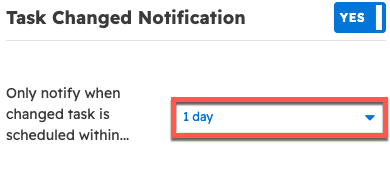
Task Changed Notification
Task change notification settings may be set to notify the user assigned to the task. They can also be set to only notify the user if the change is within a certain time range of the task.
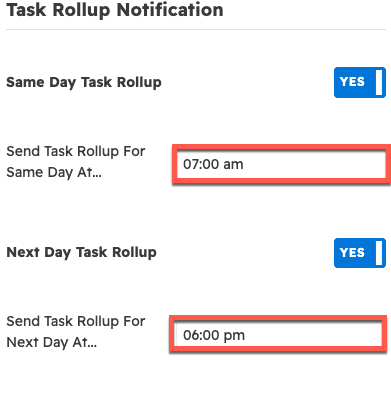
Task Rollup Notification
Task rollup notification settings allow creation of an automated rollup for same day and/or the next day's tasks. The time that rollup notifications will be sent can also be adjusted.
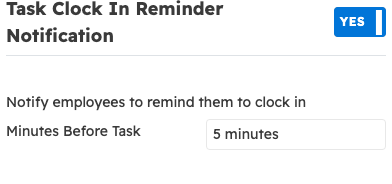
Task Clock In Reminder Notification
Task clock in reminder notifications send a user a notification before their tasks. The reminder timing can be adjusted.
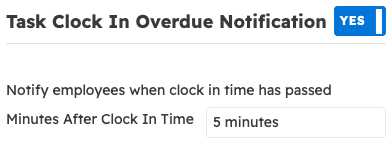
Task Clock In Overdue Notification
Task clock in overdue reminder notifications send a reminder if the user has a scheduled task that they do not clock in to. The wait time before this reminder can be adjusted.
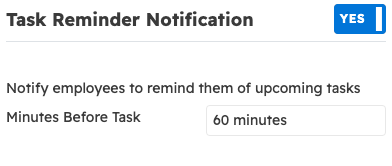
Task Reminder Notification
The task reminder notification sends the user a notification prior to scheduled tasks. The default for this reminder is one hour before the task, but the timing can be adjusted.
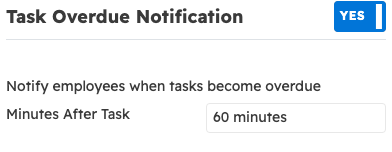
Task Overdue Notification
The task overdue notification sends the user a notification when task becomes overdue. The default for this notification is one hour after the task.
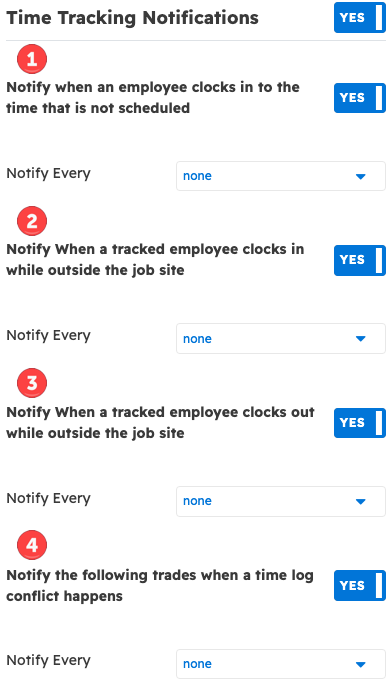
Time Tracking Notifications
Time tracking notifications can be used to notify a user (or a trade) if:
- An employee clocks into a time they aren't scheduled for
- An employee clocks in outside of the job site
- An employee clocks out while not on the job site
- A time log conflict happens
Client Notifications
Don't want to read an article about client reminders? Watch the brief video below or read on.

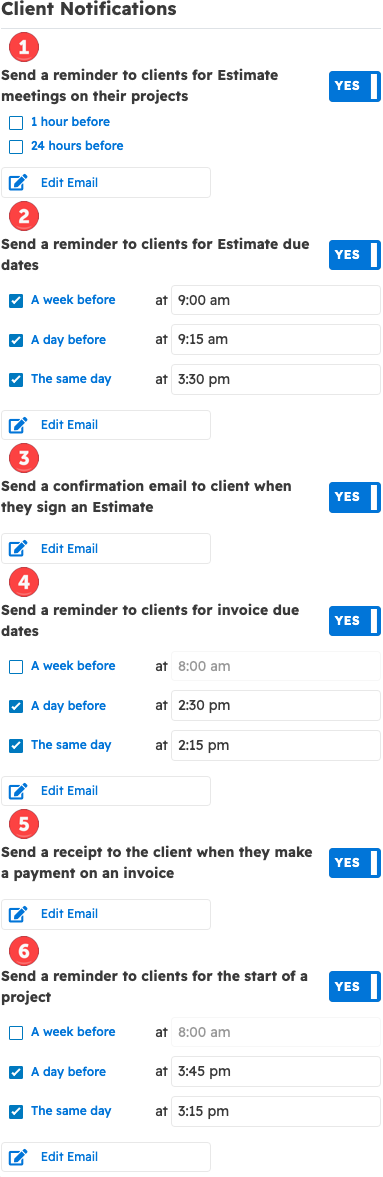
In addition to the user notifications mentioned above, Projul can also send your clients automatic reminders (by email). You can have reminders to your customers for:
- Upcoming estimate meetings on projects
- Estimate due dates
- Confirmation email after signing an estimate
- Invoice due dates
- Receipts for payments on an invoice
- Start of a project
Questions? Let's Chat.
support@projul.com
(844) 776-5853