![Projul Logo 345PX wide.png]](https://knowledge.projul.com/hs-fs/hubfs/Projul%20Logo%20345PX%20wide.png?height=40&name=Projul%20Logo%20345PX%20wide.png)
Schedule templates copy all tasks on a project. You can create one from an existing project or from the schedule templates page, and apply it to another project to add all of its tasks. (Project templates are separate: they only copy project details such as address, notes and tags, not tasks.)
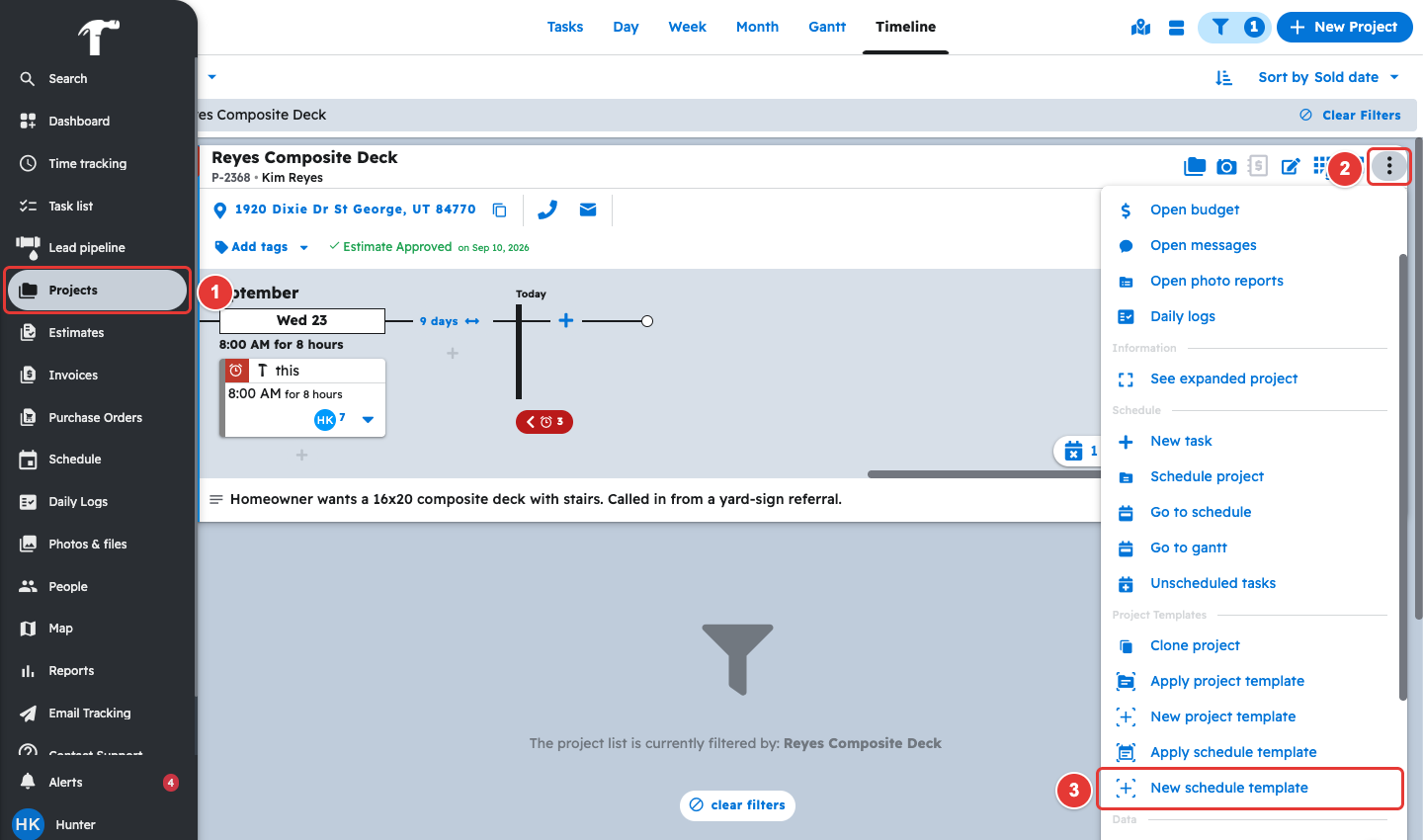
In order to create a template from an existing Project, start by navigating to the projects page and finding the project you would like to copy the tasks of. Open the three dot menu button in the top right corner of the project card and select "New schedule template."
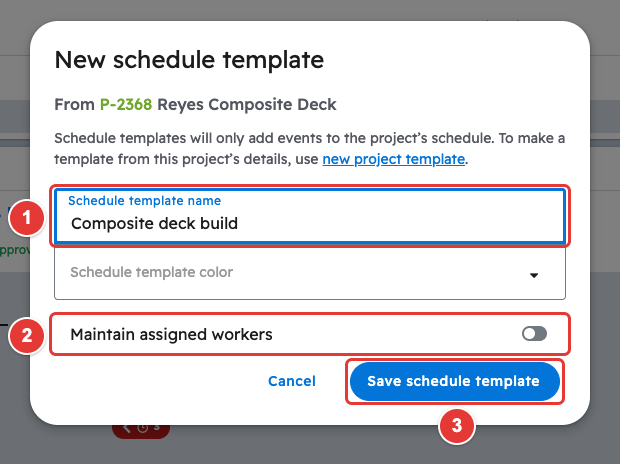
From here, give the template a name and choose whether to turn on "Maintain assigned workers" so the worker assignments stay on the template's tasks.
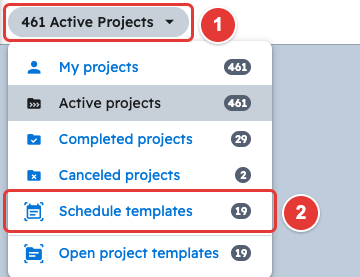
To get to your schedule templates, click the button that changes the type of project you are viewing at the top of the screen, then click "Schedule templates."
- Click on the button that changes the type of project you are viewing at the top of the screen
- Click on "Schedule templates"
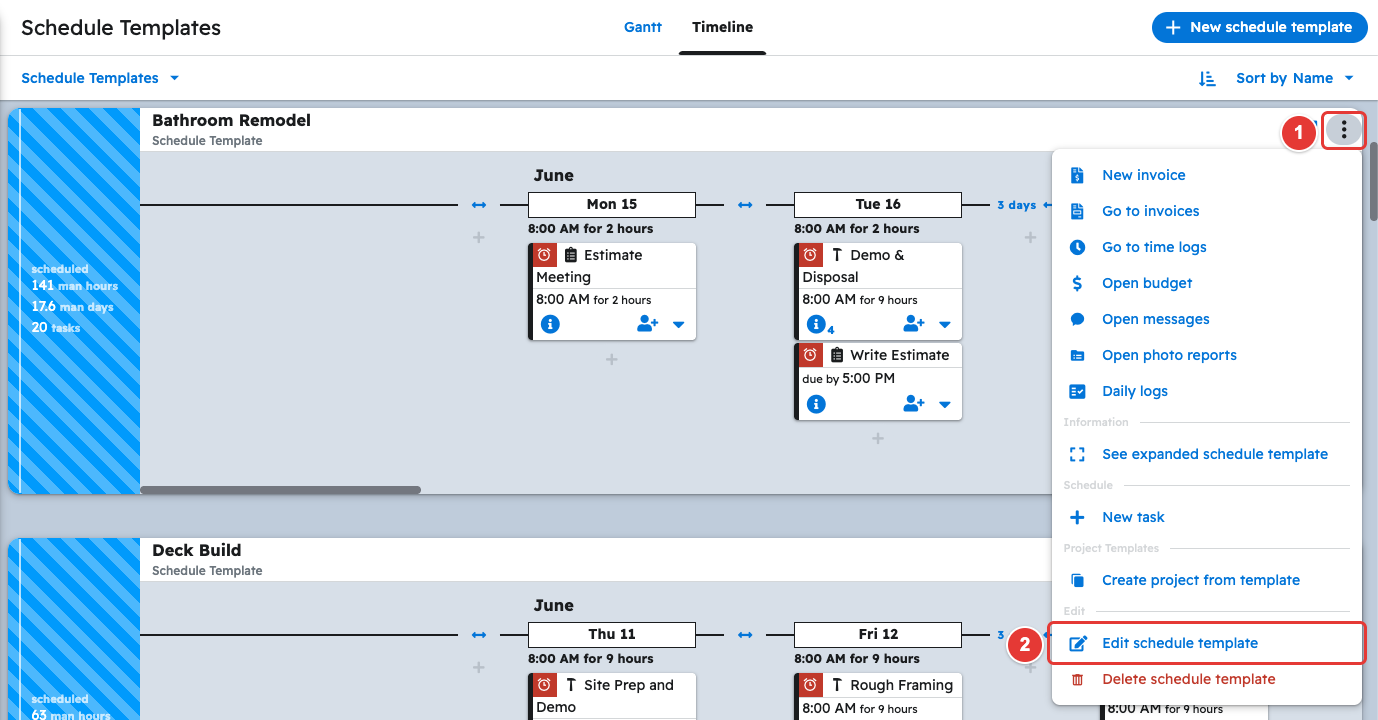
This opens the Schedule Templates page with all of your schedule templates. To edit one, click its three dot menu and select "Edit schedule template."
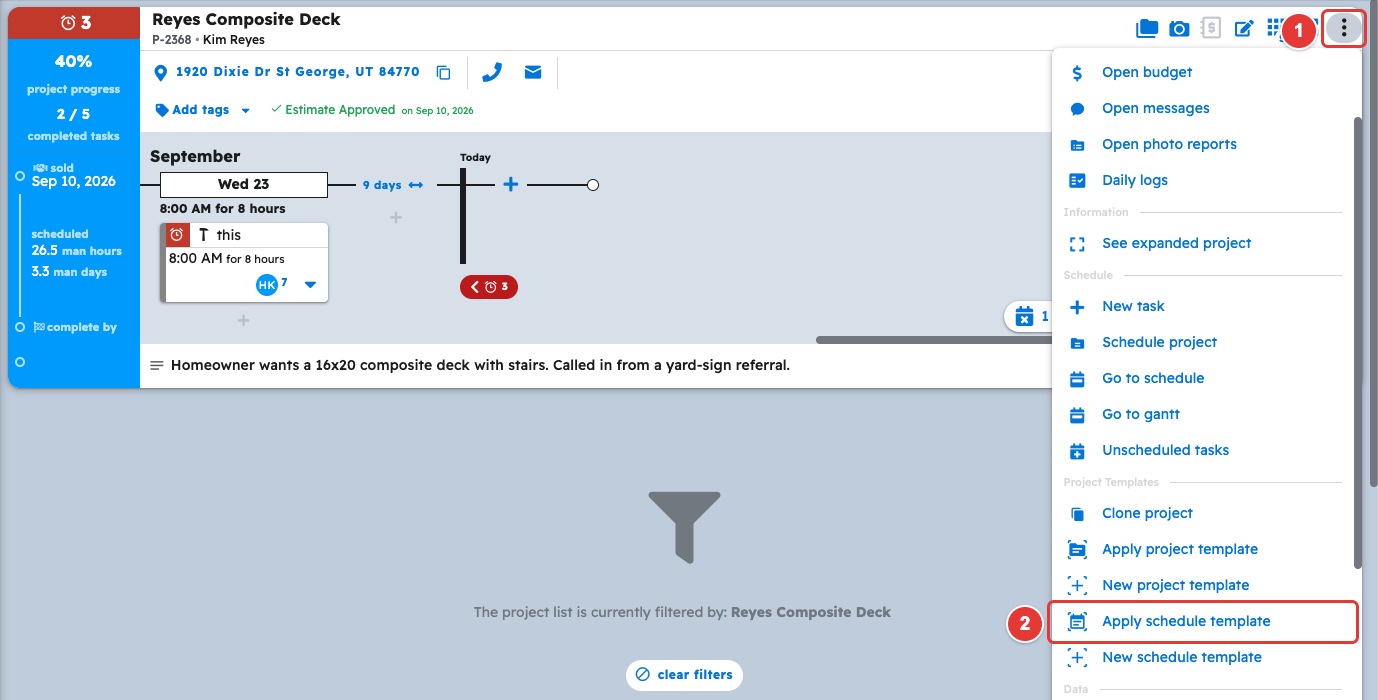
To add tasks from a saved schedule template, find the project you want to add them to. Press the three dot menu in the top right and select "Apply schedule template."
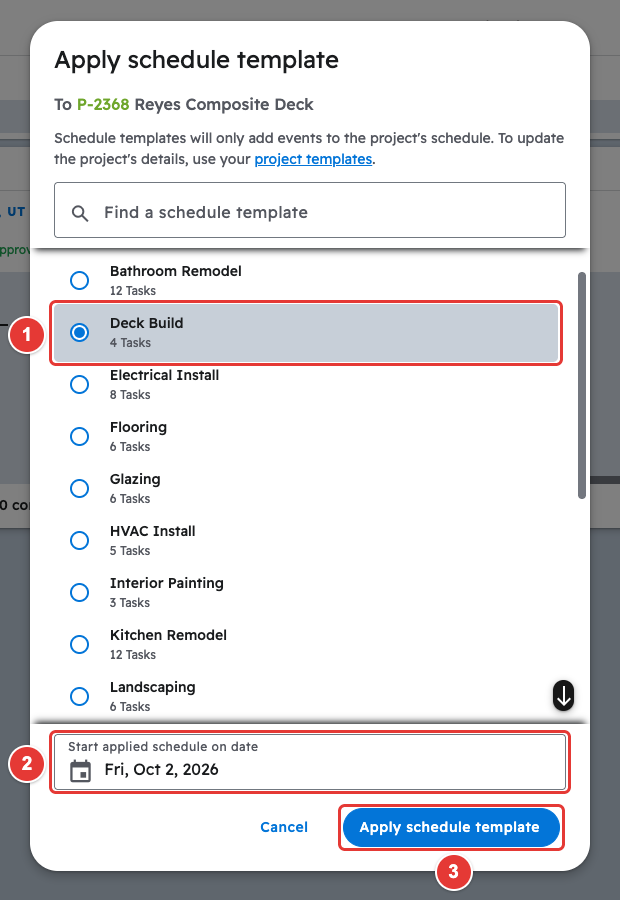
Lastly, you can select the start date of the first task from a calendar and select the schedule template that you would like to apply. Press "Apply schedule template" to apply it.
With the schedule template applied, all the tasks from the template will appear and show on the new project. Existing tasks on this project will remain and will not be changed when applying the template.
Questions? Let's Chat.
support@projul.com
(844) 776-5853