![Projul Logo 345PX wide.png]](https://knowledge.projul.com/hs-fs/hubfs/Projul%20Logo%20345PX%20wide.png?height=40&name=Projul%20Logo%20345PX%20wide.png)
Once your Projul account is connected to QuickBooks Online, your purchase orders sync automatically. Each purchase order card shows a sync status you can check at any time, and you can re-sync a purchase order yourself if it ever needs it.
Connecting QuickBooks Online is a one-time setup done in your Projul settings. If you have not connected QuickBooks yet, do that first — once connected, new and updated purchase orders begin syncing on their own.
Checking a purchase order's sync status
- Go to Purchase Orders in the Sidebar Navigation menu.
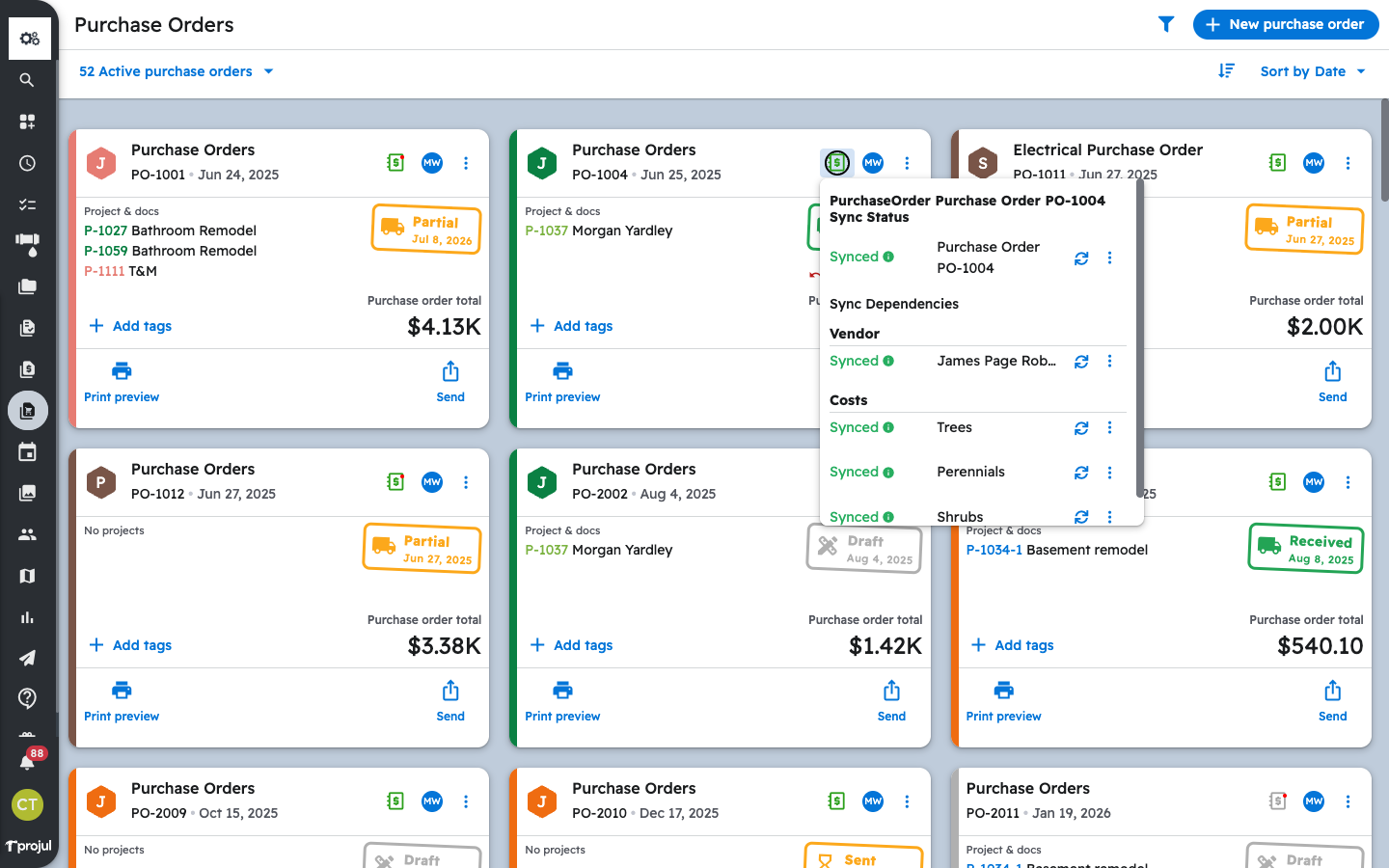
- Click the green QuickBooks ($) icon on a purchase order card.
- The Sync Status window shows whether the purchase order is Synced and lists its Sync Dependencies — the Vendor and the Costs that must sync to QuickBooks before the purchase order itself can.
Re-syncing a purchase order
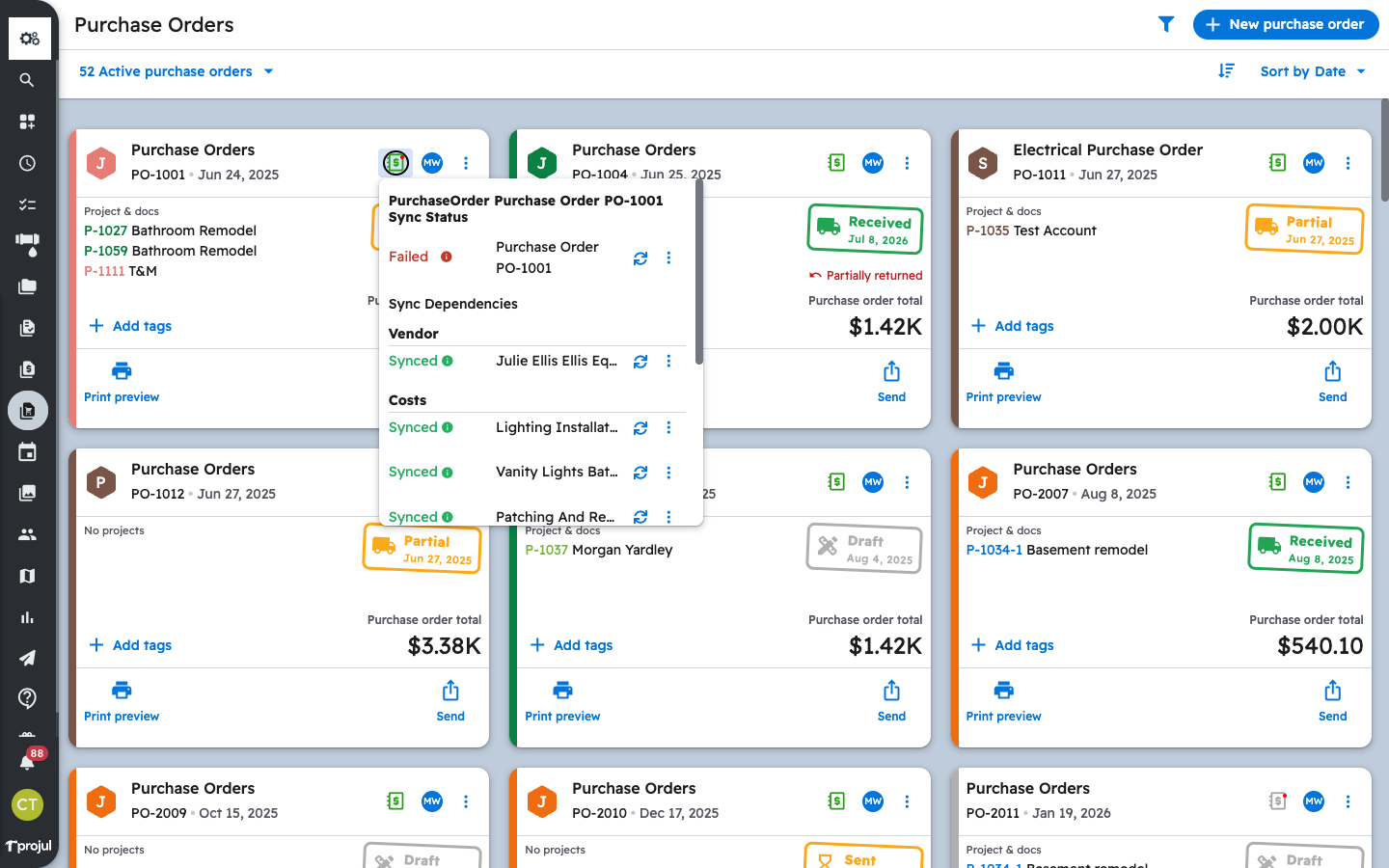
If a purchase order shows Failed or Not Synced, it is usually waiting on one of its dependencies. From the same Sync Status window:
- Click the re-sync (↻) icon next to the item you want to push — the vendor, a cost, or the purchase order itself.
- Use the three-dot (⋮) menu and choose See Sync Details to view a sync error message if one is present.
- Sync the Vendor and Costs first, then re-sync the purchase order.
Tip: Returns follow the same connection. A return recorded as Credit on account syncs to QuickBooks as a Vendor Credit, while a Refund received return is not synced. See How do I process a return on a Purchase Order?
Related articles:
- QuickBooks Online Integration & Settings Explanation
- How do I create and send a Purchase Order?
- How do I receive items (record actuals) on a Purchase Order?
- How do I process a return on a Purchase Order?
Questions? Let's Chat.
support@projul.com
(844) 776-5853