![Projul Logo 345PX wide.png]](https://knowledge.projul.com/hs-fs/hubfs/Projul%20Logo%20345PX%20wide.png?height=40&name=Projul%20Logo%20345PX%20wide.png)
Time tracking settings control the "Time Tracking" page of Projul, as well as parts of the "Schedule" page.
Contents:
Time Tracking Settings Sections
Overview
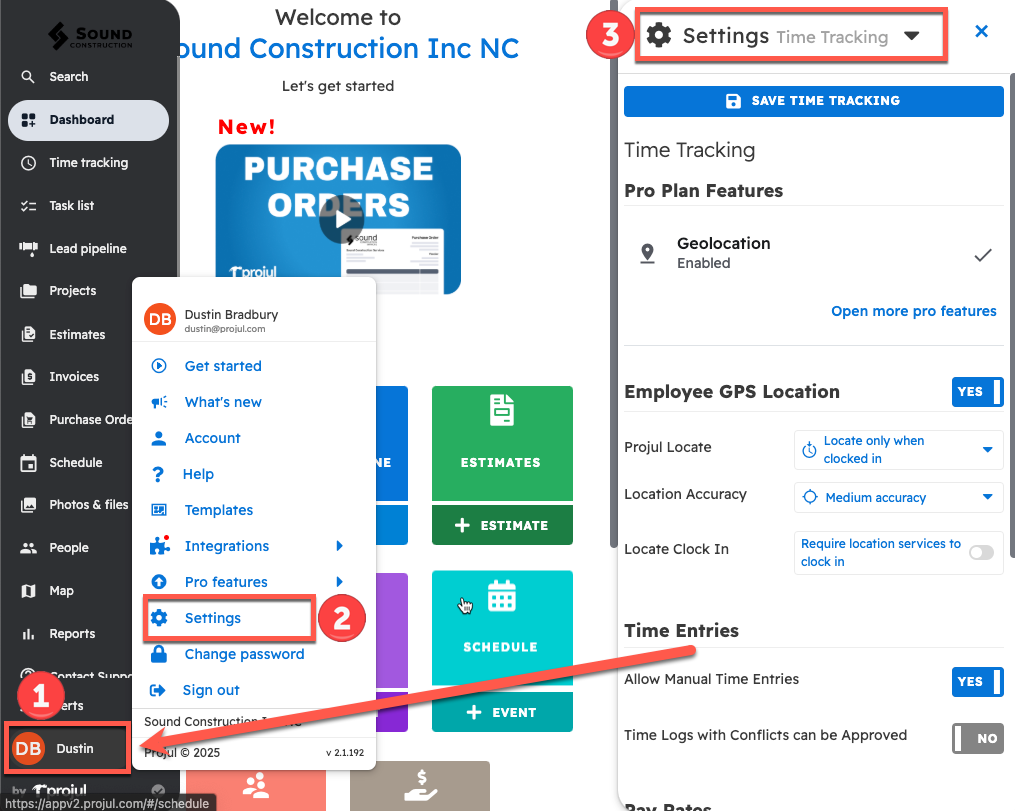
To find time tracking settings:
- Click on your initials on the bottom left corner of the screen
- Open settings
- Open the settings drop-down menu and switch to "Time Tracking"
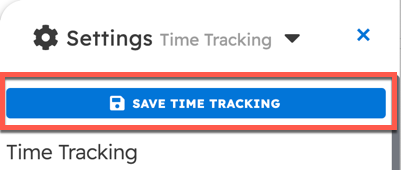
NOTE: After changing settings, click "Save Time Tracking" at the top. Pay rate changes save right away.
Time Tracking Settings Sections
Pro Plan Features
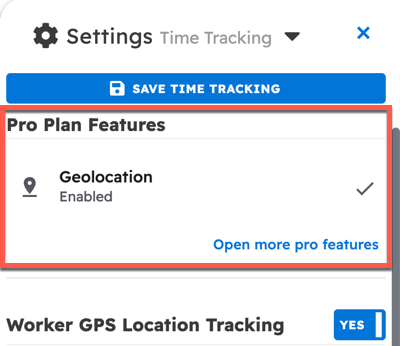
Geolocations is the only pro plan feature in the time tracking settings. This feature allows Projul to track employee locations and record a log of locations for that day. There is an option to start a free trial if Geolocation is not already turned on.
Employee GPS Location
NOTE: This setting only appears if geolocation is enabled.
(Click here to watch a video on this topic!)
Location tracking has to be turned on to be active. Once location tracking is on, there are a couple of tracking options to consider when setting up tracking:
- Employee location tracking
- Location tracking accuracy
- Require location services to clock in
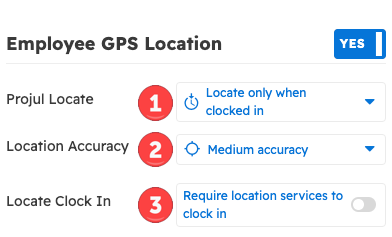
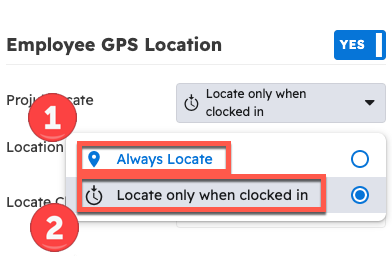
Employee location tracking has two options, accessible through a dropdown menu:
- Always locate (Company devices only)
- Locate only when clocked in
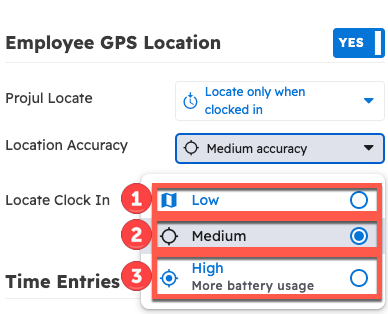
Location tracking accuracy has three options:
- Low accuracy
- Medium accuracy
- High accuracy (which has the highest battery use)
Time Entries
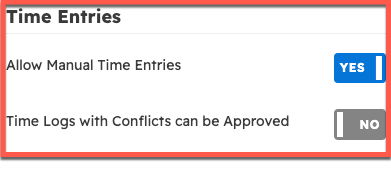
In this section, "Allow Manual Time Entries" controls whether time logs can be added by hand, and "Time Logs with Conflicts can be Approved" controls whether a log that overlaps another can be approved.
This account-wide setting determines whether or not it is possible to record a time log manually or approve a time log with a conflict. Even if this toggle is on, only employees with the appropriate permissions will be able to record time logs.
Timecard sign-off
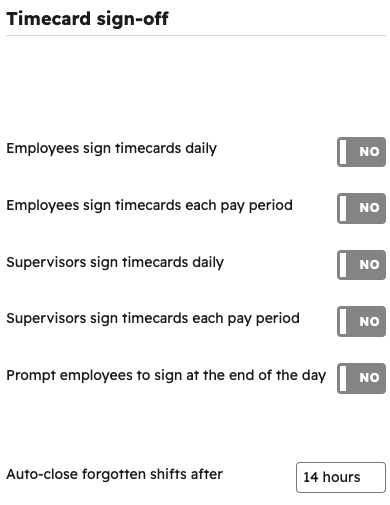
These toggles require employees and supervisors to sign timecards daily or each pay period before payroll. A supervisor signing a day or pay period approves all time logs in it. "Prompt employees to sign at the end of the day" asks employees to sign when they clock out near the end of their scheduled workday. "Auto-close forgotten shifts after" closes a time log that is still open after the number of hours you pick (14 by default), then flags it as unapproved for review.
Pay Rates
Pay rates can be edited from the pay rates section of time tracking settings, including:
- Choosing the default type of pay rate
- Editing a pay rate, including renaming and deleting
- Turning a pay rate off with the "Active" toggle (the app skips inactive rates when it picks a default rate)
- Adding a new pay rate
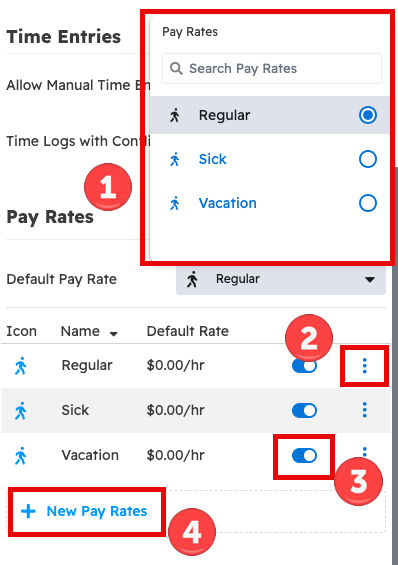
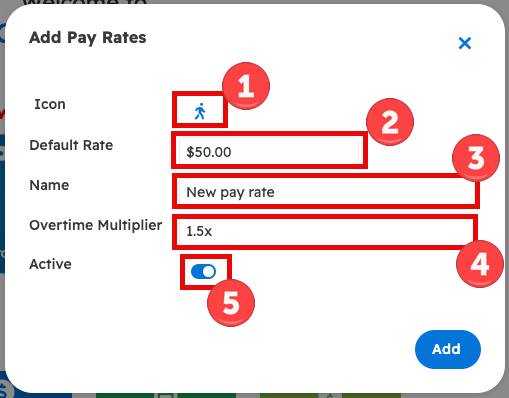
Click "New Pay Rates" to add a rate. You can:
- Choose the icon
- Choose the default rate
- Name the new rate
- Choose the multiplier for overtime work for the new rate type
- Choose whether the new pay rate is disabled by default
If you would like to know more about pay rates in Projul, click here to read an article on them!
Questions? Let's Chat.
support@projul.com
(844) 776-5853