![Projul Logo 345PX wide.png]](https://knowledge.projul.com/hs-fs/hubfs/Projul%20Logo%20345PX%20wide.png?height=40&name=Projul%20Logo%20345PX%20wide.png)
Assemblies have been replaced by variables. A variable is a named number, such as #units, that you set on an estimate or on a section. Quantity, cost per unit and markup can each hold a formula that uses it, so changing the variable updates every cost line that uses it.
Add a variable to a section
- Open the estimate.
- On the section, click "New variable".
- Enter a name (letters, numbers and underscores), a value and a unit.
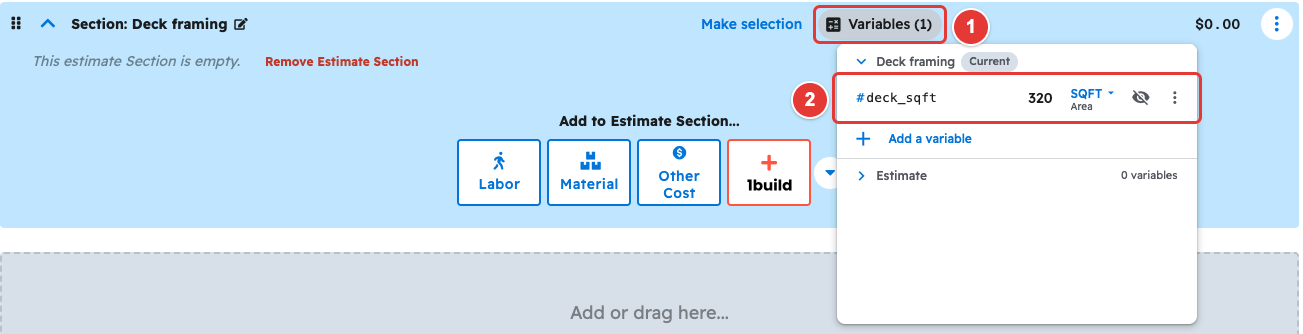
Once a section has variables, open them again with the "Variables (N)" button on the section, or open the section's 3-dot menu and select "Manage variables".
Use a variable in a cost line
In a cost line's quantity, cost per unit or markup, click the calculator icon and type a formula. A name starting with # stands for a variable, for example #units * 2 or #length * #width. Typing a number over a formula scales it: if #l is 10, typing 20 gives #l * 2.

Sections and subsections
You can set variables on the whole estimate or on a section. When the same name is set in more than one place, the closest one wins, so a subsection can have its own value.
When a formula breaks
The field shows an orange dash (-). Click the dash to see why. You cannot send the estimate until it is fixed.
Publishing
When you are finished, publish the estimate to finalize the draft. Publishing also lets the client view the estimate. To publish, scroll down and click the blue "Publish estimate" button.
Questions? Let's Chat.
support@projul.com
(844) 776-5853