![Projul Logo 345PX wide.png]](https://knowledge.projul.com/hs-fs/hubfs/Projul%20Logo%20345PX%20wide.png?height=40&name=Projul%20Logo%20345PX%20wide.png)
In the "Time Logs" section of the time tracking feature, those with admin permissions can add or edit users' existing time logs. Click the "+ Add Time" button to add a time log or click the "Edit" button to edit an existing time entry.
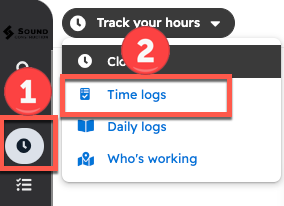
To get to time logs:
- Click the "Time Tracking" button from the left navigation menu
- Switch from "Track Your Hours" to "Time Logs" with the button at the top
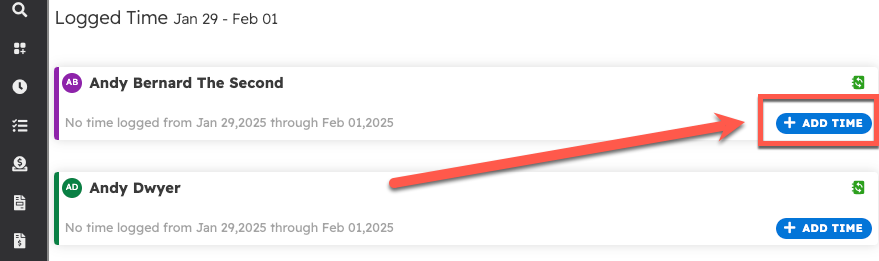
To add a new time log, click the "Add time" button at the bottom of each employee's card.
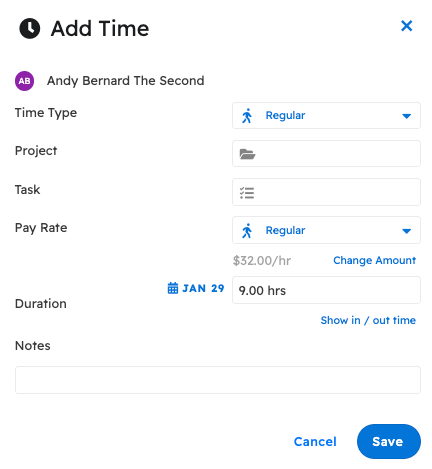
From this menu, select the time type, task associated, project associated, payroll item, clock in/out date & time, and include any notes about the time log. Once everything is entered, click the "Save" button.
To edit an existing time log for an employee, click the "Show Time Log Details" button.
From here, click the "Edit" button on the right to begin editing one of the time entries.
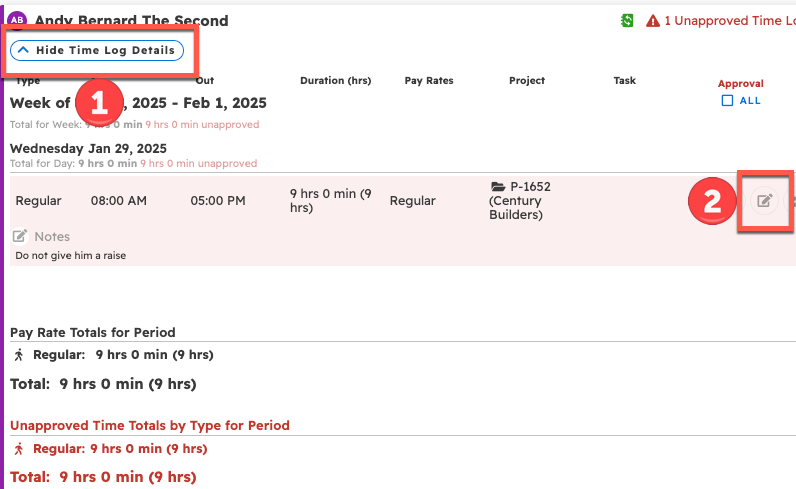
Note: If a time log has already been approved and the entry is edited, it will revert to unapproved and must be approved again.
Questions? Let's Chat.
support@projul.com
(844) 776-5853