![Projul Logo 345PX wide.png]](https://knowledge.projul.com/hs-fs/hubfs/Projul%20Logo%20345PX%20wide.png?height=40&name=Projul%20Logo%20345PX%20wide.png)
When editing an estimate, you can press the 3-dot button to the right of the expiration date and select "Mark approved by client," or enter the preview and mark as approved.
Approval from estimate page
Start by opening the estimate that you wish to approve on behalf of the client. Before you can approve an estimate, it must first be published.
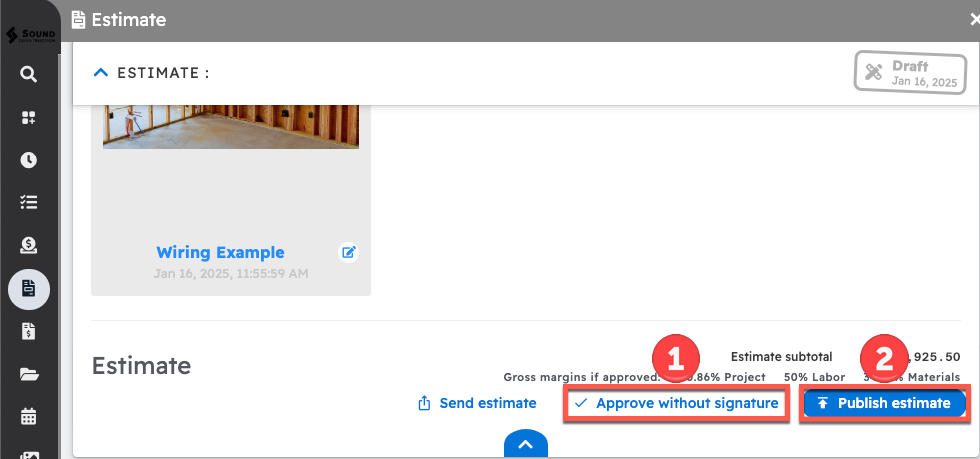
There are two buttons you can use:
1. Click the "Approve without signature" button. If the estimate is not published yet, this publishes it and approves it right away.
2. Click the "Publish estimate" button.
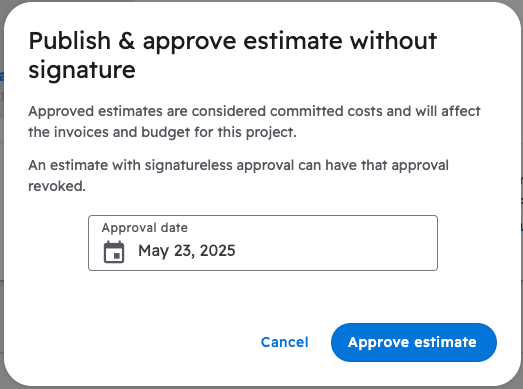
Confirm your decision in the pop-up.
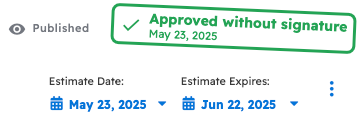
The estimate will now have an approval stamp indicating the estimate was approved. Any documents approved from this view can be marked as not approved by your company if needed.
Approval from preview
Inside the Estimate Editor, scroll down to the bottom and select "Preview as Client."
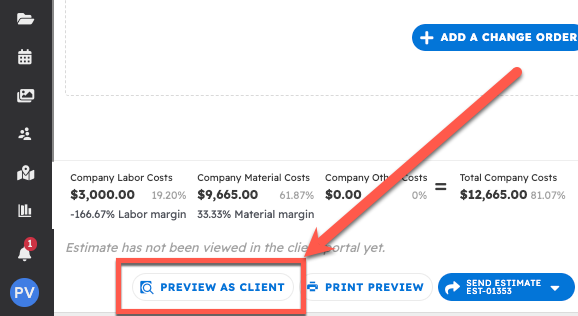
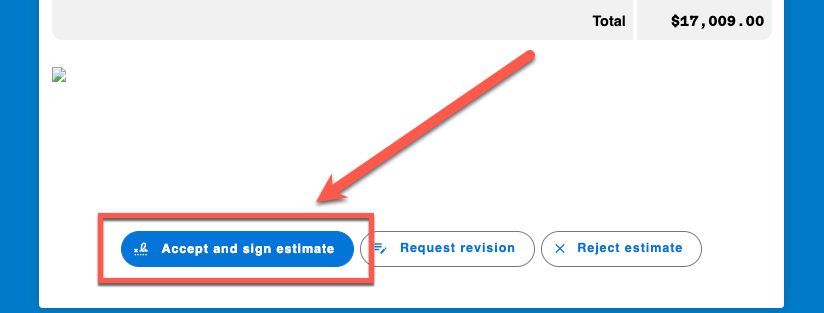
This will open a pop-up window showing the estimate as viewed by the client. Select the "Accept and Sign Estimate" option.
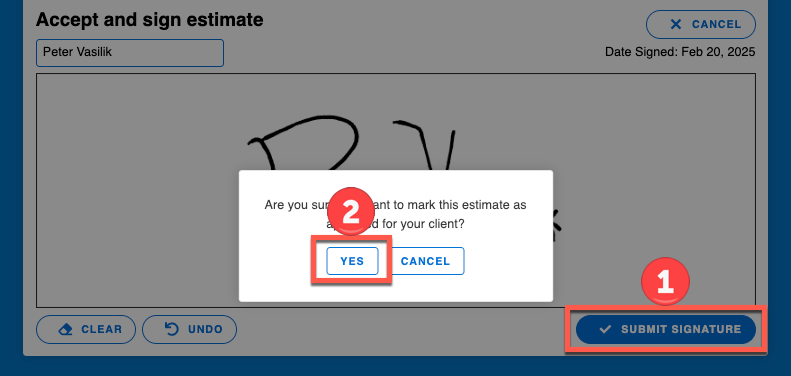
Then, sign the estimate for the client and select "Yes."
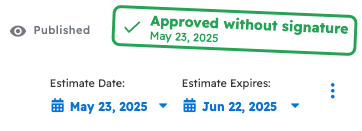
Note that there is now a green "Company Approved" rectangle displayed on the right side of the Estimate. Exit the Editing tool by selecting the "X" in the top right corner of the screen.
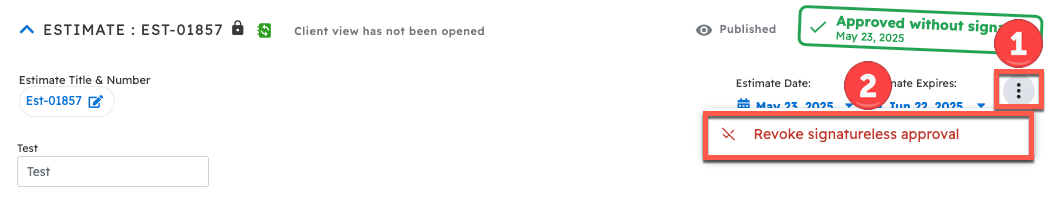
In the event that you need to un-approve the estimate, this can be done by performing a similar action.
Open the 3-dot menu and select "Revoke signatureless approval." If your client actually signed this Estimate, select "Remove client signature" instead and confirm.
Questions? Let's Chat.
support@projul.com
(844) 776-5853