![Projul Logo 345PX wide.png]](https://knowledge.projul.com/hs-fs/hubfs/Projul%20Logo%20345PX%20wide.png?height=40&name=Projul%20Logo%20345PX%20wide.png)
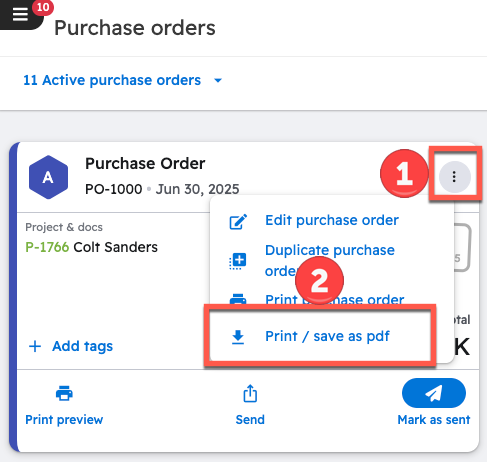
Estimates, Change Orders, Purchase Orders, and Invoices can be printed or saved as PDFs from the web app on a desktop computer. Estimates, change orders, and invoices use "Print Preview." Purchase orders use "Print / save as pdf" in the 3-dot menu.
Saving Estimates & Change Orders as PDFs
To save an estimate or a change order, open the desired document. This example will use an estimate.
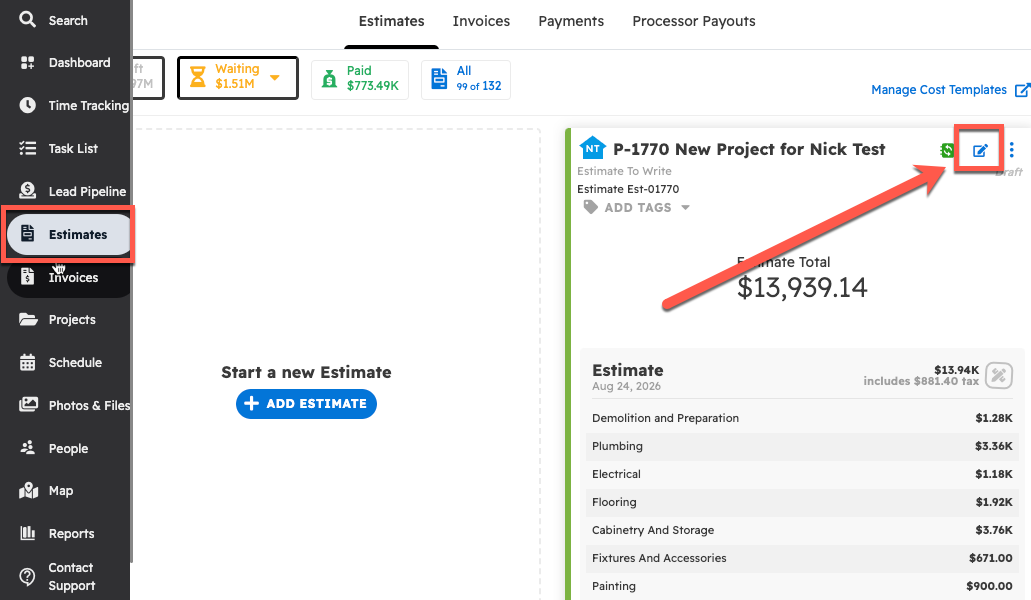
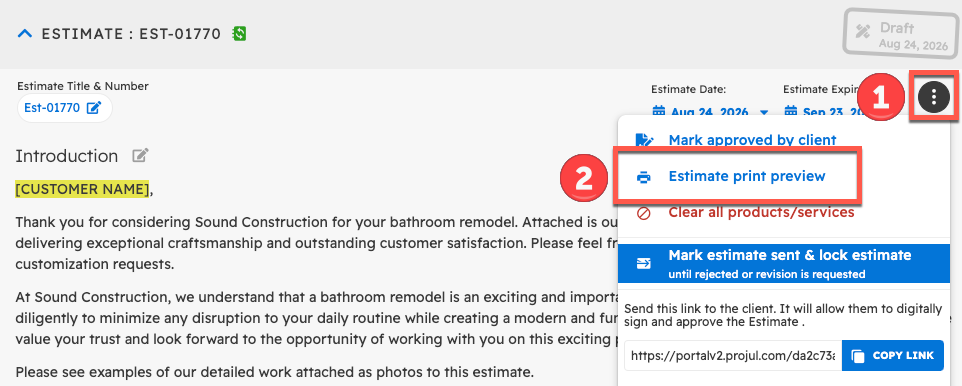
Next, open the 3-dot menu on the right side of the document and select "Estimate (or Change Order) Print Preview."
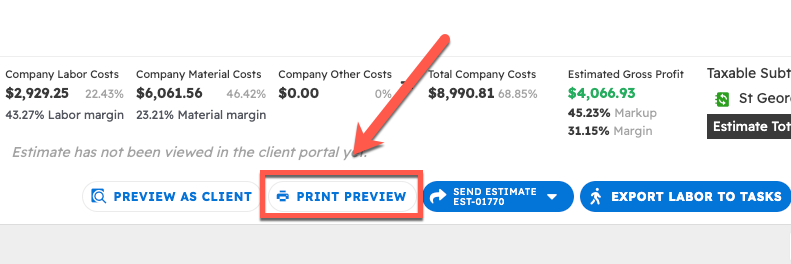
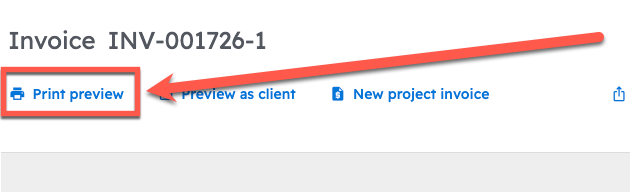
Invoices, change orders, and estimates can also be saved by opening the document and selecting the "Print Preview" button at the bottom of the page.
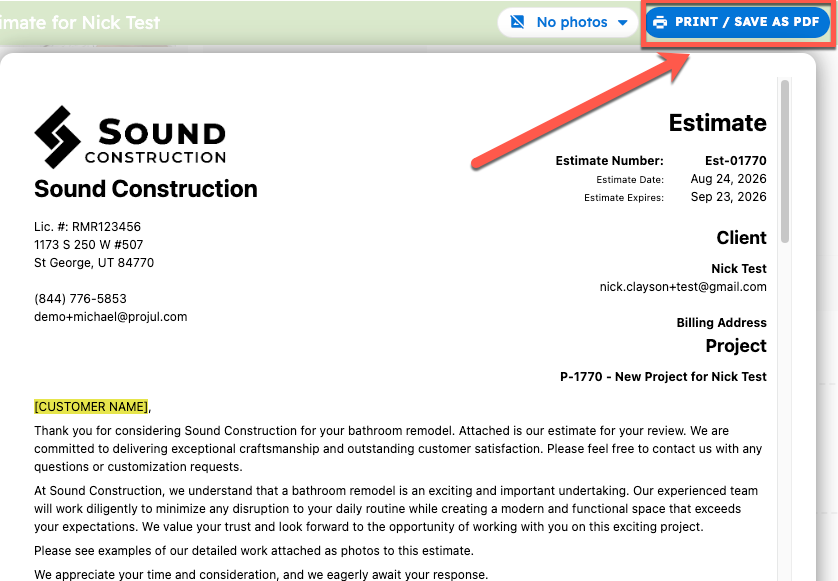
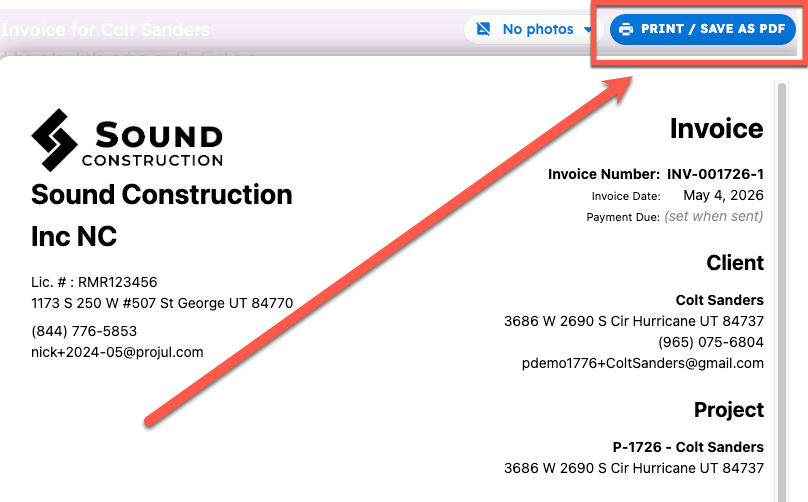
In the print preview, select the blue "Print / Save as PDF" button in the top right corner of the page.
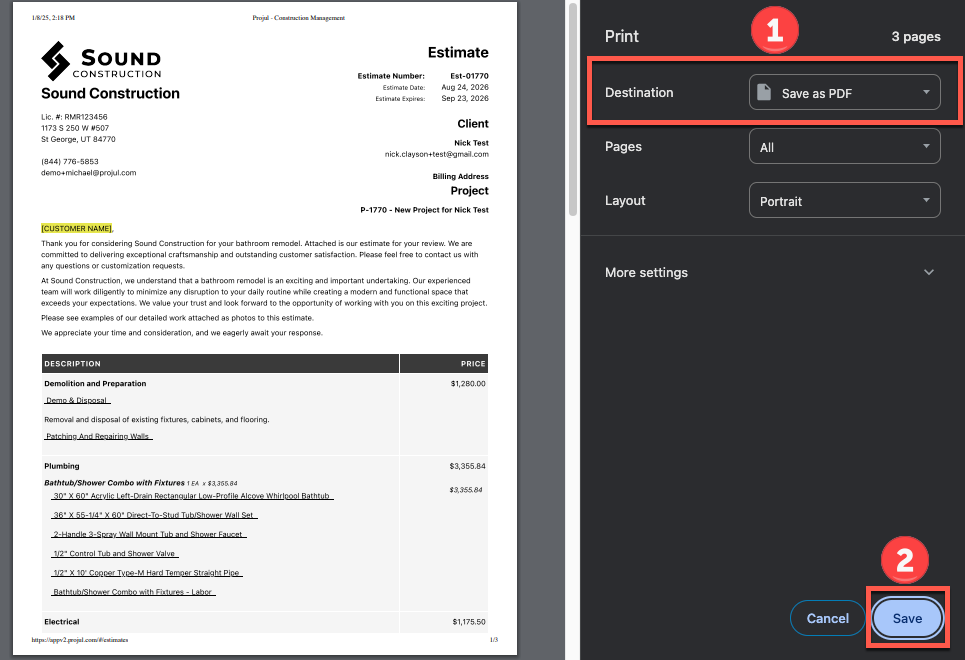
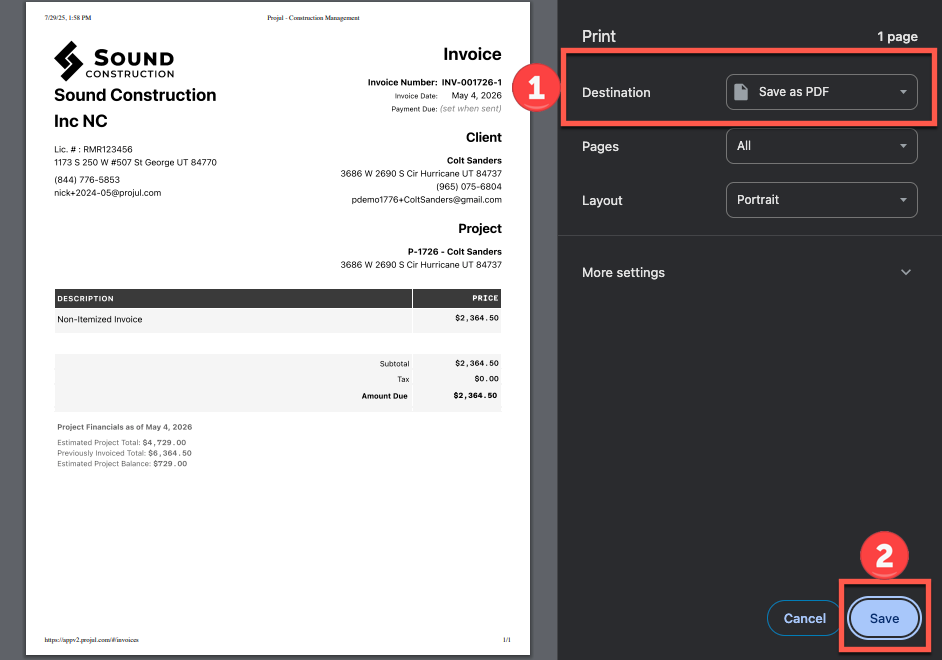
Choose a printer to print from, or select "Save as PDF" to save the document as a PDF. Press "Save" when finished to download the document.
Saving Invoices as PDFs
To save an invoice as a PDF, open the desired document.
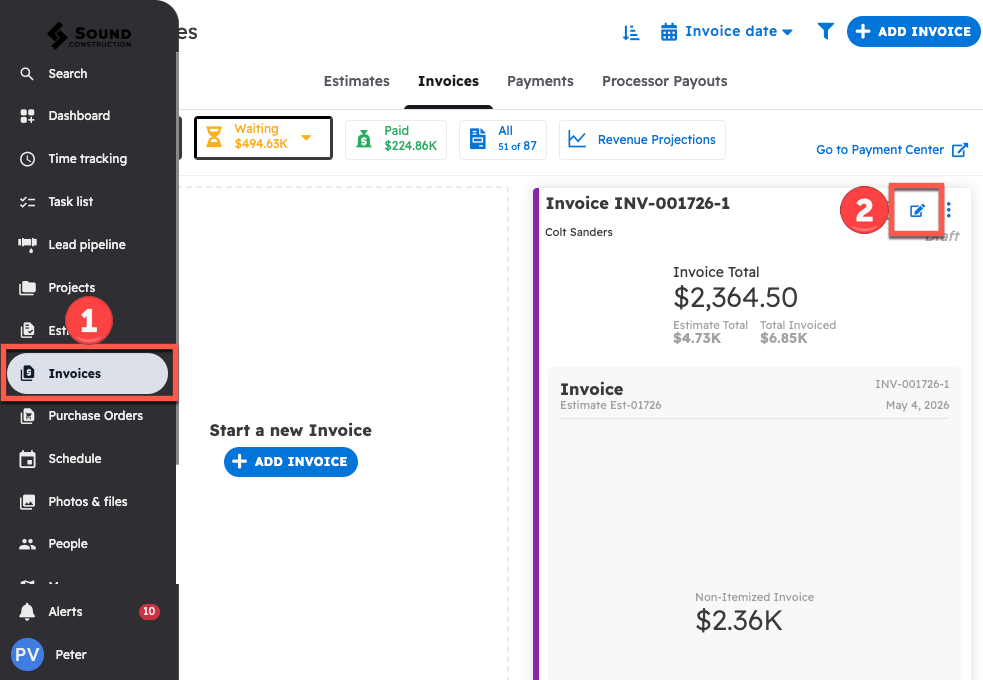
At the bottom of the invoice, there is a button labeled "Print preview."
In the print preview, select the blue "Print / Save as PDF" button in the top right corner of the page.
Using the same steps as with an Estimate or Change Order, the Invoice can be saved as a PDF.
Saving Purchase Orders as PDFs
To save a Purchase Order as a PDF:
1. Open the three dot menu of the desired Purchase Order
2. Click the button labeled "Print / Save as PDF"
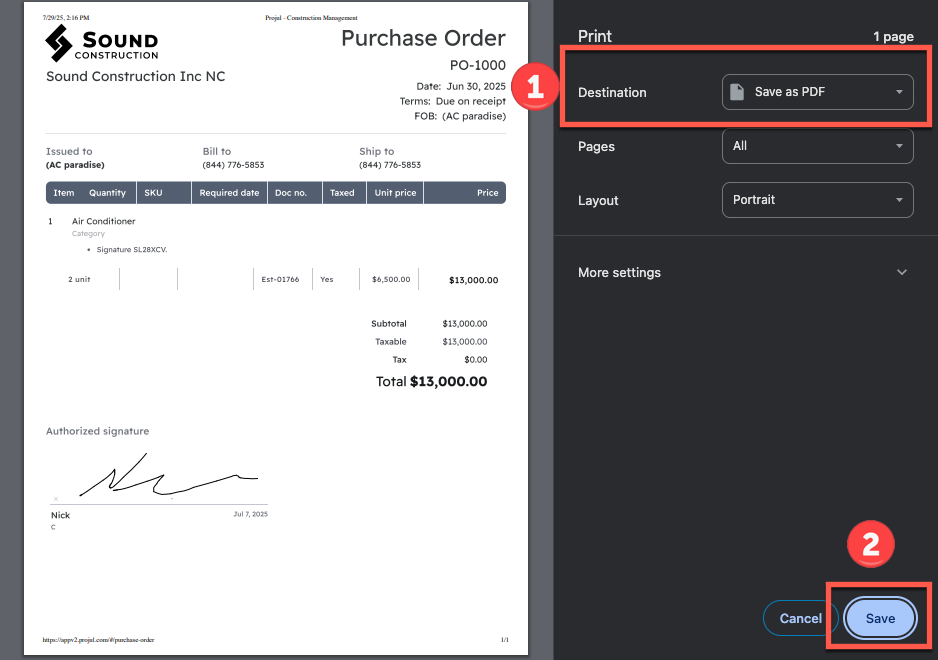
Doing so will open the same print pop-up menu used to save the document as a PDF.
Questions? Let's Chat.
support@projul.com
(844) 776-5853