![Projul Logo 345PX wide.png]](https://knowledge.projul.com/hs-fs/hubfs/Projul%20Logo%20345PX%20wide.png?height=40&name=Projul%20Logo%20345PX%20wide.png)
Watch the video, or read on to learn more!

Sections:
1.0 Where to find and apply estimate templates
2.0 How to create an estimate template
3.0 How to create, apply, and edit a section template in an estimate
4.0 How to add, edit, or remove saved Cost Line Templates
Where to find and apply estimate templates
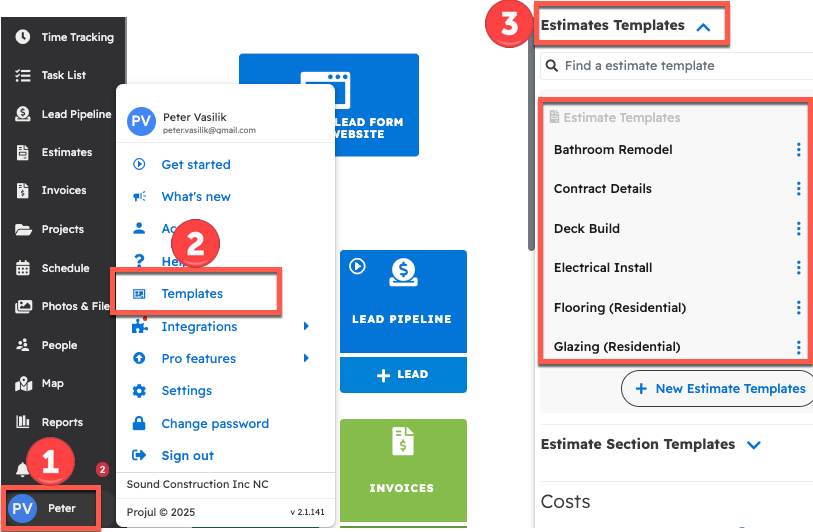
Estimate templates can be edited by clicking on your initials and selecting "Templates." To use one, start a new estimate and choose "From an estimate template" in the "Start a new estimate..." window.
To view, create, or edit estimate templates:
- Click on your initials in the bottom left corner
- Select "Templates" from the pop-up menu
- From the window on the right, select "Estimate Templates" to expand that category
Here, you can view and edit any of the estimates by selecting the 3 dots on the right and selecting "Edit."
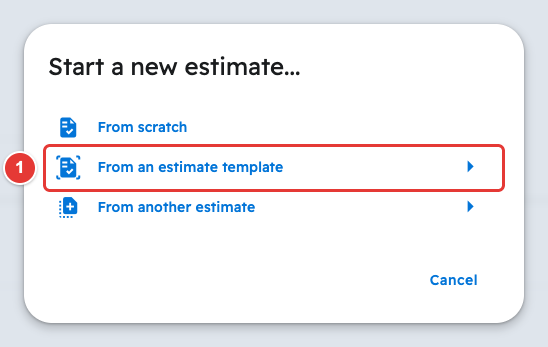
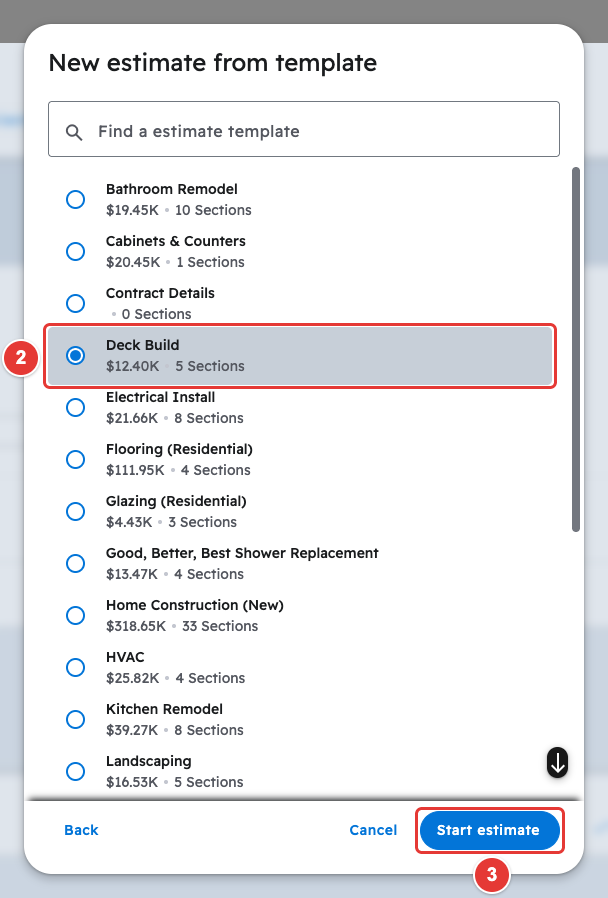
To apply an estimate template, start a new estimate. In the "Start a new estimate..." window, choose "From an estimate template", pick your template, and click "Start estimate."
How to create an estimate template
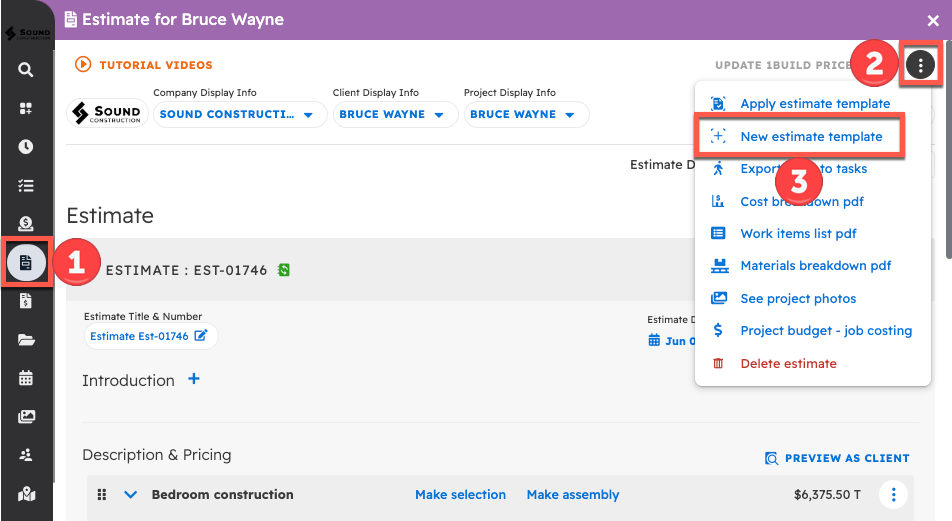
There are two ways to create an estimate template. First is from an existing estimate. Second is from the Templates page, accessed by clicking on your initials in the bottom left corner of the screen.
- Start by navigating to the Estimates page and finding the estimate that you would like to template
- Open the 3-dot menu at the top of the estimate
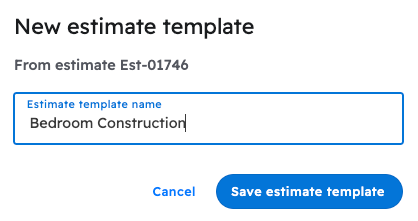
- Select "New estimate template"
Here, you can give the template a name. Click "Save estimate template" to save.
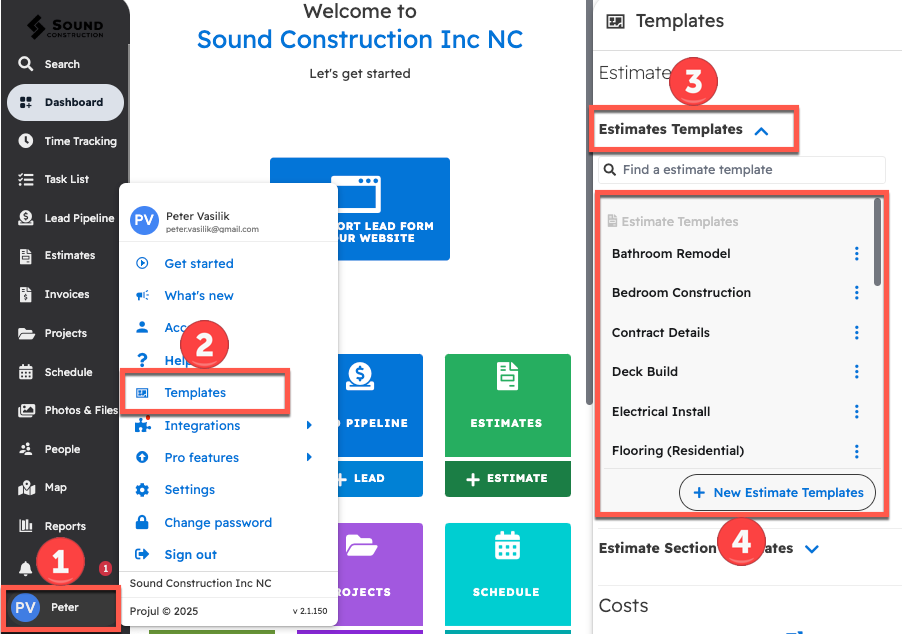
To navigate to the Templates section:
- Click on your initials in the bottom left corner
- Select the option labeled "Templates"
- Open up the Estimate Templates dropdown
- From there, you can look through and edit existing Templates, or add a new one by clicking on the blue "New Estimate Templates" button at the bottom.
How to create, apply, and edit a section template in an estimate
Any section of an estimate can be saved as a section template and applied in other estimates to make building estimates easier.
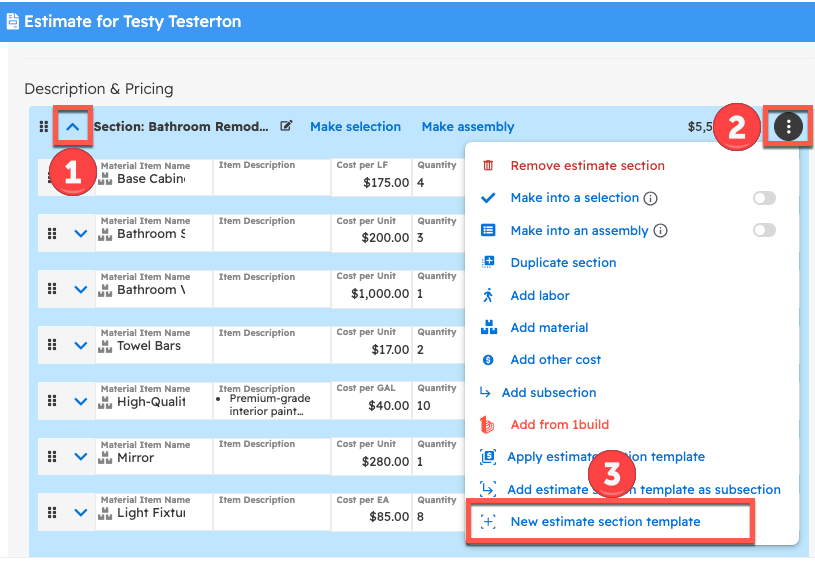
To create an estimate section template, open an estimate that has a section you would like to make a template from. Next:
- Click on the dropdown arrow on the section you want to template
- Open the 3-dot menu on the right hand side of the section
- Select "New estimate section template"
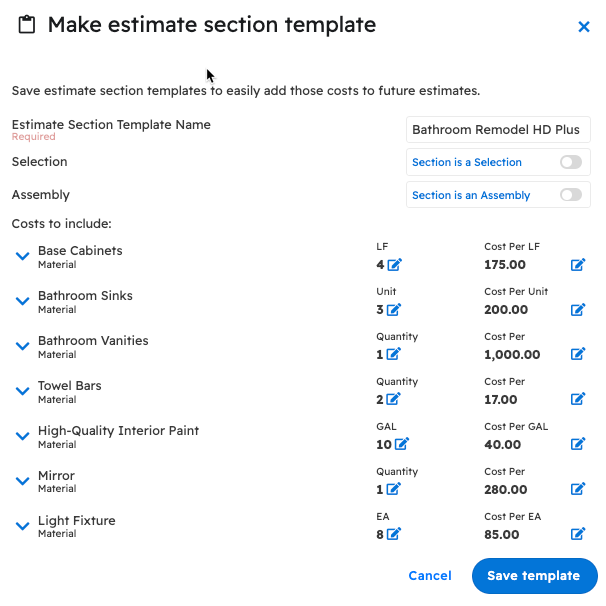
This will pull up a window where you can adjust the name or quantity of the line items within the estimate section template. Selecting "Save Template" will save this section as a template.
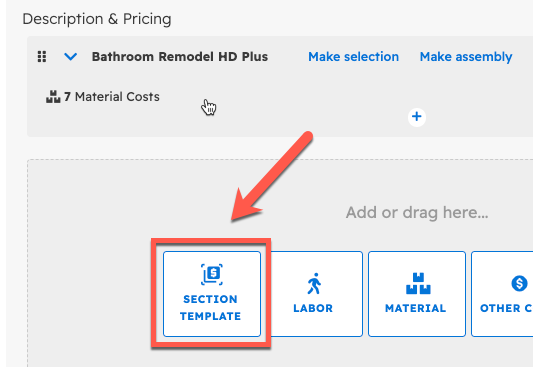
To apply a section template to an estimate, scroll to the bottom of your sections and select the blue "Section template" button.
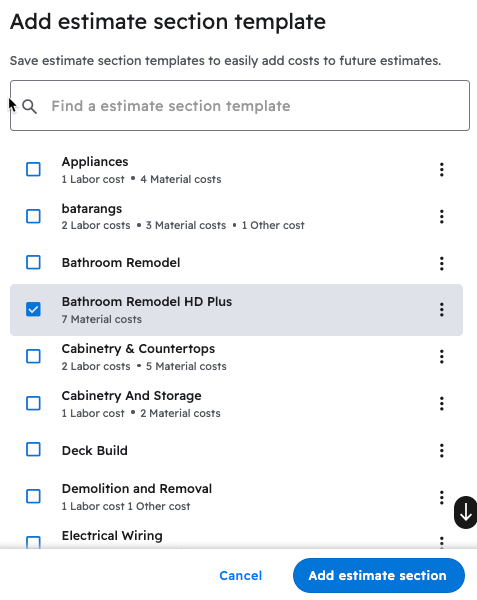
Next, select the template you wish to apply and click the "Add estimate section" button.
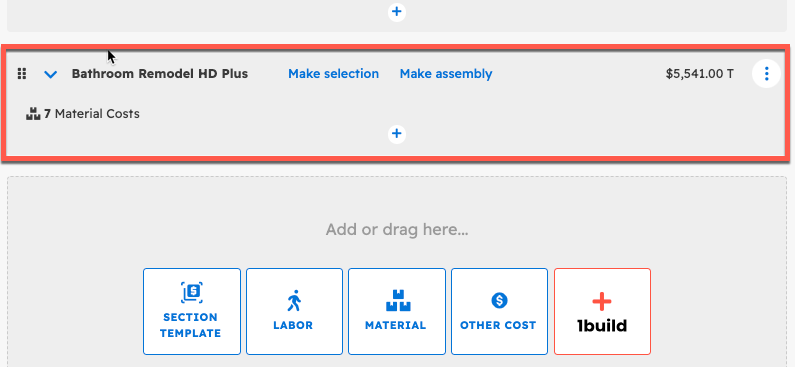
This will apply the section template as a new section to the estimate.
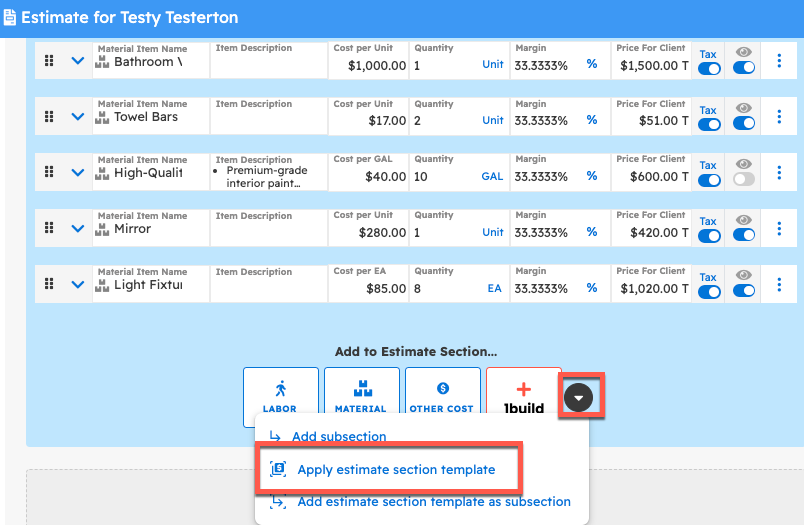
This saved section template can also be applied as a subsection to an existing section. To do so, open up the section that you would like to add a template to and click on the arrow at the bottom. A dropdown will show up with two options.
Selecting "Add estimate section template as subsection" will add that as a subsection, while clicking on "Apply estimate section template" will add the line items from that template into the section itself.
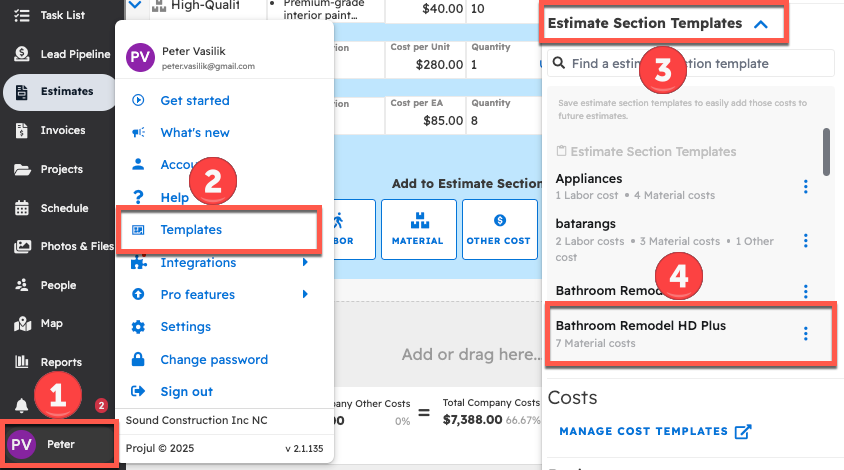
Saved section templates can be accessed in the templates window. To do so:
- Click on your initials in the lower left hand corner
- Select "Templates"
- Next, open the "Estimate Section Templates" in the sidebar on the right side of the screen
- From here, you can view, edit, and delete any of your saved estimate section templates
How to add, edit, or remove saved Cost Line Templates
Cost Line templates can be added within the Estimate editing or Estimate Template editing tools. Cost Line templates can be edited or removed in the "Templates" menu underneath the "Material Costs," "Labor Costs," and "Other Costs" sections.
If attempting to add Cost Lines in a large quantity, please reference our Knowledge Base Article on importing Cost Items from a spreadsheet.
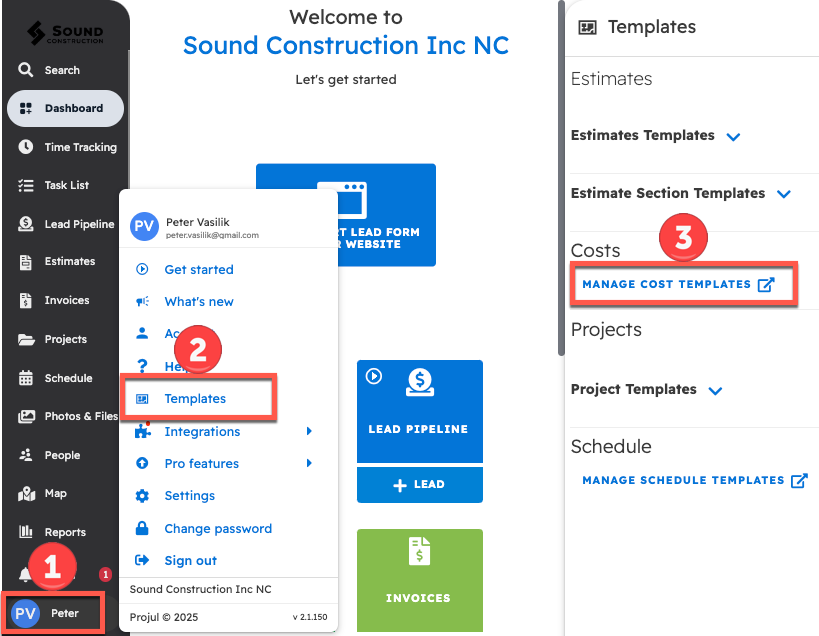
- Open the Templates sidebar menu by first clicking on your initials in the bottom left corner of the screen.
- Select "Templates" from the user menu.
- Select "Manage Cost Templates" to open the cost template menu, where you can add, delete, and edit your cost line templates.
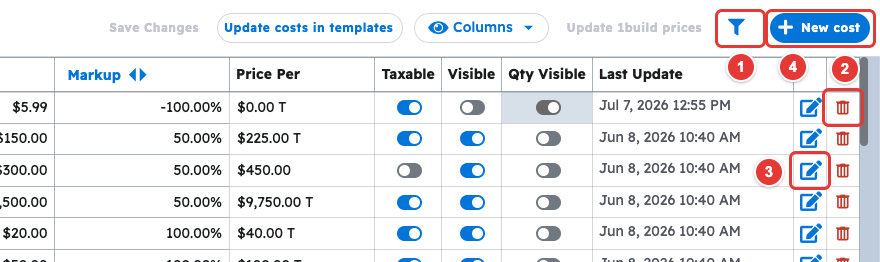
In the cost line menu, you can edit, add to, and control your cost line templates.
- To edit or delete a cost line template, you first have to find it manually or with the filter icon
- To delete the cost line, select the trash icon
- To edit, click on the notepad icon
- If adding a new template, select "New cost"
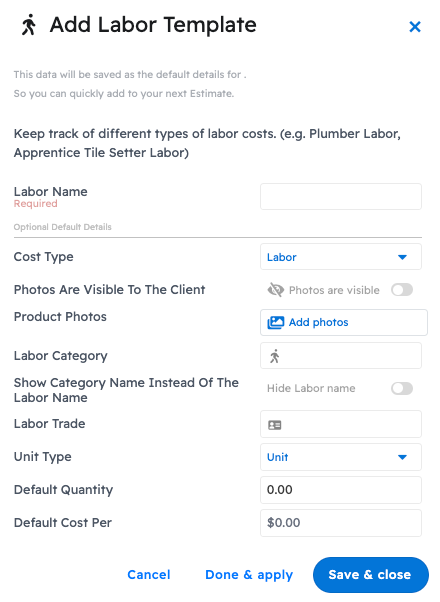
Once you select "New cost," simply fill in your desired details and the cost template will be complete.
There is another way to create the cost line template:
- Start by editing an estimate or creating a new one
- Add a line item within the estimate
- Populate the newly added cost line name. Since this is a brand new cost line in the Projul system, there will not be any results displayed in the dropdown field
- At the bottom of the dropdown field, select the blue button that says "Save as [cost type] template" (for example, "Save as Material template")
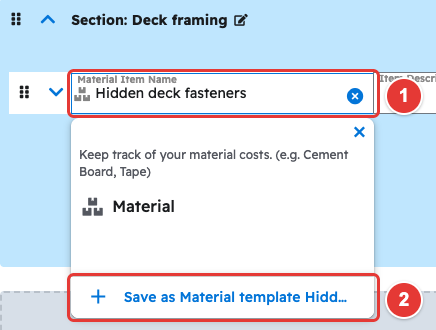
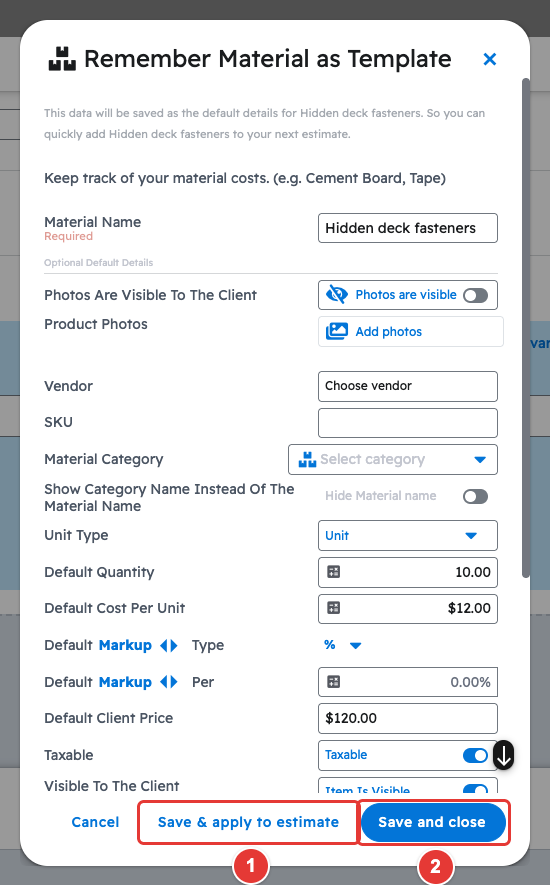
This will bring up the "Remember Material as Template" pop-up window. Within this window, you can add and customize the default details of the cost line such as quantity, cost, unit type, and markup.
Once the desired customizations have been made, select either "Save & apply to estimate" or "Save and close."
- "Save & apply to estimate" will save this cost line as a template and apply it to your estimate.
- "Save and close" will save the cost line as a template, but leave the fields that were empty before accessing the pop-up window blank within the Estimate.
Questions? Let's Chat.
support@projul.com
(844) 776-5853