![Projul Logo 345PX wide.png]](https://knowledge.projul.com/hs-fs/hubfs/Projul%20Logo%20345PX%20wide.png?height=40&name=Projul%20Logo%20345PX%20wide.png)
QuickBooks Online has a way to export a list of customers. Save the list as a CSV file, then import it yourself on the "Import Data" screen.
To import data from QuickBooks Online to Projul, make sure to export it from QuickBooks Online in the correct format.
To do this:
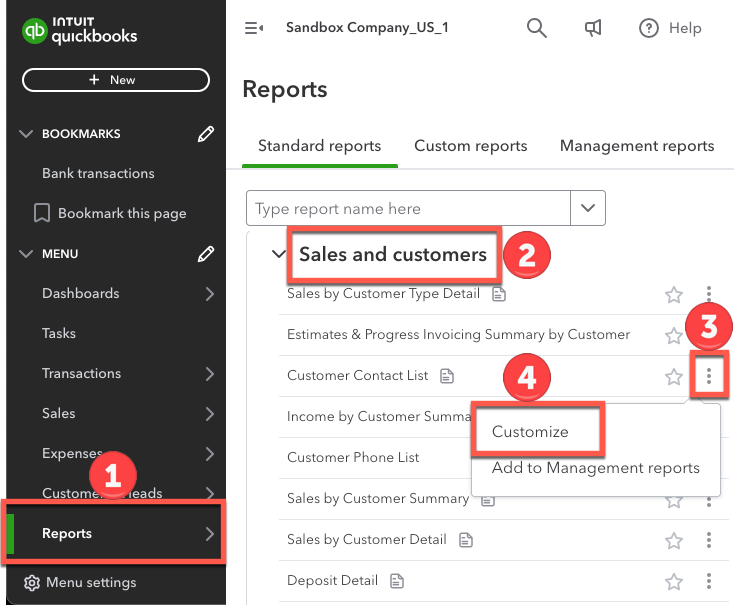
- Click on the reports page from the left sidebar
- Locate "Sales and customers"
- Click on the three dot menu of the "Customer Contact List"
- Click on "Customize"
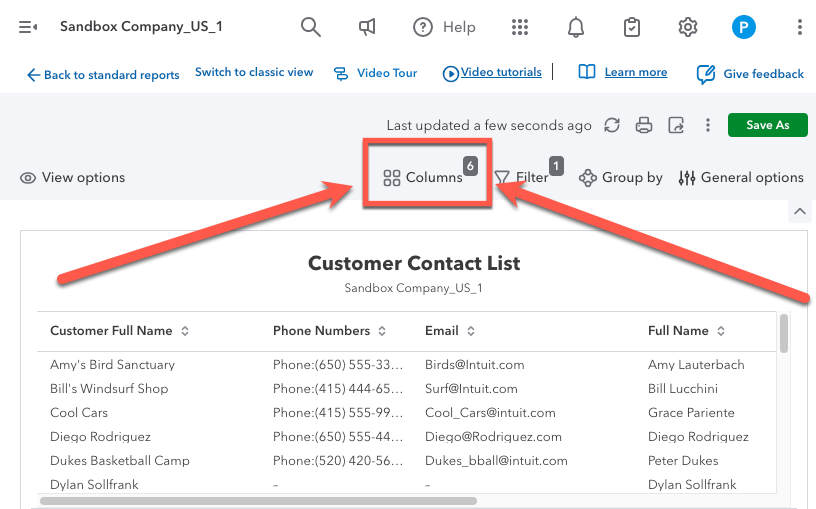
Select the "Columns" button right above the report.
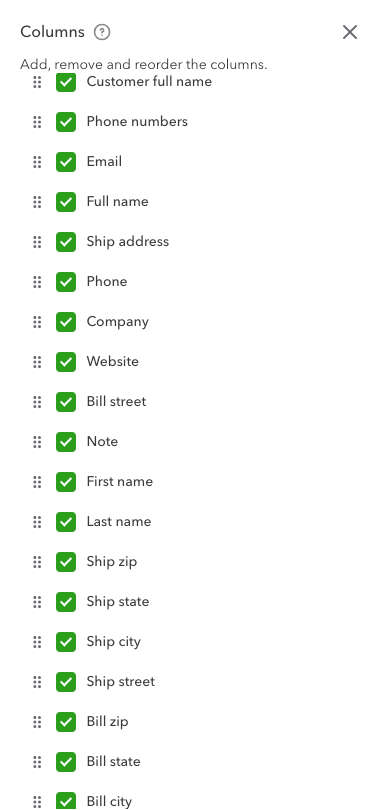
From there, go through and select all items shown in the list in the screenshot below. Once all of these items are selected, click "Run report." Each item must be in its own column (for example, the address has to be broken out into separate columns).
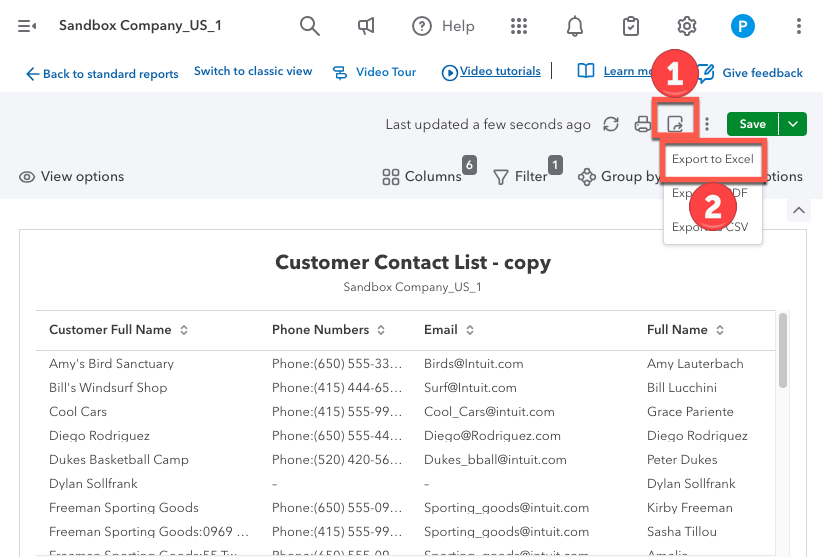
The report will be generated; next, download the Excel sheet.
To download the sheet:
- Click on the icon indicated in the picture
- Click on the option labeled "Export to Excel"
Open the file and save it as a CSV. Then import it with "Import Clients" on the "Import Data" screen. See
How can I import my company data into my Projul account?
Questions? Let's Chat.
support@projul.com
(844) 776-5853