![Projul Logo 345PX wide.png]](https://knowledge.projul.com/hs-fs/hubfs/Projul%20Logo%20345PX%20wide.png?height=40&name=Projul%20Logo%20345PX%20wide.png)
Watch the video below to learn about QuickBooks Online, or keep reading for written instructions!

Contents
- Projul to QuickBooks Online Integration
- Data Type Sync Selections
- Sync Details by Data Type
- QuickBooks Online Additional Information
1. Projul to QuickBooks Online Integration
Step-by-step user instructions to connect a Projul account with QuickBooks Online.
- For the QuickBooks Desktop integration document, click here.
- Feel free to call our customer success team with any questions at 1-844-394-8541.
1.1 Log in to Projul
- Log in to Projul using the following link (app.projul.com). After successful login, you will be redirected to the Projul dashboard.
- If you don’t have a Projul account yet, you can schedule a demo here.
1.2 Go to the Integrations Page
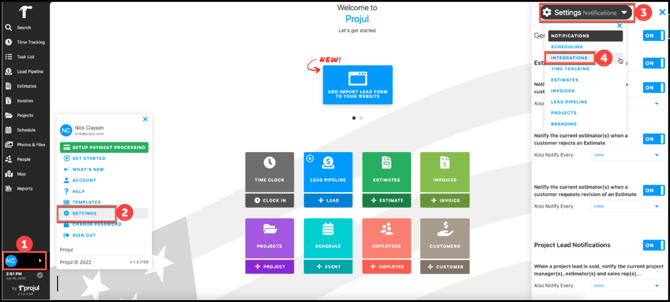
To get to the Integrations page:
- Click on account / initials.
- Click on settings.
- Open the section menu at the top of the Settings panel.
- Select "Integrations."
1.3 Integration Options
There are two integration options: QuickBooks Online and QuickBooks Desktop.
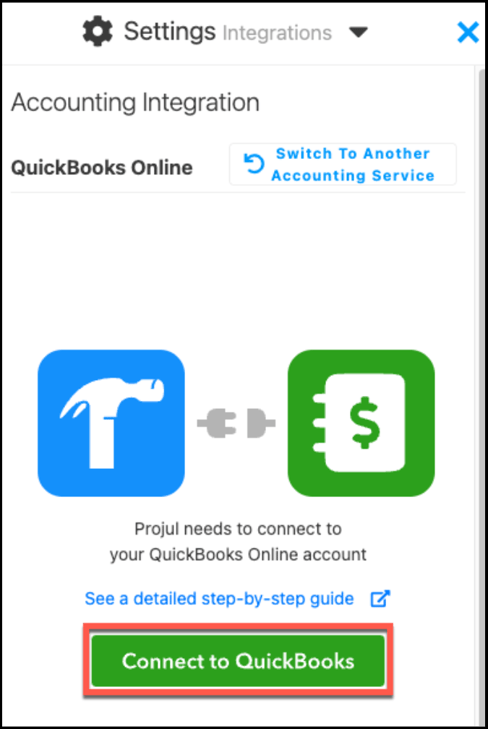
- Click on QuickBooks Online.

- Click "Integrate with QuickBooks Online."
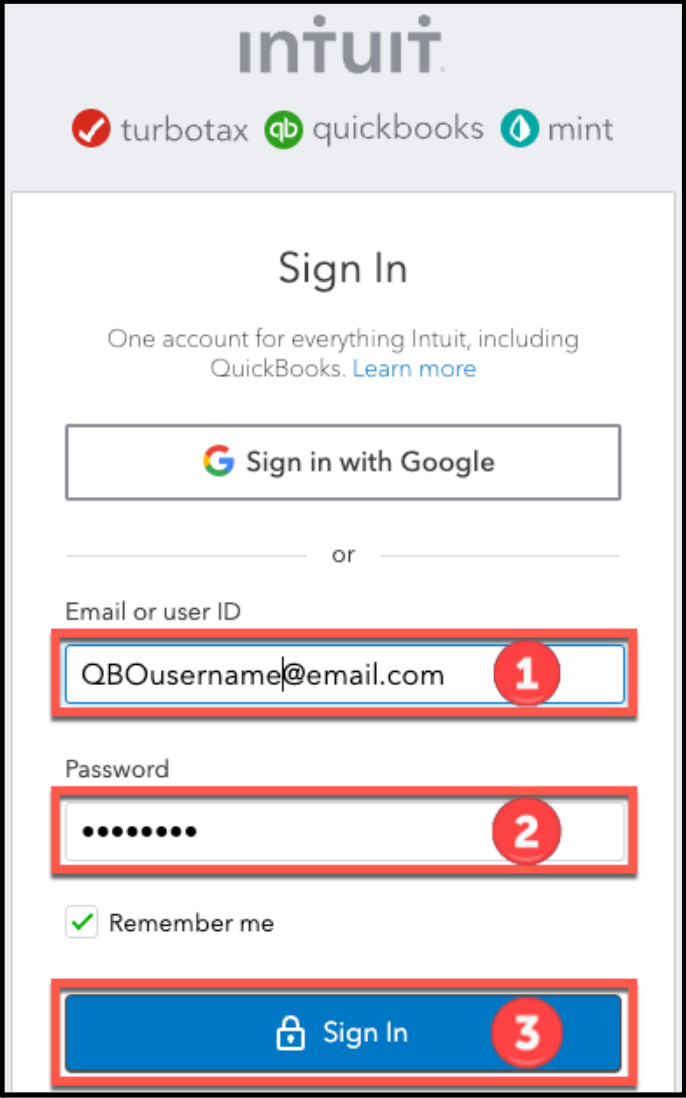
- Use Intuit credentials to log in to your QuickBooks Online account.
- Enter the QuickBooks Online email or user ID.
- Enter the QuickBooks Online password
- Click the Sign In button.
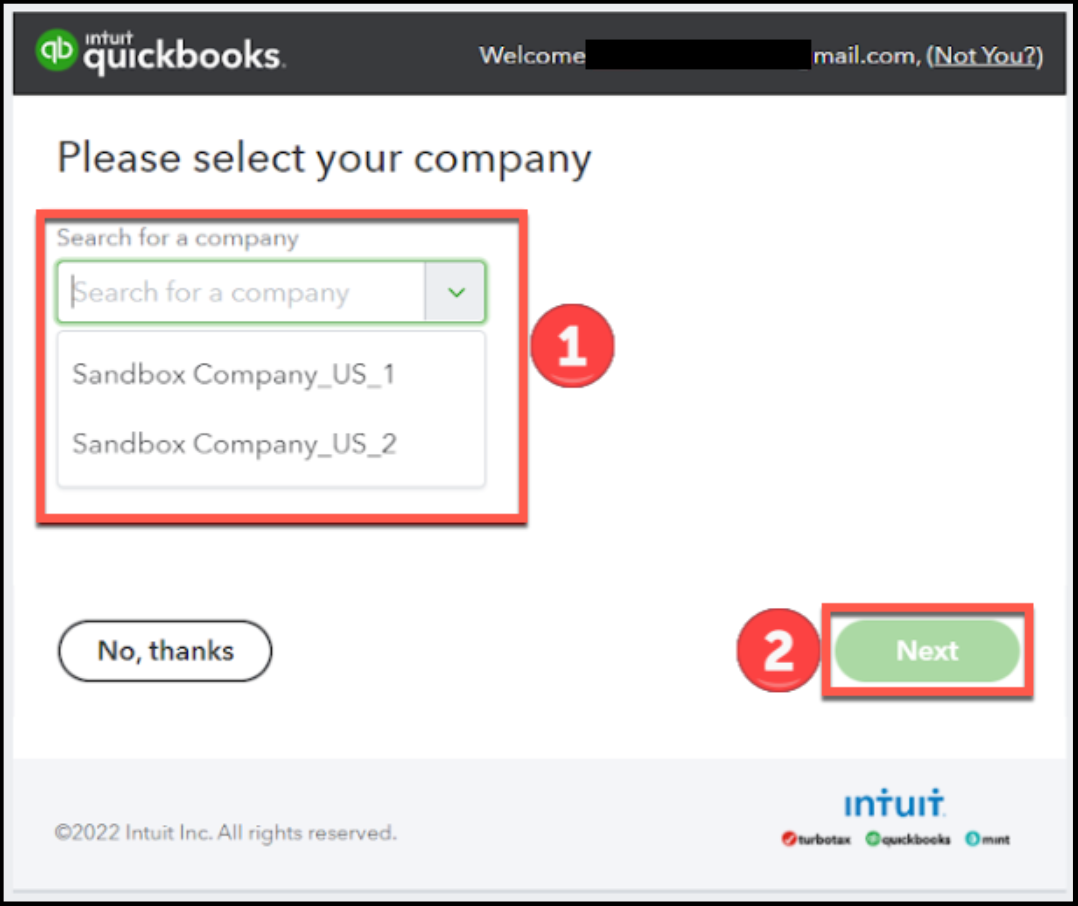
- Select the QuickBooks Online company account to sync with Projul.
- Use the dropdown to select a company.
- Click the Next button.
- Click the Connect button. After clicking Connect, you will automatically be returned to Projul.
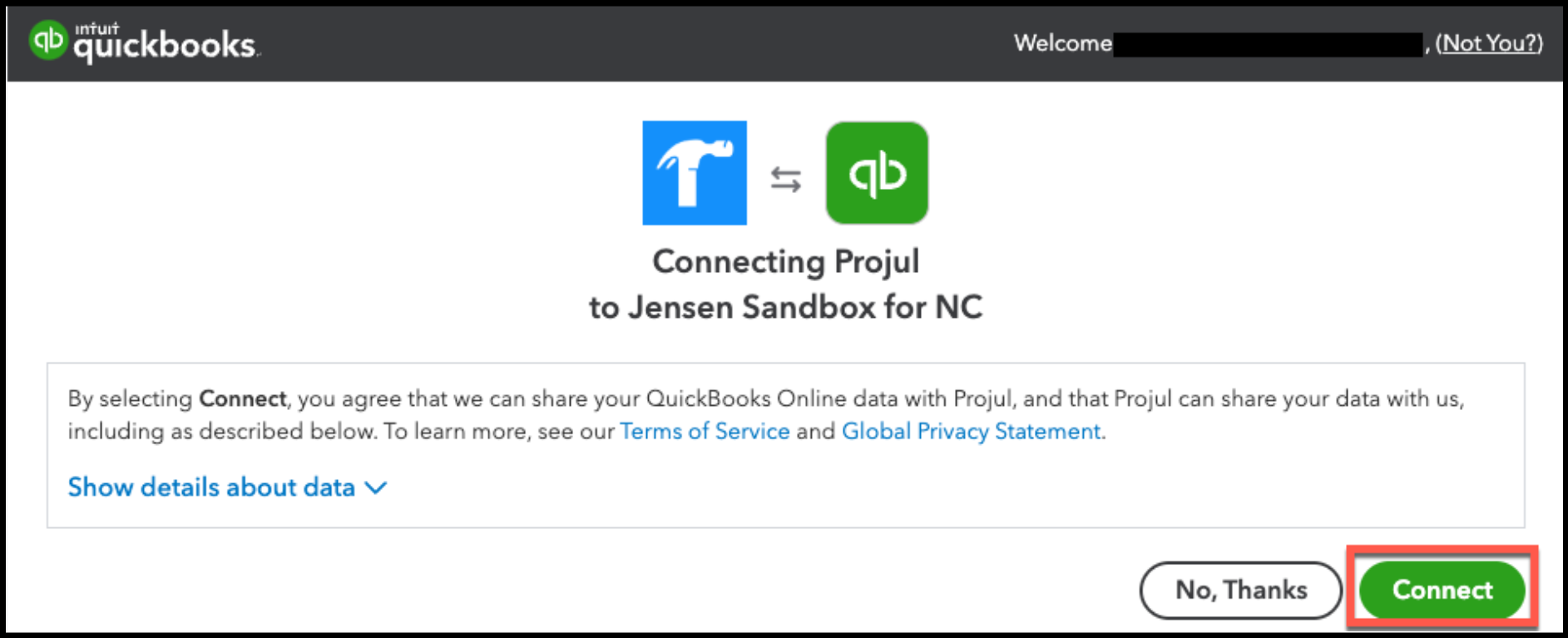
The QuickBooks Online company account has now been connected to Projul!
1.4 Disconnection
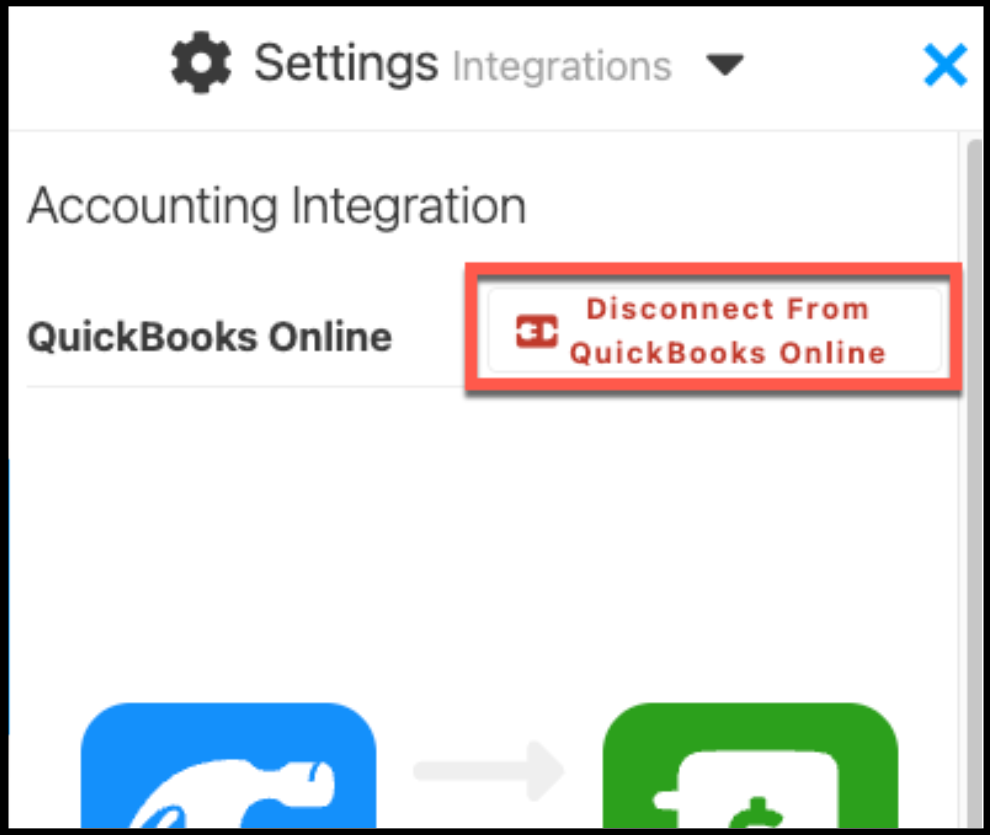
To disconnect Projul from QuickBooks, click the disconnect button in the Projul Integrations page.
2. Data Type Sync Selections
For QuickBooks Online, two-way data syncing is possible. The "QuickBooks Online Sync Settings" table on the Integrations page has two columns: "Sync from Projul to QuickBooks" and "Sync from QuickBooks to Projul." Only data types turned on in a column will sync in that direction.

The following data types may be synced between Projul and QuickBooks Online.
- Categories
- Costs
- Clients
- Employees
- Estimates (Projul to QuickBooks only)
- Invoices (Projul to QuickBooks only)
- Payments
- Projects
- Purchase Orders (Projul to QuickBooks only)
- Subcontractors
- Taxes
- Time Logs (Projul to QuickBooks only)
- Vendors
Note: QuickBooks requires clients to be synced from Projul in order to sync projects, estimates, invoices, or payments from Projul.
The Integrations page also includes the following settings.
- "Client Name Format When Syncing," "Vendor Name Format When Syncing," and "Subcontractor Name Format When Syncing": choose "Sync as firstname lastname" or "Sync as lastname, firstname."
- "Cost Default Income Account" and "Cost Default Expense Account": the QuickBooks accounts used for any cost that does not have its own income or expense account. See section 3.5.
- "Default Discount Account": the QuickBooks account used for estimate and invoice discounts.
- "Default Accounts Payable": the QuickBooks account used for purchase orders.
- "Name of default product/service for unnamed line items": the QuickBooks product/service used for line items that are not linked to a cost in your Projul cost library. The default is "Labor & Materials."
- "QuickBooks to Projul Data Syncing After Date" and "Projul to QuickBooks Data Syncing After Date": only data created or updated after these dates will sync.
2.1 Syncing Selections for Projul to QuickBooks Online
There are two ways to sync data from Projul to QuickBooks Online: automatic and manual.
2.1.1 Automatic Syncing
To turn on automatic syncing, go to the "Auto Sync" section of the Integrations page, turn on "Automatically sync," and click the "Save Integration" button. Projul will automatically sync with QuickBooks daily around midnight. Individual item sync can still be started manually during the day.
Note: Saving or closing an editor does not sync that record right away. Changes are picked up by the next daily sync, or you can sync the record manually as described below.
2.1.2 Manual Syncing
To sync a single record, such as an invoice, estimate, client, or cost:
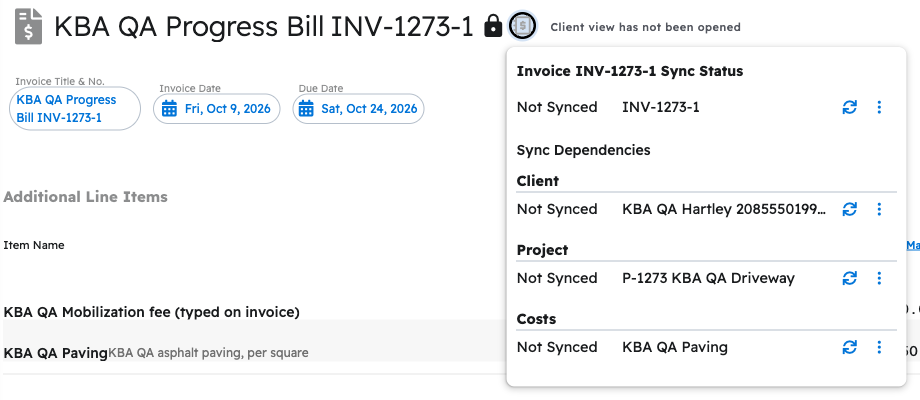
- Click the QuickBooks icon next to the record's name on its card or at the top of its editor. The icon is gray when the record is not synced and green when it is synced.
- The sync status window shows the record's status and its "Sync Dependencies," which are the other records that must sync first (for example, the client, project, and costs on an invoice).
- Click the menu (three dots) next to the record and select "Sync."
To sync all selected data at once, click the "Start A Sync" button at the bottom of the Integrations page. This button is not available while "Automatically sync" is turned on.
2.2 Syncing Selections for QuickBooks Online to Projul
Data types turned on in the "Sync from QuickBooks to Projul" column are brought into Projul during each sync. Records that are new or updated in QuickBooks after the "QuickBooks to Projul Data Syncing After Date" will be created or updated in Projul. This includes records that existed in QuickBooks before you connected Projul, as long as they fall after that date.
Note: Estimates, invoices, purchase orders, and time logs only sync from Projul to QuickBooks. They are not brought into Projul from QuickBooks.
2.3 Sync Icons
Records of the data types selected on the Integrations page display a QuickBooks icon. Click the icon to see the record's sync status. The status will show as "Synced," "Not Synced," "Queued," "Pending," "Syncing," "Scheduled," "Failed," "Conflict," or "Disabled." If a sync fails, the window shows the error.
Note: Once the system finishes syncing, the page may need to be refreshed to see the new status.
2.4 Pending Sync Items
To check the sync status of all of your data, go to Settings > Integrations and click the "Item Sync Statuses" button at the bottom of the QuickBooks Online section. To keep specific records from syncing, click the "Exclude Items from Syncing" button.
2.5 Additional Sync Options
When "Automatically sync" is turned on, the following options appear. They only affect automatic syncing. A manual sync is not limited by these options.
|
Sr. No. |
Setting |
Description |
|
1. |
Clients |
Auto sync clients only when an associated estimate, invoice, or payment is synced. |
|
2. |
Projects |
Auto sync projects only when an associated estimate, invoice, or payment is synced. |
|
3. |
Billing Address |
This drop-down setting has three options: |
|
4. |
Auto sync projects after they reach this status |
A drop-down setting with the lead pipeline statuses from New through Sold. A new project will not sync automatically until it reaches the selected status or a later one. |
|
5. |
Estimates |
Auto sync estimates only after they have been approved. With this setting turned on, estimates will not sync automatically until they are approved (or paid), either by the company or by the client. |
|
6. |
Invoices |
Auto sync invoices only after they are published. With this setting turned on, invoices will not sync automatically until they are published. |
3. Sync Details by Data Type
The rest of this article shows which Projul fields sync to which QuickBooks Online fields for each data type.
3.1 People
Projul has four types of people that sync with QuickBooks Online:
- Clients, which sync as QuickBooks customers
- Employees, which sync as QuickBooks employees
- Subcontractors, which sync as QuickBooks vendors marked as 1099 contractors
- Vendors, which sync as QuickBooks vendors
3.1.1 Clients
Projul client data syncs to QuickBooks Online customer fields as follows.
|
Sr. No. |
Projul Field |
QuickBooks Online Field |
|
1. |
First Name |
First name |
|
2. |
Last Name |
Last name |
|
3. |
Company Name |
Company name |
|
4. |
Name (using the "Client Name Format When Syncing" setting) |
Customer display name |
|
5. |
Email (up to three) |
|
|
6. |
Phone, Mobile, and Fax |
Phone, Mobile, and Fax |
|
7. |
Primary Address |
Billing address and Shipping address |
|
8. |
Notes |
Notes |
3.1.2 Employees
Projul employee data syncs to QuickBooks Online employee fields as follows.
|
Sr. No. |
Projul Field |
QuickBooks Online Field |
|
1. |
First Name |
First name |
|
2. |
Last Name |
Last name |
|
3. |
Phone and Mobile |
Phone and Mobile |
|
4. |
|
|
|
5. |
Home Address |
Address |
|
6. |
Hire Date |
Hire date |
|
7. |
Birthday |
Date of birth |
|
8. |
Pay Rate |
Billing rate |
3.2 Projects
Every project in Projul belongs to a client. In QuickBooks Online, each project syncs as a sub-customer of the client, so the client must be synced before the project can sync.
|
Sr. No. |
Projul Field |
QuickBooks Online Field |
|
1. |
Project Number and Project Name |
Sub-customer display name |
|
2. |
Client |
Parent customer |
|
3. |
Project Notes |
Notes |
|
4. |
Project Phone and Mobile |
Phone and Mobile |
|
5. |
Project Address |
Billing or shipping address, depending on the "Billing Address" setting in section 2.5 |
Note: Project type, start date, and completion date do not sync to QuickBooks Online.
3.3 Time Logs
Time logs sync from Projul to QuickBooks Online as time activities. Only approved time logs sync, and the employee must be synced first.
|
Sr. No. |
Projul Field |
QuickBooks Online Field |
|
1. |
Employee |
Employee |
|
2. |
Project |
Customer (marked billable) |
|
3. |
Notes |
Description |
|
4. |
Pay Rate (including any overtime multiplier) |
Hourly rate |
|
5. |
Date |
Date |
|
6. |
Duration |
Hours and minutes |
Note: Time logs do not include a QuickBooks product/service. The pay rate is sent when a time log syncs. Changing a pay rate later does not update time logs that have already synced unless those time logs are edited.
3.4 Categories
Projul has two types of cost categories: Labor and Materials. Other costs use the Materials categories. Each Projul category syncs to QuickBooks Online as a product/service category, and the costs in that category are placed under it (for example, "Paving:Asphalt Overlay").
Each type of Projul cost syncs as the following type of QuickBooks Online product/service.
|
Sr. No. |
Projul Cost Type |
QuickBooks Online Product/Service Type |
|
1. |
Labor |
Service |
|
2. |
Materials |
Non-inventory |
|
3. |
Other Costs |
Service |
Note: Categories in QuickBooks do not have income or expense accounts. The account is set on each cost, as described in section 3.5. Categories brought in from QuickBooks are added to Projul as Materials categories.
3.5 Costs
Each cost template in your Projul cost library syncs to QuickBooks Online as a product/service. If a product/service with the same name already exists in the same QuickBooks category, Projul links to it instead of creating a duplicate.
Choosing the Income and Expense Account
The income and expense account on each product/service decides where its sales and costs post in QuickBooks. For example, to have paving work post to a "Sales - Paving" income account, set that account on your paving costs.
- Open the cost template from your cost library.
- Select the account from the "Default Income Account" and "Default Expense Account" drop-down menus. These menus only appear when QuickBooks Online is connected.
- Click the "Save and close" button.
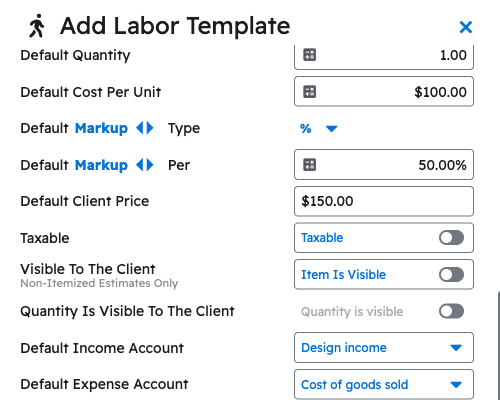
Costs without their own account use the "Cost Default Income Account" and "Cost Default Expense Account" settings on the Integrations page. To learn more, see How do I edit the default expense and income accounts that Projul syncs with QuickBooks?
3.5.1 Labor Costs
|
Sr. No. |
Projul Field |
QuickBooks Online Field |
|
1. |
Labor Name |
Name |
|
2. |
Labor Category |
Category |
|
3. |
Default Cost Per Unit |
Cost |
|
4. |
Default Client Price (per unit, including markup) |
Sales price/rate |
|
5. |
Taxable |
Taxable |
|
6. |
Default Description |
Description |
|
7. |
Default Income Account |
Income account |
|
8. |
Default Expense Account |
Expense account |
3.5.2 Material Costs
|
Sr. No. |
Projul Field |
QuickBooks Online Field |
|
1. |
Material Name |
Name |
|
2. |
Material Category |
Category |
|
3. |
Vendor |
Preferred vendor |
|
4. |
SKU |
SKU |
|
5. |
Default Cost Per Unit |
Cost |
|
6. |
Default Client Price (per unit, including markup) |
Sales price/rate |
|
7. |
Taxable |
Taxable |
|
8. |
Default Description |
Description |
|
9. |
Default Income Account |
Income account |
|
10. |
Default Expense Account |
Expense account |
3.5.3 Other Costs
|
Sr. No. |
Projul Field |
QuickBooks Online Field |
|
1. |
Cost Name |
Name |
|
2. |
Category |
Category |
|
3. |
SKU |
SKU |
|
4. |
Default Cost Per Unit |
Cost |
|
5. |
Default Client Price (per unit, including markup) |
Sales price/rate |
|
6. |
Taxable |
Taxable |
|
7. |
Default Description |
Description |
|
8. |
Default Income Account |
Income account |
|
9. |
Default Expense Account |
Expense account |
Note: Product images do not sync to QuickBooks Online.
3.6 Taxes
Tax rates are matched between Projul and QuickBooks Online by name.
|
Sr. No. |
Projul Field |
QuickBooks Online Field |
|
1. |
Tax Name |
Name |
|
2. |
Tax Percent |
Rate |
Note: When your account is set to control taxes using QuickBooks, the Taxes row on the Integrations page is grayed out and tax names and rates come from QuickBooks Online. Contact Projul support to change this setting.
3.7 Estimates
Estimates sync from Projul to QuickBooks Online. The client and project must be synced first, and any tax used on the estimate must be synced.
|
Sr. No. |
Projul Field |
QuickBooks Online Field |
|
1. |
Project (or Client, if there is no project) |
Customer |
|
2. |
Client Address |
Billing address |
|
3. |
Client Email |
|
|
4. |
Estimate Date |
Estimate date |
|
5. |
Expiration Date |
Expiration date |
|
6. |
Estimate Number |
Estimate no. |
|
7. |
Contract Details |
Message displayed on estimate |
|
8. |
Status (Approved, Rejected, or Pending) |
Status (Accepted, Rejected, or Pending) |
|
9. |
Tax |
Sales tax |
Line items sync the same way as invoice line items, described in section 3.8. To sync custom fields, see How do I add a custom field to an estimate and sync it to QuickBooks Online?
Note: Estimates always sync as itemized estimates. Attached photos and files do not sync.
3.8 Invoices
Invoices sync from Projul to QuickBooks Online. The client and project must be synced first, and any tax used on the invoice must be synced. Costs from your cost library that are not yet synced are created in QuickBooks when the invoice syncs. If the invoice's estimate is synced, the QuickBooks invoice is linked to it.
|
Sr. No. |
Projul Field |
QuickBooks Online Field |
|
1. |
Project (or Client, if there is no project) |
Customer |
|
2. |
Invoice Number |
Invoice no. |
|
3. |
Invoice Date |
Invoice date |
|
4. |
Due Date |
Due date |
|
5. |
Payment Terms (for example, Net 15) |
Terms |
|
6. |
Contract Details |
Message on invoice |
|
7. |
Invoice Contact Email (or the client's email) |
Billing email |
|
8. |
Tax |
Sales tax |
Note: The invoice title does not sync. QuickBooks uses the invoice number.
How Invoice Line Items Sync
Each line item on a Projul invoice becomes a line on the QuickBooks invoice.
- Product/Service: the cost from your cost library that the line item came from, shown under its category. Where the line posts in QuickBooks depends on that product/service's income account (see section 3.5).
- Line items that are not from your cost library use the default product/service named on the Integrations page ("Labor & Materials" unless you rename it), which uses the "Cost Default Income Account."
- Description: the line item description, or the line item name if there is no description.
- Quantity and Amount: the line item quantity and price. Markup is included in the amount and does not appear as a separate line.
- Sections do not appear on the QuickBooks invoice. Only the line items sync.
- Discounts sync as a discount line using the "Default Discount Account."
Non-itemized invoices also sync line by line. To learn more, see Why non-itemized invoices show cost lines in QuickBooks.
Note: Projul does not fill in the QuickBooks Sales Rep, Class, Location, or Tags fields, and attached photos and files do not sync.
3.9 Payments
Payments sync both ways. A payment synced from Projul is applied to its invoice in QuickBooks, so the invoice must be synced first.
|
Sr. No. |
Projul Field |
QuickBooks Online Field |
|
1. |
Project (or Client) |
Customer |
|
2. |
Payment Type |
Payment method |
|
3. |
Reference Number |
Reference no. |
|
4. |
Payment Amount |
Amount received |
|
5. |
Payment Date |
Payment date |
Note: Payments synced from Projul are deposited to the default QuickBooks deposit account (Payments to deposit or Undeposited Funds).
4. QuickBooks Online Additional Information
The following link to the Intuit QuickBooks Online Support webpage provides information on how to create / update the various data types that sync to Projul.
Questions? Let's Chat.
support@projul.com
(844) 776-5853