![Projul Logo 345PX wide.png]](https://knowledge.projul.com/hs-fs/hubfs/Projul%20Logo%20345PX%20wide.png?height=40&name=Projul%20Logo%20345PX%20wide.png)
Create a key for the employee under "Settings", "Projul AI Connect", then click "Send" to email them a one-time link to it.
Important: a key opens your whole company account.
A Projul AI Connect key does not follow the employee's own permissions in Projul. Anyone who has the key can see all of your company's data, the same as the account owner, including job profitability, project costs and payroll items.
- Choose "Read" unless the employee truly needs their AI to add or change things.
- Create one key per person, named after them, so you can turn off one key without affecting anyone else.
- Revoke the key as soon as the person leaves or no longer needs it. Keys do not expire on their own, and they keep working even if the admin who created them is removed.
Create the key
- Click your initials, then "Settings", and choose "Projul AI Connect" from the dropdown.
- Scroll to "API keys" and click "Create API key".
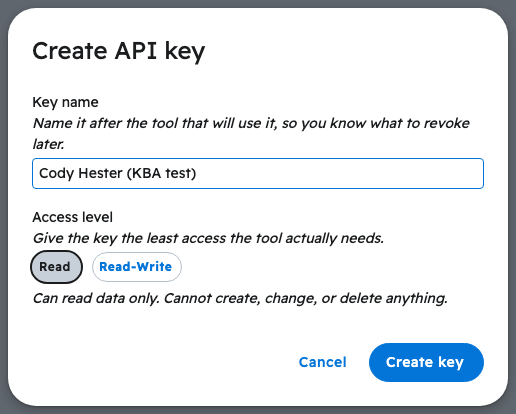
- Name the key after the employee and their AI tool, for example "Jake Miller - Claude". Choose "Read", then click "Create key".
- Enter your password and click "Confirm". If you are asked to accept the terms, accept them first.
Send it to the employee
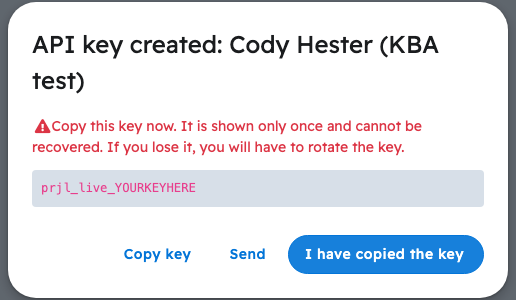
- In the "API key created" window, click "Send".
- Click "Create link". Type the employee's email address under "Email the link" and click "Email it". You can also click "Copy link" and send it to the employee in a direct message.
- Click "I have copied the key" to close the window.
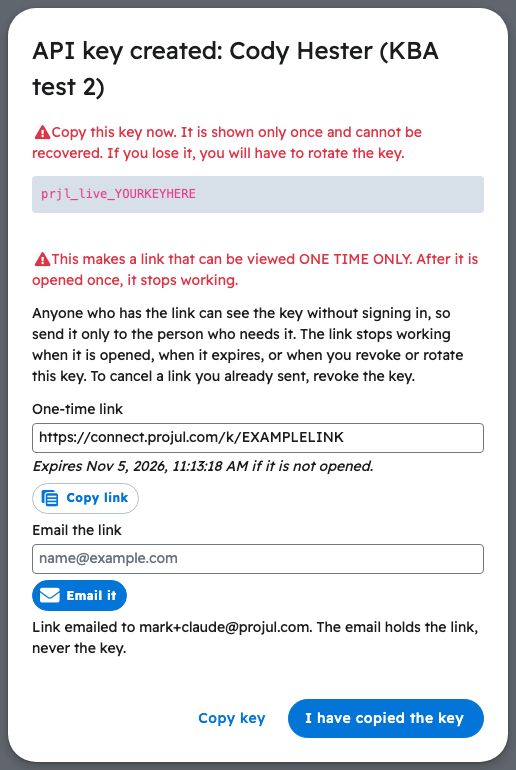
Note: The link works one time only and expires after 3 days if it is not opened. Send it only to the employee, never in a group chat or shared channel. The "Send" button appears only when a key is created or rotated, so if you closed the window first, click "Rotate" on that key to get a new one you can send.
What the employee does
- Open the link and click "Show key".
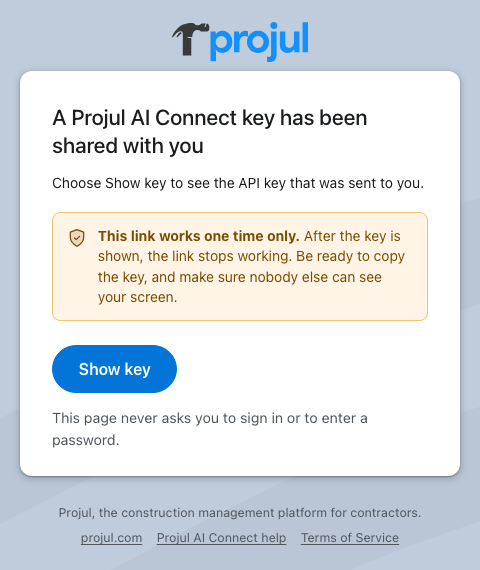
- Click "Copy key". The link stops working once the key is shown, so the key should be pasted into the AI tool right away.
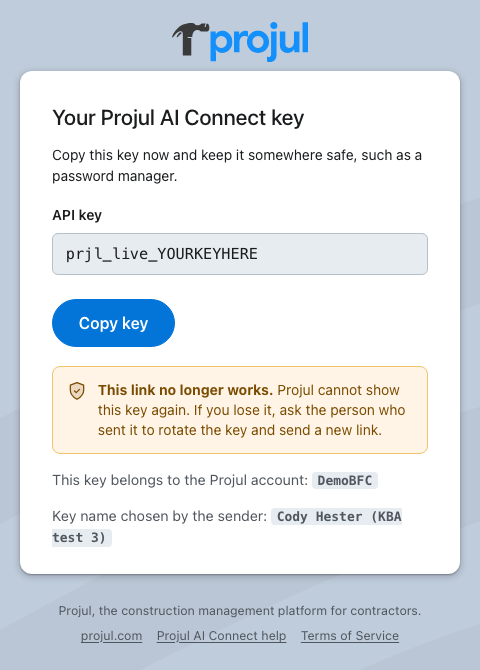
- Paste the key into the AI tool. See How do I connect Claude on the web to Projul? or How do I connect ChatGPT to Projul?
Rotating a key
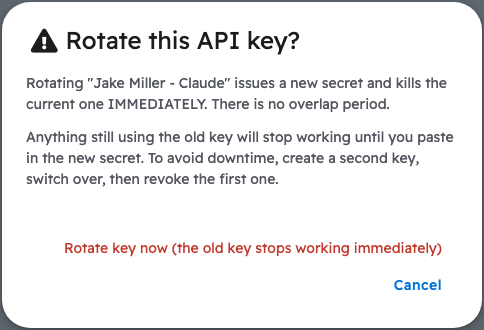
Rotate a key when it may have been seen by someone else, for example if it was posted in a group chat or the employee lost the device it was set up on. Rotating gives the same key a new secret, so its name and access level stay the same.
- Go to "Settings", "Projul AI Connect" and click "Rotate" on the key.
- Click "Rotate key now (the old key stops working immediately)".
- In the "API key rotated" window, click "Send" and send the new link to the employee the same way as above.
Note: The old key stops working right away, and any link to it that has not been opened stops working too. The employee's AI tool will not work until they paste in the new key. If the employee has left, revoke the key instead of rotating it.
When the employee leaves
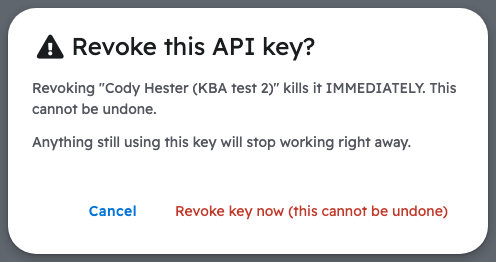
Go to "Settings", "Projul AI Connect", click "Revoke" on the employee's key, then click "Revoke key now (this cannot be undone)". The key stops working immediately on every device where it was set up.
Note: Not sure which access level to choose? See Should I give my AI a Read key or a Read-Write key? For more on protecting keys, see How do I keep my API key safe?
Questions? Let's Chat.
support@projul.com
(844) 776-5853