![Projul Logo 345PX wide.png]](https://knowledge.projul.com/hs-fs/hubfs/Projul%20Logo%20345PX%20wide.png?height=40&name=Projul%20Logo%20345PX%20wide.png)
Projul can keep a project's job costs and QuickBooks Online in step, in both directions. The costs you record in a project budget are added to QuickBooks as bills, and the bills and expenses your bookkeeper assigns to the project in QuickBooks are added to its budget.
Follow the written instructions below:
Before you start
Budget actuals sync uses the QuickBooks Online connection set up in your Projul settings. If you have not connected QuickBooks yet, see QuickBooks Online Integration & Settings Explanation first.
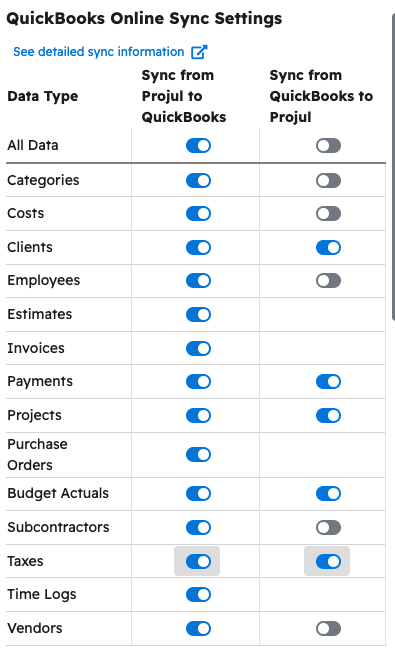
Each project syncs to QuickBooks as a sub-customer under its client, and each cost needs a vendor. For actuals to sync, turn on "Clients," "Projects" and "Vendors" in the "Sync from Projul to QuickBooks" column. Projul uses the "Cost Default Expense Account" from your QuickBooks settings for each line, unless the cost has its own QuickBooks expense account. See How do I edit the default expense and income accounts that Projul syncs with QuickBooks?
Turning on budget actuals sync
- Click your initials in the bottom left corner, then click "Settings."
- Open the section menu at the top of the Settings panel and select "Integrations."
- In the "QuickBooks Online Sync Settings" table, find the "Budget Actuals" row.
- Turn on "Sync from Projul to QuickBooks" to send the actuals you record, including purchase order receipts, to QuickBooks as bills.
- Turn on "Sync from QuickBooks to Projul" to bring in the bills and expenses assigned to a project.
- Click "Save Integration."
You can turn on either direction by itself. Most companies turn on both.
Recording a cost that syncs to QuickBooks
Record actuals in the project budget as you normally would. To open the budget, see How do I access the Project Budget/Job Costing page?
- Open the "Actual to date" dropdown on a budget line and click "Record actual." For a cost that is not on the estimate, click "Record expense" under "Additional Expenses."
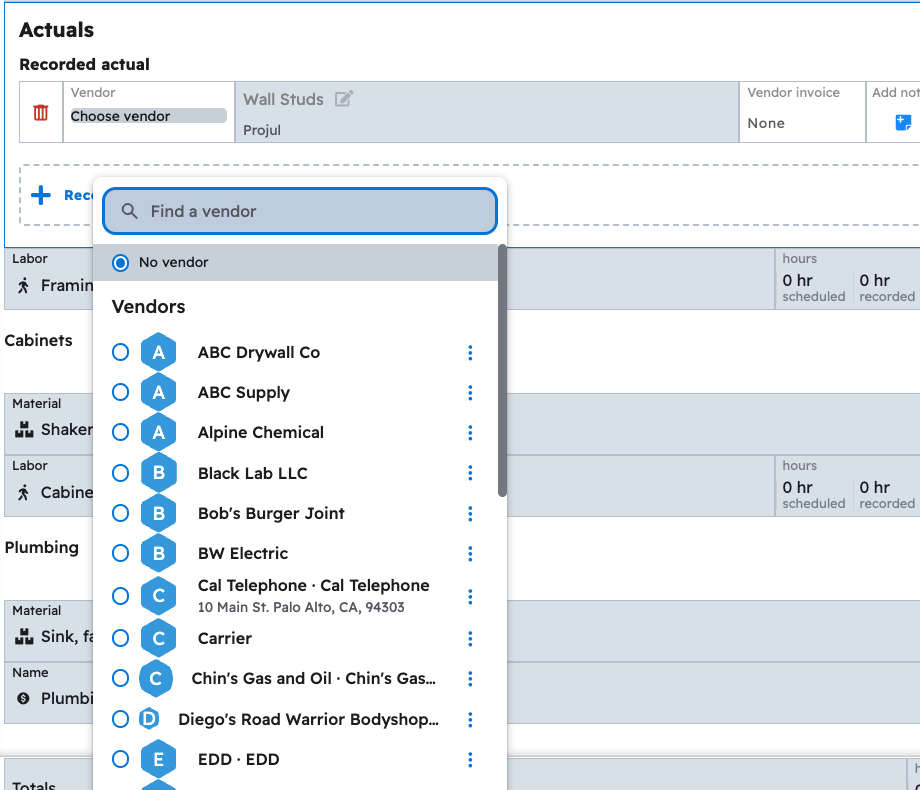
- Click "Choose vendor" and select the vendor you bought from. QuickBooks records each cost as a bill, and a bill needs a vendor.
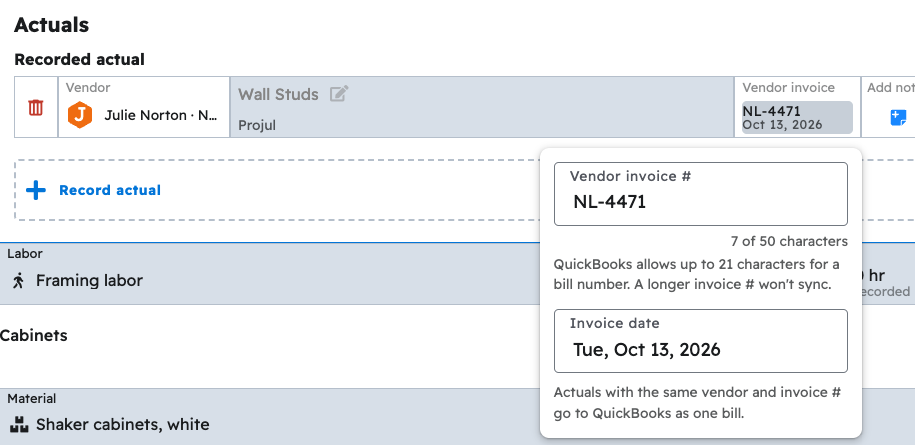
- Under "Vendor invoice," enter the vendor's invoice number and the invoice date.
- Enter the cost.
- Click "Sync with QuickBooks" at the top of the budget. Projul saves the budget first, then syncs it.
When the sync finishes, the QuickBooks icon on each actual turns green.

Budgets also sync during your regular automatic sync and when you click "Sync Now" in Settings, so the button is only needed when you want a cost in QuickBooks right away.
How your actuals appear in QuickBooks
- Actuals with the same vendor and the same vendor invoice number are added to QuickBooks as one bill, with one line for each actual. If an actual has no invoice number, Projul adds one bill per vendor for the budget each time it syncs.
- The bill number is the vendor invoice number, and the bill date is the invoice date.
- Every line is assigned to the project's sub-customer in the "Customer / Project" column and marked not billable, so your project reports in QuickBooks include the cost.
Note: QuickBooks allows up to 21 characters for a bill number. An actual with a longer invoice number will not sync until the number is shortened.
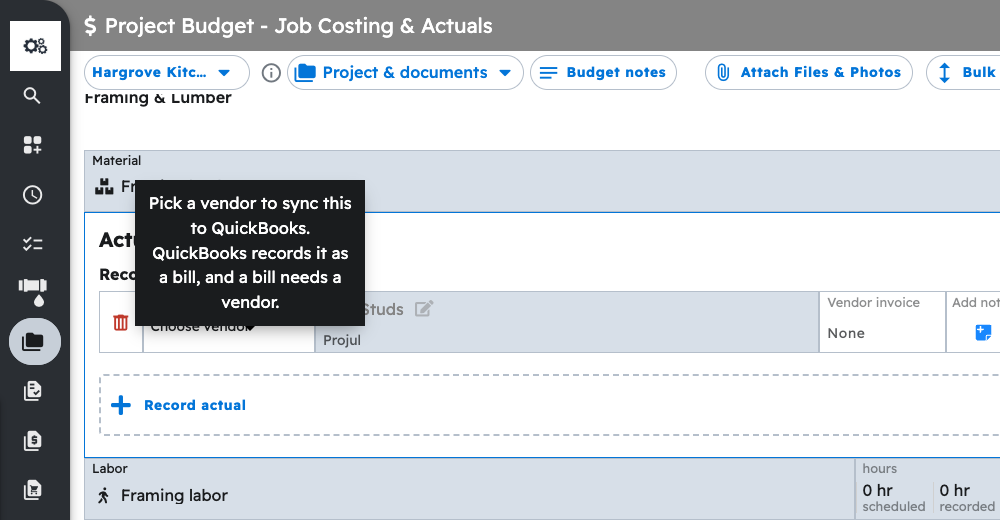
Note: An actual without a vendor waits in Projul. Its QuickBooks icon shows "Pick a vendor to sync this to QuickBooks." Choose a vendor and sync again.
Receiving a purchase order
Receiving items on a purchase order works the same way. See How do I receive items (record actuals) on a Purchase Order? for the full steps.
- Open the purchase order's three-dot (⋮) menu and choose "Record actuals."
- Set the "Received date" and enter the "Vendor invoice #."
- Leave "Sync to QuickBooks" checked. It is checked by default when budget actuals sync is turned on.
- Select the items you received and click the "Add" button (for example, "Add 3 actuals").
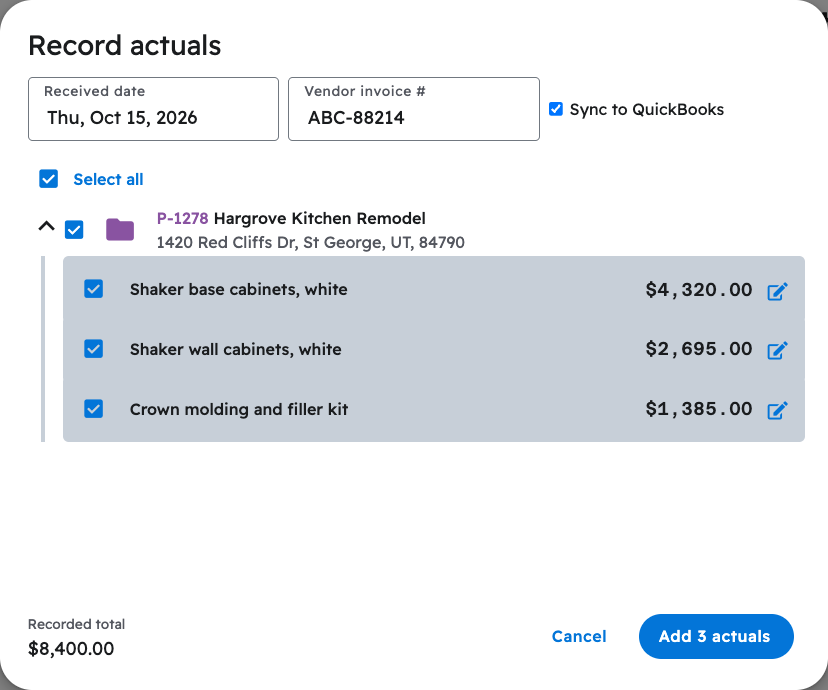
Projul adds a bill in QuickBooks for what you received and links each bill line to its line on the QuickBooks purchase order. Once the purchase order is fully billed, QuickBooks closes it for you.
Note: The purchase order itself must already be synced to QuickBooks. A purchase order receipt is sent to QuickBooks once, when you record it. If you change it later, make the same change to the bill in QuickBooks.
Bills and expenses entered in QuickBooks
When your bookkeeper enters a bill or an expense (including checks and credit card charges) in QuickBooks and assigns a line to the project's sub-customer in the "Customer / Project" column, that line is added to the project's budget on the next sync.
- It appears under "Additional Expenses," marked "QuickBooks." If the line uses a QuickBooks product or service that matches exactly one cost line on the project's approved estimate, it is added to that line instead.
- A chip shows whether the bill is "Unpaid," "Partially paid" or "Paid" in QuickBooks. Expenses, checks and credit card charges show as "Paid."
- "Expected" is unchecked on costs that come from QuickBooks, so they reduce the project's projected profit. Check "Expected" if the cost was part of your plan for the job.
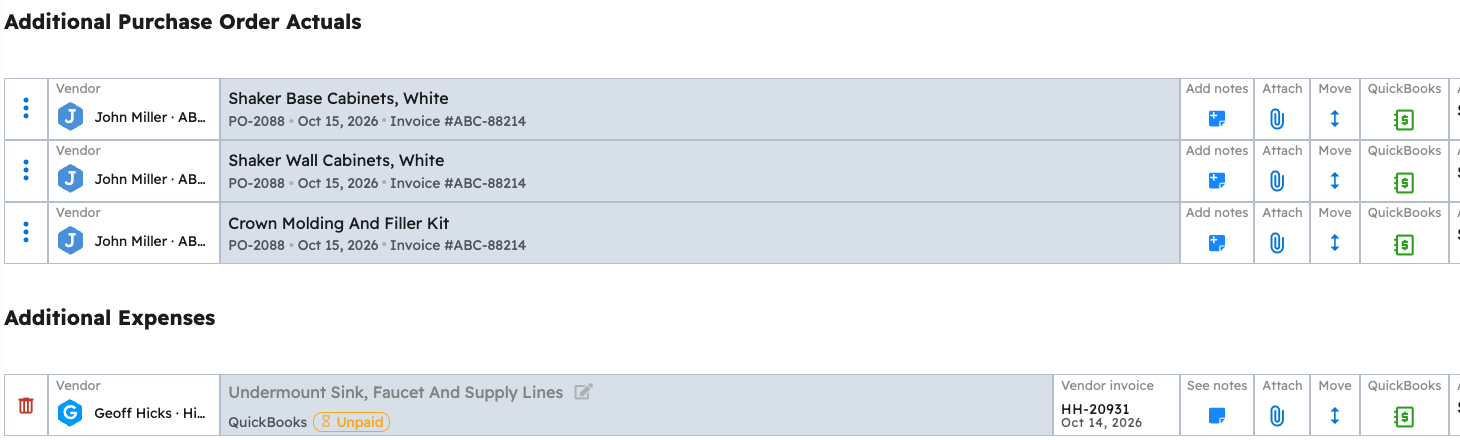
Projul brings in bills and expenses created or changed after the "QuickBooks to Projul Data Syncing After Date" in your QuickBooks settings. If no date is set, it looks back one year. Bills that Projul added to QuickBooks are not brought in a second time.
Changes and deletions
- If you change or delete a synced actual in Projul, the bill in QuickBooks is updated on the next sync. A bill with no lines left is deleted.
- If a cost is changed on both sides, the most recent change is kept.
- If a bill or expense line is deleted in QuickBooks, the matching cost is removed from the budget on the next sync.
- Once a bill has a payment applied in QuickBooks, its amount, vendor and vendor invoice can only be changed in QuickBooks. If you delete that cost in Projul, the bill stays in QuickBooks; change or delete it there if it should go.
Reviewing possible duplicates
If a bill or expense in QuickBooks looks like a cost already in the budget, Projul holds it for review instead of counting it twice. A line is held when it is for the same project and the same vendor as a cost in the budget and has the same invoice number. When either one has no invoice number, a line is held when the amount is the same and the dates are within three days of each other.
- Click "Possible duplicates" at the top of the budget. The number shows how many lines are waiting.
- Compare the QuickBooks line on the left with the matching costs in the budget on the right.
- Click "Same cost" if it is the cost you already recorded, or "Different cost, add it" if it is a separate cost.
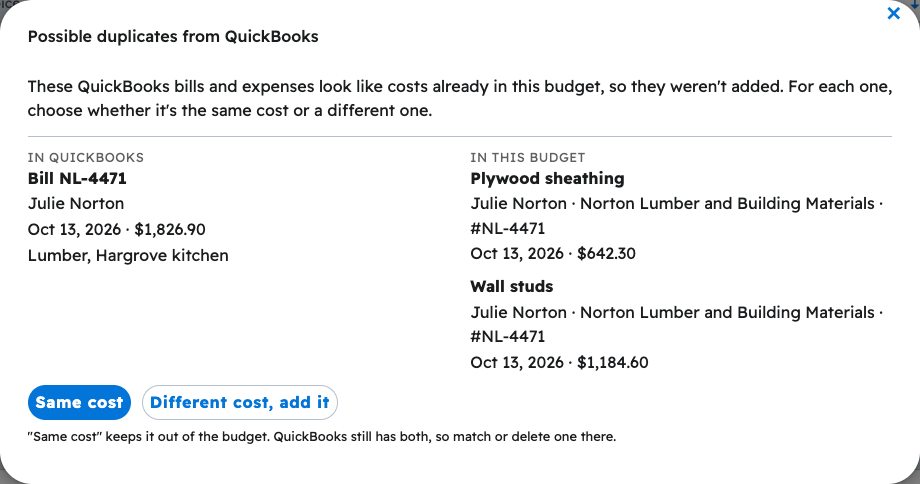
"Same cost" keeps the line out of the budget. If both copies are already in QuickBooks, QuickBooks still has both, so match or delete one there. "Different cost, add it" adds the line to the budget as its own cost.
Note: Lines waiting for review across all projects are also listed on the "Item Sync Statuses" page in your QuickBooks sync details, with a "Review" button.
Related articles:
- QuickBooks Online Integration & Settings Explanation
- How do I access the Project Budget/Job Costing page?
- How do I receive items (record actuals) on a Purchase Order?
- How do Purchase Orders sync to QuickBooks Online?
- How do I edit the default expense and income accounts that Projul syncs with QuickBooks?
Questions? Let's Chat.
support@projul.com
(844) 776-5853