![Projul Logo 345PX wide.png]](https://knowledge.projul.com/hs-fs/hubfs/Projul%20Logo%20345PX%20wide.png?height=40&name=Projul%20Logo%20345PX%20wide.png)
Projul AI Connect lets an AI assistant work inside your Projul account. Turn it on in "Settings" under "Projul AI Connect" by creating an API key, then paste it into your AI tool.
This article lists what a home builder can have their AI do, with a prompt example and a how-to link for each.
Contents
Leads and clients
Your AI can add a lead and its client together, set the lot address as the job-site address, set likelihood of sale, and move the lead through the pipeline, including sold or lost.
Add a lead for [client name] at [lot address]. Set likelihood of sale to [percent] and assign [name] as estimator.
See Handling home-building leads and follow-ups.
Estimates and change orders
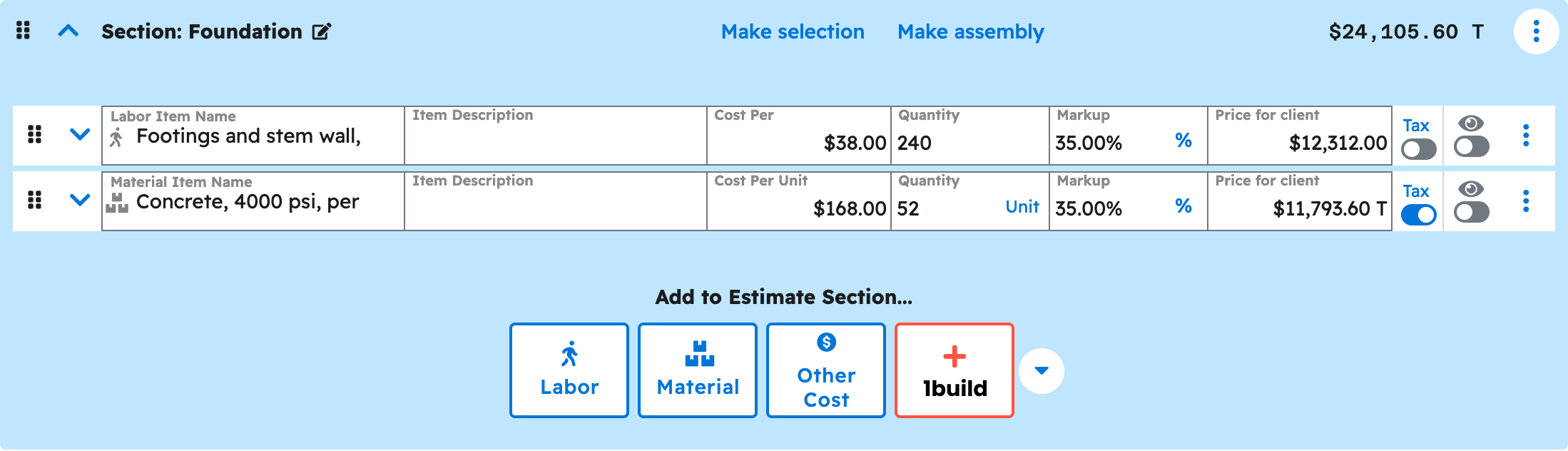
Your AI can build a house estimate from a template, add sections such as foundation or framing with their line items, and add a selection section such as a cabinet package at three levels. It can add a change order when scope changes.
Build an estimate for [project name] using the [template name] template. Add a selection section for cabinets with three package levels: [details].
See Building a home-building estimate and adding a change order.
Scheduling and crews
Your AI can create a task for each trade window, such as framing or trim, assign a team to it, add a checklist, and set up a repeating task such as a weekly site walk.
Create a framing task on [project name] from [start date] to [end date] and assign the [team name] team.
See Scheduling home-building crews and jobs.
Photos and files
Your AI can attach a photo or document to a project, task or draft estimate, and get a download link for a file already in Projul.
Attach [file name] to the [project name] project and note that it is the truss engineering package.
See Uploading a job-site photo or document.
Messages and call logs
Your AI can log a call, text or site visit on a project, client, task or estimate, with the direction and outcome.
Log a call with [client name] on [project name]: outbound, reached them, discussed [topic].
See Logging a call, text or site visit.
Templates
Your AI can save a finished estimate as a template for the next house on the same plan, build reusable section templates, and add items to your cost-item library.
Save the [project name] estimate as a new estimate template called [template name].
See Building a home-building estimate.
What your AI cannot do yet
- Invoices and payments.
- Publishing or sending an estimate. Your AI leaves it as a Draft; a person publishes and sends it.
- Purchase orders.
- Time tracking.
- Daily logs.
- QuickBooks sync.
Note: Full list: Which Projul features are not available to my AI yet.
Where to start
- Create your API key.
- Pick an the "Connect your AI" section.
- Check that it is connected.
- Build an estimate for a house.
- Run your leads through the pipeline.
- Lay out the trade schedule.
- Keep the prompts you use most.
Questions? Let's Chat.
support@projul.com
(844) 776-5853