![Projul Logo 345PX wide.png]](https://knowledge.projul.com/hs-fs/hubfs/Projul%20Logo%20345PX%20wide.png?height=40&name=Projul%20Logo%20345PX%20wide.png)
Projul AI Connect lets your AI work inside your fence company's Projul account. Turn it on by creating an API key under "Settings" > "Projul AI Connect" and pasting it into your AI.
Contents
Leads and clients
Your AI can add a lead with the client, job-site address, likelihood of sale and estimator, and move it through your pipeline.
Add a new lead for [client name] at [job address]. It's a [fence type, e.g. 6 ft cedar privacy fence], likelihood of sale [percentage], assigned to [estimator].
See How do I have my AI handle fencing leads and follow-ups?.
Estimates and change orders
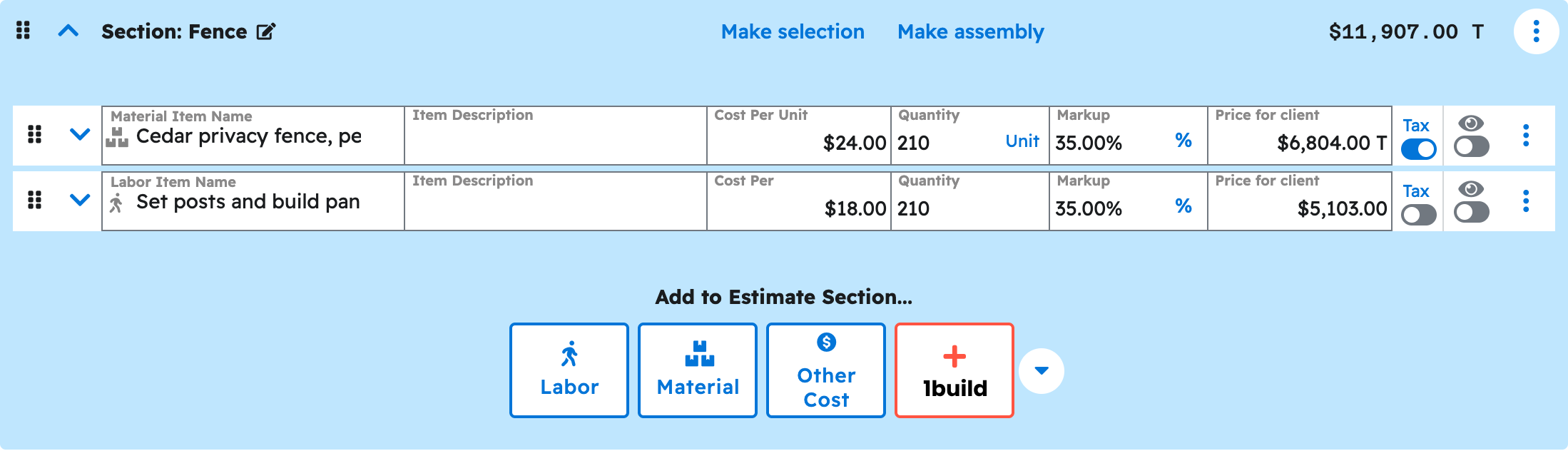
Your AI can build an estimate with sections such as layout, fence build and gates, with quantity, unit, cost and markup per line. It can add a change order for extra footage or a dropped run.
Build an estimate for [client name] at [address]: [X] linear feet of [fence type and height], [Y] gates. Use my [template name] template.
See How do I have my AI build a fencing estimate?.
Scheduling and crews
Your AI can create a task for each phase, such as dig day, build day and gate day, with a date, start and end time, and the crew assigned. A multi-day build is one task with a different window per day.
Create a task for [crew name] to build the fence at [job address] on [date], [start time] to [end time].
See How do I have my AI schedule fencing crews and jobs?.
Photos and files
Your AI can attach a photo or document to a job, task or estimate, list what is attached, and give you a download link. Uploading a brand new file depends on the AI tool.
List the files attached to the [job address] project, and attach [file name] with the label [label].
See How do I have my AI upload a job site photo or document?.
Messages and call logs
Your AI can log a call, text or site visit on a project, client, task or estimate.
Log a call with [client name] on [project address]: [what was discussed].
See How do I have my AI log a call, text or site visit on a job?.
Templates
Your AI can build and reuse estimate, section and line-item templates for a fence type you price often.
Save this estimate as a template named [template name].
See How do I build and reuse estimate, section and line item templates with my AI?.
What your AI cannot do yet
Your AI cannot create or send invoices, take payments, touch time tracking, or write purchase orders, daily logs or QuickBooks entries. It builds an estimate as a Draft; publishing and sending are done in Projul.
Note: See the full current list and the record-by-record breakdown.
Where to start
- Get your API key
- the "Connect your AI" section
- Check the connection
- Build a fencing estimate
- Add a lead
- Schedule the crew
- Copy-paste prompts for fencing
Questions? Let's Chat.
support@projul.com
(844) 776-5853