![Projul Logo 345PX wide.png]](https://knowledge.projul.com/hs-fs/hubfs/Projul%20Logo%20345PX%20wide.png?height=40&name=Projul%20Logo%20345PX%20wide.png)
Projul AI Connect lets your AI work inside your Projul account for window and door replacement jobs. Turn it on under "Settings" > "Projul AI Connect" by creating an API key and pasting it into your AI.
Contents
Leads and clients
Your AI can add a client and lead, set the address and likelihood of sale, move it through your pipeline, and assign a rep or estimator.
Add a lead for [client name] at [address] for [12 double-hungs and a patio slider]. Set likelihood to [medium] and assign [rep name].
See Leads and follow-ups.
Estimates and change orders
Your AI can build an estimate with a line per opening (size, style, frame, glass), plus lines for labor, capping and disposal, each marked labor, material or other, with a tax rate applied. It can add a change order for scope such as a rotten sill. Both are created as Drafts for a person to send.
Build an estimate on [project name] for [8 double-hung windows, 36x60, vinyl] and [1 fiberglass entry door], with separate labor, capping and disposal lines, and apply [tax rate].
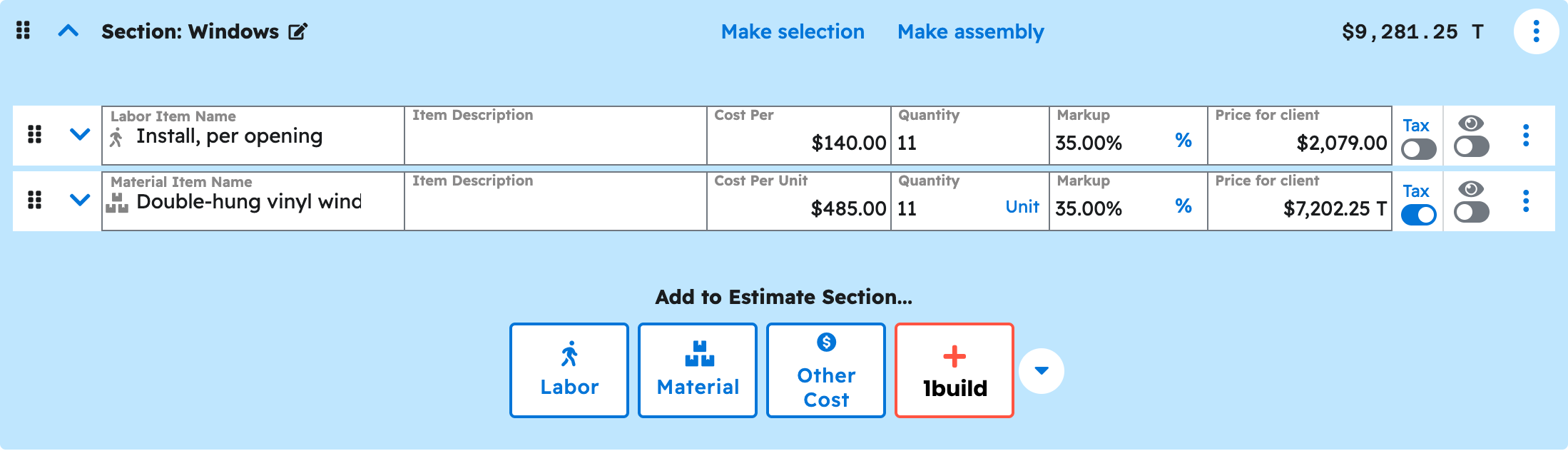
See Build a window and door estimate.
Scheduling and crews
Your AI can create the tasks a job needs (measure, order, delivery, install, walkthrough), put a multi-day window on an install, assign a crew, add a checklist, and move tasks when dates change.
Create install tasks for [project name]: a 2-day install starting [date] for [crew name], then a punch-list task 3 days later for [PM name].
Photos and files
Your AI can find photos and documents already in a project and attach them to a task or an estimate line, such as a rotted-sill photo on the repair line. Uploading a new photo depends on the AI tool used.
Attach the photos in [project name] tagged [south elevation] to the [capping] line on the current estimate.
See the "Photos & Files" section.
Messages and call logs
Your AI can log a call, text or site visit on a lead, client, task or estimate, with the method and direction. It cannot send a message to a client.
Log an outbound call on [client name] today: left a voicemail about the delivery date moving to [date].
See the "Messages" section.
Templates
Your AI can build an estimate from a saved template, such as a standard double-hung replacement, and adjust counts and sizes for the job.
Create an estimate on [project name] from the [Standard double-hung] template, set the opening count to [10], and add [1 sliding patio door].
See Create an estimate from a template.
What your AI cannot do yet
Invoices and payments. Time tracking, timesheets and payroll. Purchase orders. Daily logs. QuickBooks sync. Publishing or sending a Draft estimate or change order. Full list: Which Projul features are not available to my AI yet?.
Where to start
To put this to work on your next job, follow these steps.
- Get your API key.
- the "Connect your AI" section.
- Check that it is connected.
- Quote one job.
- Run your next call through it.
- Lay out an install week.
- Keep prompts you like.
Questions? Let's Chat.
support@projul.com
(844) 776-5853